Sales channels
Sales Channels lets authorized users review business and integration information, connection status, and available actions. A displayed channel or connection state does not by itself confirm that a channel is connected, synchronized, or approved by its provider.
Do not use a business, provider account, credential, token, catalog, menu, order, callback, or external link unless the change is authorized. Connect, Install, Setup, enable, disable, disconnect, push, sync, and provider-navigation controls can create records or downstream effects.
Available channels
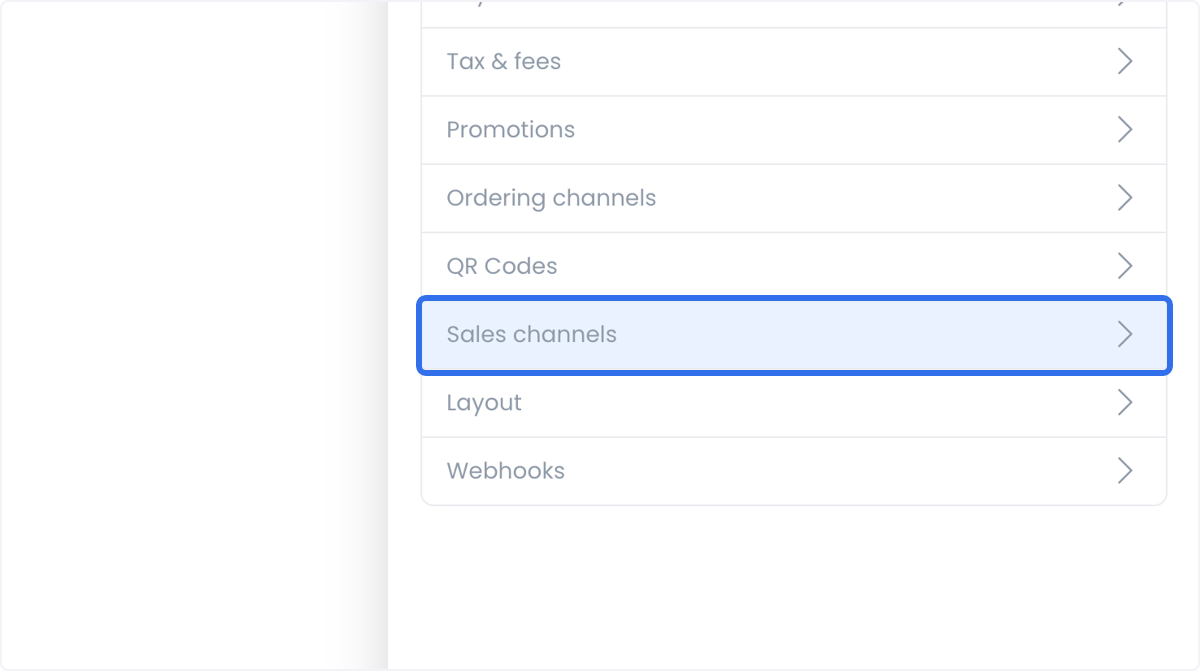
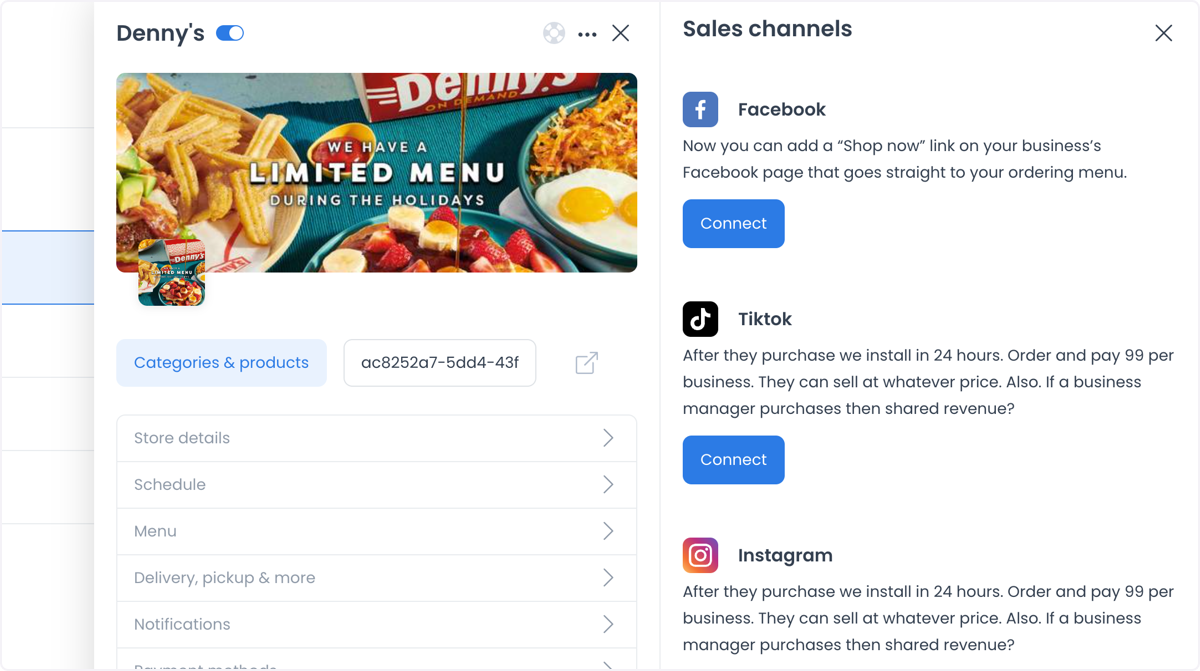
The interface can list Facebook, TikTok, Instagram, and Google My Business as sales-channel options. For Facebook, a connection can add a "Shop now"-style link on the business's page that points to its ordering menu; the other listed channels use a comparable connection flow through this screen. The screenshots below illustrate the channel list and a channel's Connect action; they do not confirm that a channel is available, connected, or provider-approved for a particular project.
Availability and navigation
The route is /connect/sales-channels. It may be available to level-0 administrators when the Sales Channels flag or a related route condition is present.
The sidebar also depends on the Connect parent, project conditions, and the Dashboard Connect flag or a related condition. It can exclude read-only administrators, read-only delivery managers, read-only or view-only business owners, and levels excluded by the Connect parent. The Sales Channels item has its own flag-or-condition requirement. Route access, parent visibility, item visibility, and available integrations can differ.
Business list and authenticated reads

The business list can use active-state filtering and search by business name, email, and phone. Selecting a business opens its details and can retrieve:
- the business record, including its attached third-party integration relationships;
- the project integration catalogue, filtered client-side to
sales_channeldefinitions; - the selected integration's plugin metadata and setup state when returned.
Business identity, contact fields, provider relationships, external identifiers, plugin metadata, and setup state are private operational data. Treat a read as an operational request; do not assume it is risk-free solely because of its HTTP verb.
How connection states are shown
Business details compare each sales-channel definition with the business's third_party_integrations relationships. Labels and controls then depend on the available fields:
| Connection state | What you may see |
|---|---|
| No plugin is associated | An install path can appear when a plugin is available, or a missing-plugin error can appear instead. |
| Plugin exists but the business has no relationship | Connect can appear; selecting it can create a persistent relationship with an enabled state. |
| Business relationship exists | Setup, integration details, enabled state, external-ID input, action selection, or disconnect controls can appear depending on available plugin metadata. |
| Contact-us policy applies | The regular install/connect control is replaced by a contact-us control. |
A definition, logo, button label, or relationship record is not proof of provider authentication, external account health, menu or order flow, or a completed outcome.
Connect can begin with an enabled relationship without an External ID. In an existing sales-channel mapping, External ID can be editable, and Save or an enabled-state change can include it. An External ID may be blank; when accepted, it may require 1–255 characters and uniqueness within that third-party integration. Confirm exact validation and persistence before relying on a saved value.
Persistent and outbound effect surfaces
The business-detail workspace can also include the business enabled switch, Delete, and Custom fields. A visible Sync now label alone does not confirm that a sync was started.
For a selected business and integration, the interface can support these action classes:
- create or update the business-integration relationship, including enabled state and an optional external identifier;
- delete the business-integration relationship;
- invoke an allowed integration action such as business sync, menu sync, or menu push;
- install a system plugin or open plugin-provided setup/settings destinations when metadata permits it.
These actions can validate relationship data, create or modify a record, invoke plugin work, or handle deletion. Treat them as effect boundaries; do not assume that an action, response, or visible state confirms the provider result.
An existing mapping panel can display integration logs for the selected business and plugin. General settings and Setup can open a plugin-provided destination that includes project, session-access, or language values and may carry credentials. Do not open, copy, capture, or share those destinations or log data outside the approved workflow.
Fail-closed interpretation
- Connect is a persistent relationship request, not merely informational guidance.
- Disconnect is a deletion request; it is not a harmless local toggle.
- Push menu, Sync menu, and Sync business can invoke plugin-backed work; a client toast is not completion evidence.
- Install and Setup can cross plugin or external boundaries and require an approved account and authorization.
- A failed, timed-out, or ambiguous response does not establish that no downstream effect occurred.
Confirm outcomes after an authorized change
- Channel and plugin availability can vary by project and provider.
- Confirm a connection, installation, setup, push, sync, callback, or deletion through the applicable provider and Dashboard workflow.
- Verify provider authentication, catalogue or menu synchronization, order ingestion, and external publication before relying on them.
- If a request fails, times out, or is ambiguous, do not retry until the provider-specific process confirms the state and next safe action.
Related guides: Delivery services · Gift card manager