POS & Menu Sync overview
Use POS & Menu Sync to find the store list and POS-integration controls. Plugin installation, mapping, setup, disconnect, logs, and sync actions each have their own access and operational boundaries.
POS & Menu Sync may be available to Dashboard administrators when its feature flag or a related route condition is enabled. The parent Connect group, item visibility, route access, integration data, plugin state, and API authorization can each have separate requirements.
Open POS & Menu Sync
- In the Dashboard sidebar, select Connect.
- Select POS & Menu Sync.
- Use the active-state control, Search, or pagination to find the intended store.
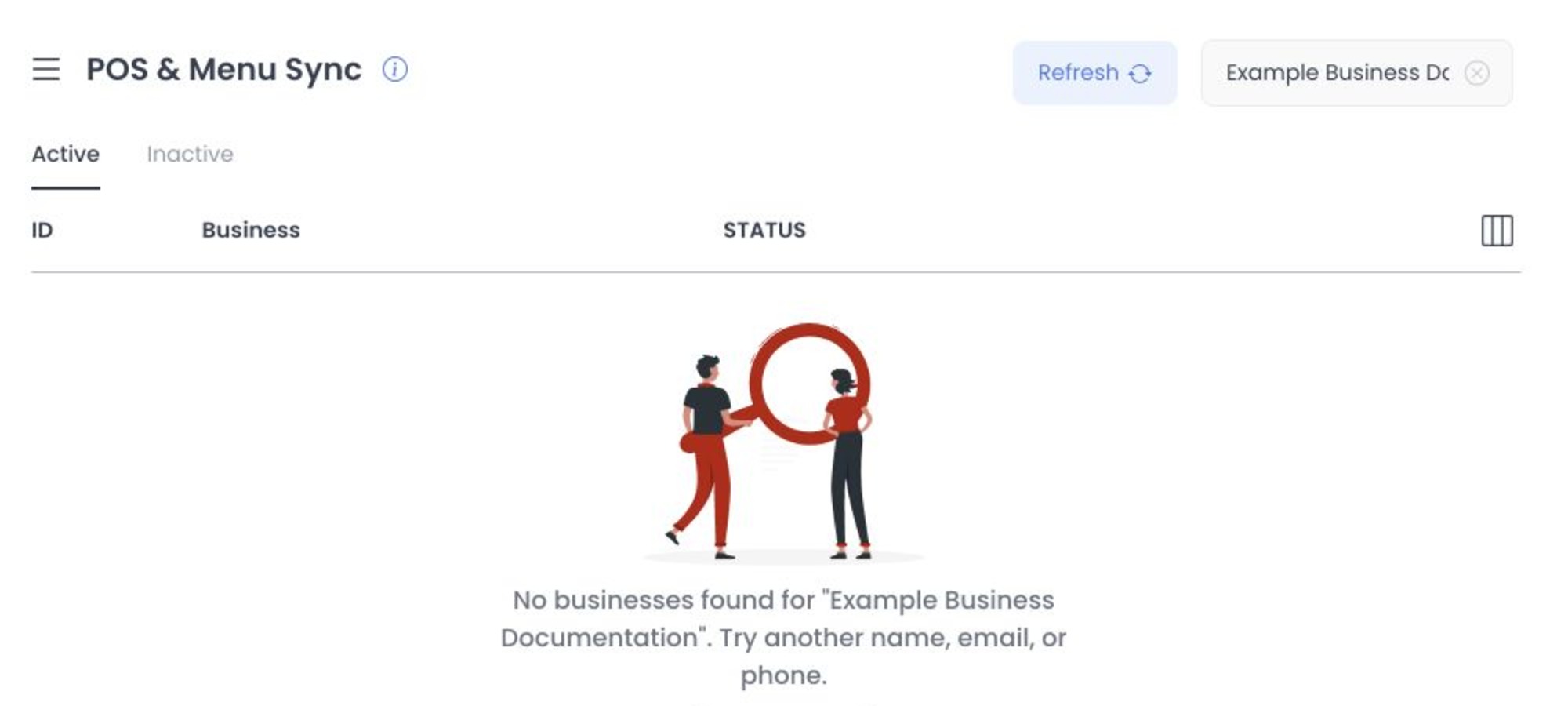
Selecting a business opens its details and can add its ID to the URL. Search, filtering, pagination, refresh, and a direct ID can retrieve business or integration data; treat these as operational reads and do not assume a request is risk-free. URL state alone does not confirm that a store record was retrieved.
Review available integrations
The page lists POS integration options, with provider names, logos, plugin or setup state, and controls depending on your project and available integration data. Confirm provider support for your project before starting a connection.
An integration can have no plugin, an installable plugin, an existing business mapping, or optional setup status. Each path can cross an independent API, plugin, or provider boundary.
Understand the store mapping
An available POS mapping can open an integration panel with:
- External ID — displayed from mapping data but potentially unavailable for editing in the POS panel.
- Enabled — a separate mapping setting.
- Setup status — shown when available.
- Logs and plugin-defined links — separate authenticated or embedded surfaces.
For an unmapped integration with a plugin ID, Connect can create an enabled business/integration mapping. In an existing POS mapping, External ID can be displayed without being editable. The enabled switch, Disconnect, plugin install or setup, and log controls remain write, provider, or sensitive-data boundaries.
The store-detail workspace can also include the business enabled switch, Custom fields, and Delete. A visible Sync now label alone does not confirm that a sync was started.
Plan for one POS relationship per business. If an External ID is accepted, it may need to be 1–255 characters and unique within the third-party integration. Connect can start with an enabled mapping, and later saves can include the displayed External ID and enabled state. Disconnecting can affect the relationship and related sync identity, while integration actions can have additional provider effects. Confirm the exact configuration requirements and result through the approved operational workflow.
Connecting, changing enabled state, disconnecting, and installing a plugin can change configuration or provider state. Use them only when authorized, and confirm uniqueness, validation, state transition, and recovery through the relevant operational workflow.
Sync actions
For a connected provider, the panel can offer:
- Sync business
- Sync menu
Both choices can send a request for the selected business/integration mapping. A loading state or response message does not by itself confirm a callback, job, provider completion, menu change, rollback, or reconciliation.
Treat either control as a possible outbound or job effect boundary. The control and its response message are not proof of provider processing or the final menu state.
Protect setup links and credentials
Some plugins can open setup or general-settings content in an iframe. Those URLs can carry credential-bearing values and cross an external-origin boundary.
Do not copy provider setup URLs, External IDs, credentials, tokens, or account information into screenshots, recordings, browser-history exports, tickets, chat, or shared documentation. Use your approved secret-management and support process.
Troubleshooting
Why is POS & Menu Sync missing?
Availability can depend on administrator access, the route feature condition, the parent Connect group, and the item itself. Ask a project administrator to confirm the applicable access and configuration.
Why can't I connect a provider?
An integration can be blocked by a missing plugin, contact-us mode, plugin installation, an absent mapping, or an API or provider response. External ID can be shown without being editable in the POS panel, so use the approved provider-specific setup process when a change is needed.
Why did Sync menu show success but the menu is unchanged?
A success message can indicate that the request returned without an error. Confirm the provider result and target menu before relying on the change or taking another action.
Related guides: Configure POS & Menu Sync · Importers · Stores overview
Related procedures
Ordering.co POS integration pages: Oracle Simphony · Clover · Square · Deliverect · ItsaCheckmate · Stream · LimeTray · Wansoft
POS connection scope notes
These notes help prepare a project-specific review; they are not self-service setup procedures:
- Toast connection scope
- Checkmate connection coordination
- LimeTray connection review
- StreamOrders connection planning
- Wansoft by Clip connection review
- Oracle Simphony connection scope
- Clover connection scope
The Square order-processing guide covers Square-specific operational details. Each note links back to its Ordering.co integration overview. Confirm project-specific scope and requirements with the Ordering.co team; documentation links do not confirm a configured connection or a completed sync.
Ordering.co's public partner overview labels Toast POS Already integrated, and its Toast comparison says Ordering.co integrates with Toast. The POS catalog still labels Toast Coming soon. These statements do not define product, location, workflow, or project scope. Review the Toast connection scope note and ask Ordering.co to confirm a specific project's status before planning a connection.