Configure POS & Menu Sync
This guide explains the POS integration flow and its operational boundaries. Connections, plugins, provider setup, credentials, syncs, disconnects, and business or menu changes require the appropriate authorization and provider-specific procedure.
Connect, plugin install/setup, enabled-state update, disconnect, logs, and sync controls can affect configuration, credentials, providers, or jobs. Use them only when you are authorized to make the change.
Before you start
- Confirm that Connect → POS & Menu Sync is available to your Dashboard administrator account.
- Use a separately approved non-production target for a controlled change; do not make unplanned changes in a production store.
- Treat provider identity, mapping values, setup links, credentials, logs, business/menu data, and response bodies as sensitive.
- Treat plugin installation, initial mapping, setup content, and an existing mapping as separate steps.
- Before an operational change, have provider instructions and a recovery plan ready.
Connect or update an integration
- Open Connect → POS & Menu Sync.
- Select the intended store.
- Select the available POS integration.
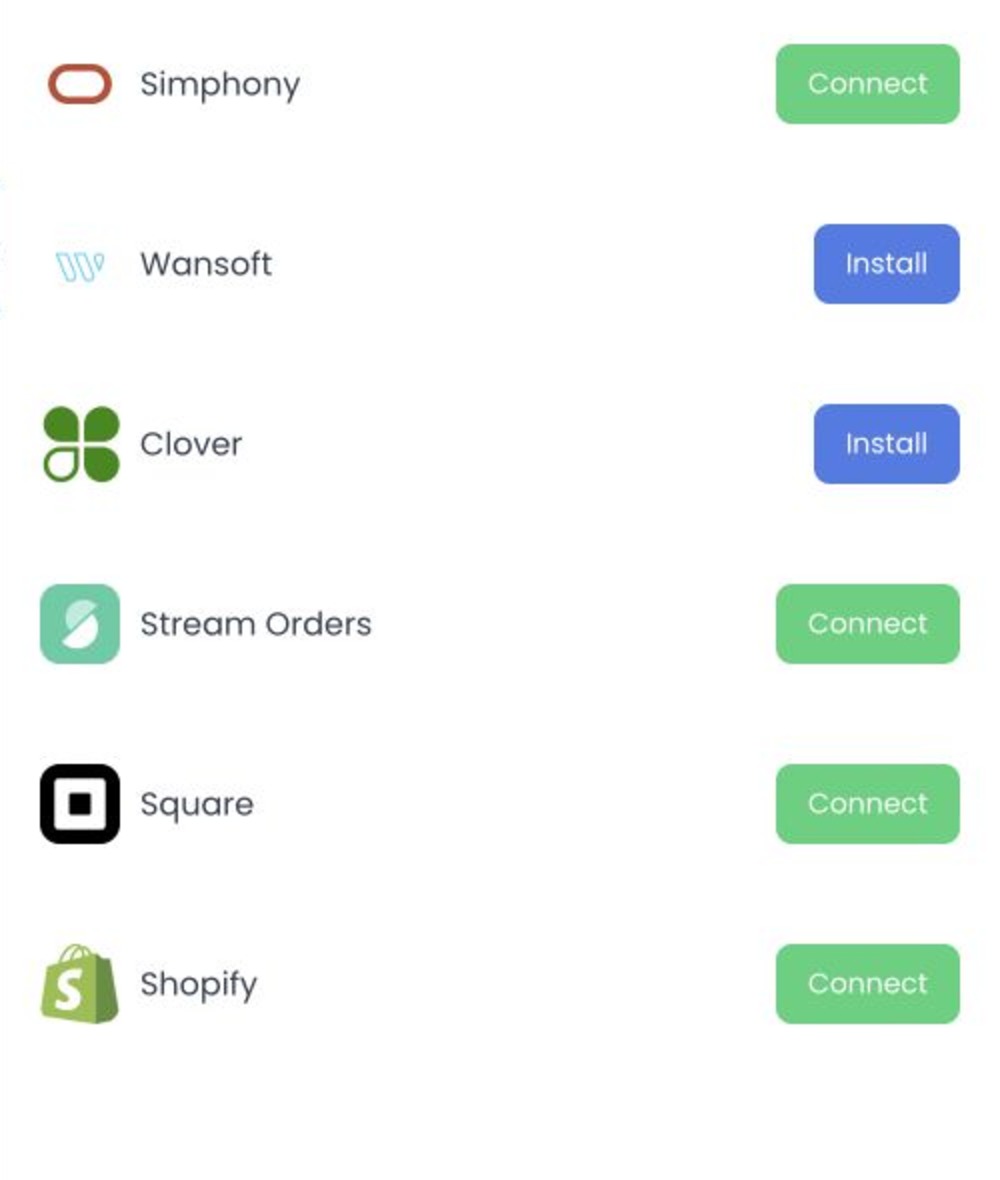
- Treat Install, Connect, Setup, and contact-us states as different paths.
- For an existing mapping, review External ID, Enabled, Setup status, plugin links, and Logs before selecting an action.
Connect can create an enabled mapping when a plugin is selected. In the POS integration panel, External ID can be displayed but unavailable for editing. A visible mapping or enabled state does not by itself confirm provider readiness, uniqueness, or accepted configuration.
The store-detail workspace can also include the business enabled switch, Custom fields, and Delete. A visible Sync now label alone does not confirm that a sync was started.
Plan for one POS relationship per business. If an External ID is accepted, it may need to be 1–255 characters and unique within the third-party integration. Connecting can start with an enabled mapping, and later saves can include the displayed External ID and enabled state. Disconnecting can affect the relationship and related sync identity, while integration actions can have additional provider effects. Confirm the exact configuration requirements and result through the approved operational workflow.
Provider setup URLs can contain credential-bearing project or session values. Do not open, copy, capture, share, or paste them into tickets, chat, recordings, or documentation. Do not expose provider credentials, mapping identifiers, or logs.
Dispatch a business or menu sync
- When available for an opened mapping, choose Sync business or Sync menu.
- Confirm the intended action and mapping.
- Select Save only when authorized to send the request.
A response message only reports the client-side result. It does not by itself confirm a provider job, menu result, completion, rollback, or reconciliation.
Do not diagnose or retry with a live provider. Preserve any separately authorised error receipt and use the provider-specific operational process.
Disconnect an integration
Disconnect is intended to remove the selected business/integration mapping and can affect related sync state. It can also have dependent workflow effects, so use the provider procedure and recovery path, then confirm the outcome before taking another action.
Troubleshooting
Why does the provider need installation first?
An integration can have a missing plugin, an installable plugin, a contact-us path, or a plugin ID. Follow the provider-specific setup instructions for the path you see.
Why can't I edit the External ID here?
External ID can be shown but unavailable for editing in POS & Menu Sync. Use the approved provider-specific setup path; do not infer edit support from a displayed value.
Why did the sync request fail?
A failed request can involve business authorization, mapping, integration or plugin configuration, and endpoint conditions. A client response alone does not diagnose or guarantee external-provider processing.
Sync a Square POS menu
This section describes the store-side setup flow for connecting a Square menu, independent of the write/effect boundaries above.
- On the Dashboard's left-hand menu, click Connect, then select POS & Menu Sync.
- Locate the store to connect and click Connect POS next to it.
- In the side panel that appears, scroll to Square, click Setup, then select Connect with Square.
- Log in to Square and click Allow to grant the requested permissions.
- Back in the Dashboard side panel, confirm Sync menu is selected and click Save. A "Menu synced" confirmation indicates the sync request completed.
- To verify the result, go to Stores, open the store, and check the Categories & products tab for the synced Square categories and items.
Why sync a POS menu
- High-volume kitchens — automatic syncing keeps the online menu aligned with what the kitchen can actually fulfill, rather than requiring manual updates for out-of-stock items.
- Multi-location operations — syncing each store to its own Square account keeps pricing and availability accurate per location without manual reconciliation.
- Frequently changing menus — for menus that rotate often, updating Square once removes the need to also update the online menu separately.
- Mixed food and retail catalogs — syncing keeps online inventory and pricing consistent with in-store retail items sold alongside food.
Best practices before syncing
- Clean up the Square menu first: remove outdated items, organize categories, and fix typos, since the sync pulls exactly what is in Square.
- Use naming and descriptions that make sense to an online customer, not just internal shorthand.
- Configure item variations (sizes, add-ons, temperature, and similar options) as Square modifiers so they translate correctly to the Ordering.co menu.
- After syncing, periodically check the Categories & products tab in the Dashboard to confirm the menu still looks correct to customers.
Related guides: POS & Menu Sync overview · Import a menu and resolve errors · Stores overview
Ordering.co integration: Square POS