Configure a delivery service
Use Delivery Services in Connect to enter the approved provider configuration for a delivery service already available in your project. This process separates provider credentials, environment selection, dispatch settings, provider acceptance, and operational delivery outcomes. Saving a configuration does not prove that a provider is connected, that an order was sent, or that a delivery occurred.
Credential, environment, dispatch, auto-rejection, timeout, business, payment-method, schedule, and delivery-zone settings can affect operational behavior. Use only values approved for the intended provider account and project.
Before you begin
Confirm all of the following before changing a delivery-service panel:
- The intended provider is already available in Connect > Delivery Services.
- You have authorization to configure that provider for this project.
- The provider account owner has supplied the correct credentials for the intended environment.
- You understand whether the change is for an approved test workflow or an approved live workflow.
- You have a way to verify provider acceptance and order outcomes outside the configuration panel.
Do not use another provider's account data, an active customer order, or a copied secret to determine which field is required.
Open the provider configuration
- In the Dashboard sidebar, select Connect.
- Select Delivery Services.
- Find the provider that you are authorized to configure.
- Select the provider to open its configuration panel.
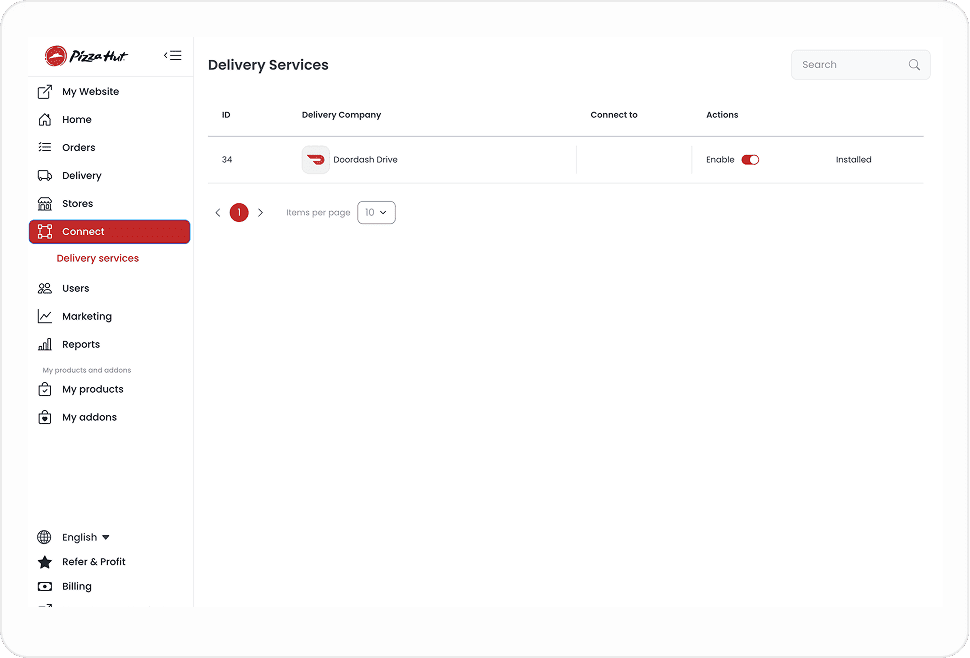
The available list is project-specific. A provider shown in the list is not, by itself, proof of an installed, approved, or connected account.
Enter provider credentials
The panel can request provider-specific fields such as Developer ID, Key ID, Sign In Secret, and test-environment credentials. Field names and required values vary by provider.
- Obtain the required values from the approved provider account.
- Confirm whether the panel is set to the intended test or live environment.
- Enter each value only in its matching field.
- Review the provider and environment once more before saving.
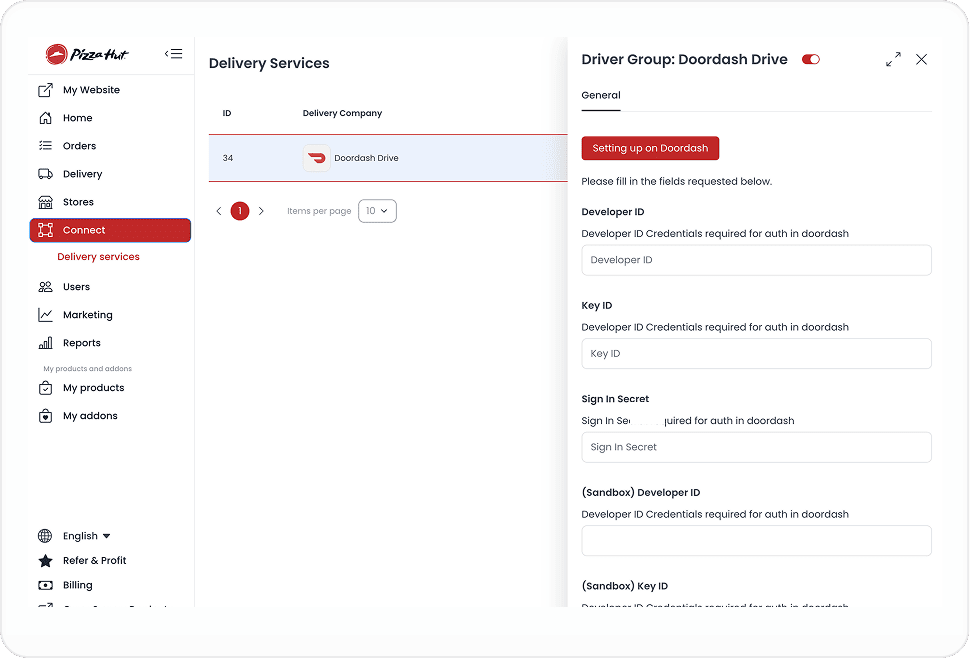
Do not copy secrets, keys, sign-in values, or provider setup URLs into documentation, tickets, chat, screenshots, or recordings. Entering a credential configures a field; it does not verify the credential, complete provider onboarding, or activate the service.
Some panels also show a Setting up on [Provider] action that opens provider guidance. Treat that guidance as account-setup information, not as proof of provider acceptance or a completed connection. Opening external guidance can contact a third-party service.
Configure dispatch behavior
Provider panels can offer additional delivery settings, including:
- The order event that can trigger a handoff to the delivery provider, such as when a business accepts an order.
- Auto-rejection behavior for orders that remain unassigned.
- Timeout values that define how long the configured workflow waits.
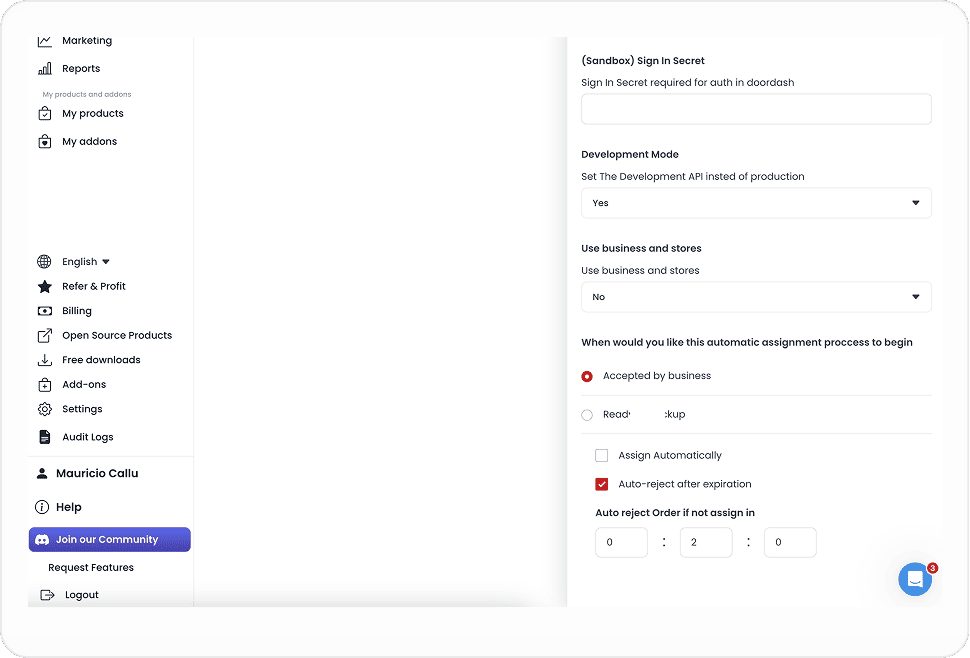
These settings describe the intended handling of an eligible order. They do not prove menu synchronization, order synchronization, a provider quote, provider acceptance, dispatch, tracking, payment, notification delivery, physical delivery, or customer receipt.
Save and verify the configuration
- Review the provider, environment, non-secret field labels, and selected delivery settings.
- Save only when the intended change has been approved.
- Reopen the same provider panel and confirm the non-secret configuration shown to your account.
- Use the approved provider and order-operation records to verify the next required state separately.
The confirmation in the Dashboard establishes only that the configuration was saved or displayed. Provider acceptance, connection testing, and every transaction outcome require their own evidence.
Troubleshooting
Why is the provider missing from Delivery Services?
The delivery-service inventory is specific to your project and access. Confirm the intended provider and project with an administrator rather than adding or changing a different provider for comparison.
Why are some settings unavailable?
Available fields can depend on the provider configuration, the selected environment, the linked delivery group, and your access. Do not infer provider readiness from a partially visible panel.
Does choosing a dispatch event send an order immediately?
No. The setting defines when an eligible future order can be handed off in the configured workflow. It does not create an order, obtain a quote, dispatch a Driver, or prove that an external provider will accept a delivery.
Does a saved configuration mean the provider is ready?
No. It does not prove provider onboarding, credential validity, provider acceptance, menu or order synchronization, tracking, payment, notification, physical delivery, or customer receipt. Verify the relevant outcome through the approved provider and operational processes.
Related guides: Delivery services overview · Connect overview · Delivery companies · Delivery overview