Manage a Builder website and its domains
Open Catalog → Builder, select the website, and open General. The page shows the website’s name, status, and Domains. An existing site in My products may need migration to Builder.
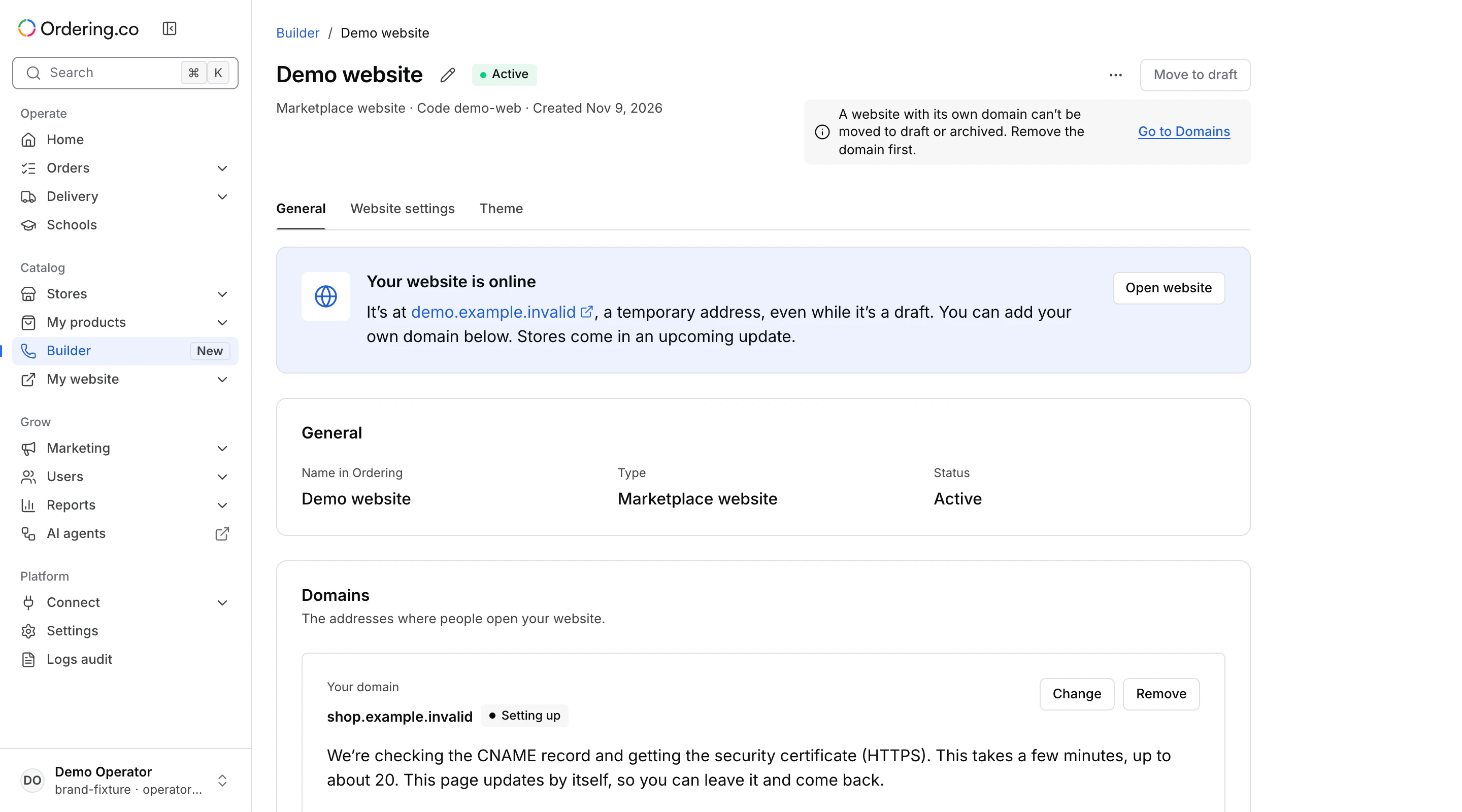
Open the temporary address
Use Open website or the temporary address shown in Domains. The temporary address can serve the site even when the product is a draft. It remains available after you connect a custom domain.
Connect or change a custom domain
- In Domains, choose the option to use your own domain. Enter a subdomain such as
shop.example.com. - Create the CNAME record shown by the Dashboard in your DNS provider. Use the exact name and target displayed for your site.
- After the record takes effect, return to Builder and select Save domain. Check the status.
| Status | What to check |
|---|---|
| Setting up | The Dashboard is checking the DNS record and setting up HTTPS. Use the temporary address while the custom address is pending. |
| Active | Open the custom address and verify the intended website over HTTPS. Keep the CNAME record in place. |
| Not working | Check the DNS record and use Verify again when it is correct. The temporary address remains available. |
Before changing domains, set up the new record. The previous custom address stops serving this website when the change is saved. Removing the custom domain also stops that address immediately. The website remains available at its temporary address.
Review the product status
Use Activate, Move to draft, or Archive when available. A website with a configured custom domain cannot move to draft or be archived until you remove that domain. Archiving labels the product as archived and leaves the site online at the temporary address. Verify which addresses serve the site before using a status change as part of a site transition.
See Website settings and the Theme editor to configure what the site shows.