Choose what your Builder website opens on
A Builder website can open straight on your menu, or on a home page that presents your business first and sends customers to order from there. The choice is called Website experience, and it is a website setting: it applies whichever theme is active.
Open Catalog → Builder, select the website, and choose Website settings. Scroll to Website experience.
Pick the experience
| Option | What customers see first |
|---|---|
| Online Ordering Only | The website opens on your menu, ready to order. |
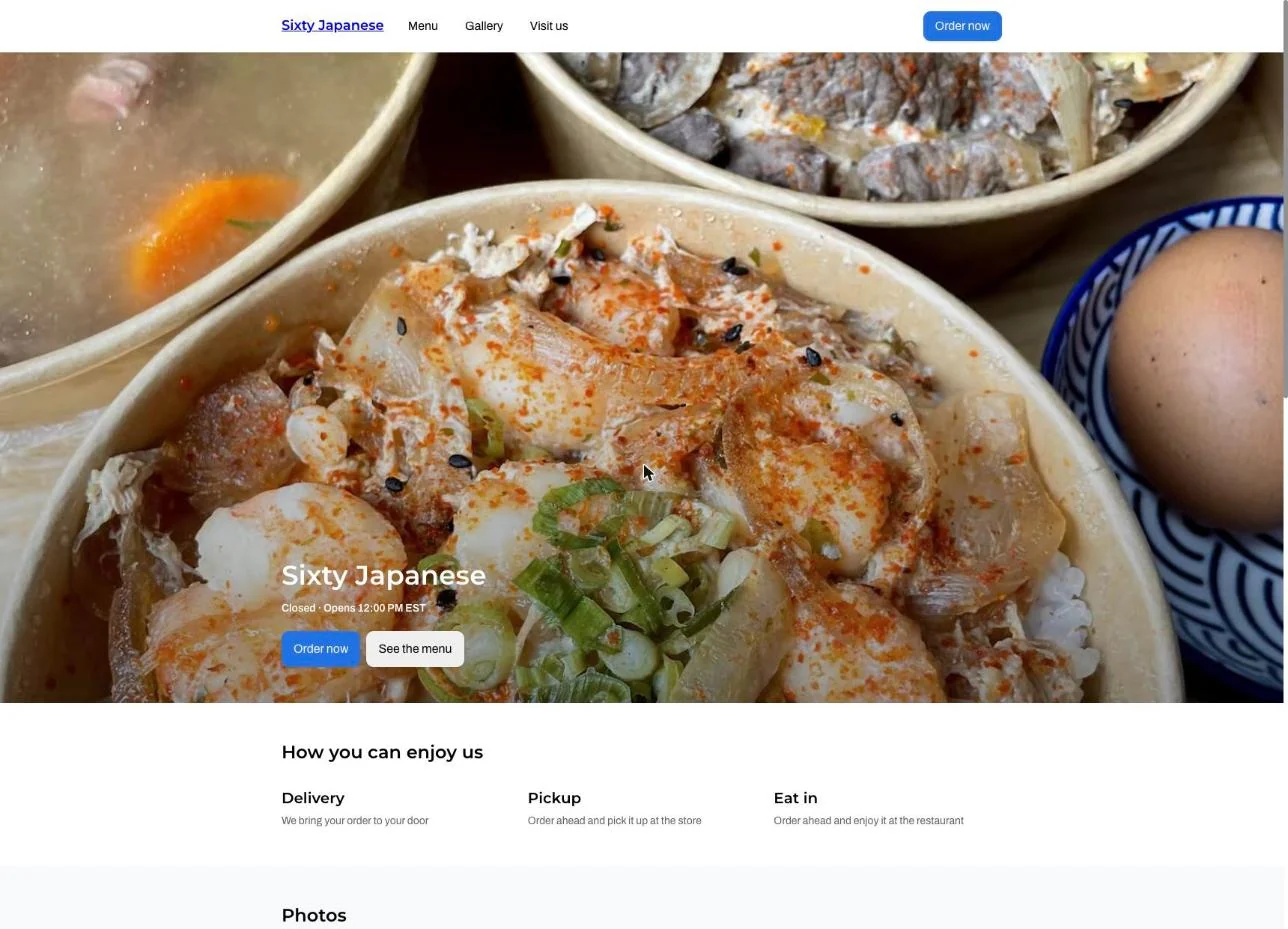
| Full Website + Online Ordering (Recommended) | A home page about your restaurant, built from your store's information. Ordering moves to /order. |
New websites start on Full Website + Online Ordering. An existing website keeps opening as it does today until you change this setting. Select Save to apply your choice.
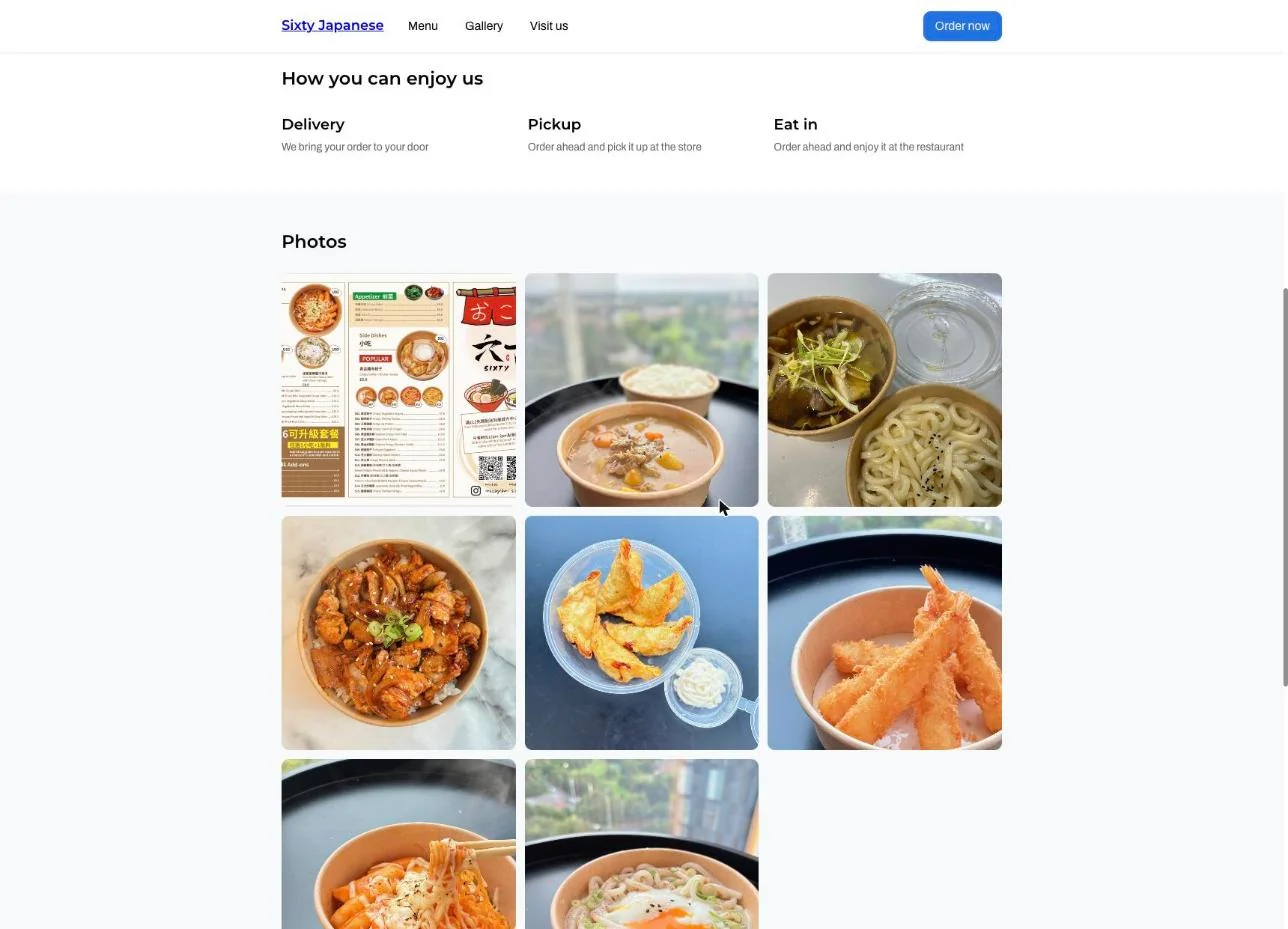
You do not write the home page from scratch. It is built from the information already in your store: cover image, featured dishes, story, gallery, reviews, opening hours with a map, and the app. A section with nothing to show is left out, so an incomplete store does not produce empty blocks.
How it works for each website type
The home page adapts to the Website type you chose in the same tab.
| Website type | What the home page shows |
|---|---|
| One store | The content of that store. |
| Franchise | The content of a main store, plus an Our locations section with the franchise's stores. |
| Marketplace | A showcase with search, categories and featured stores. |
The menu moves to /order.
The home page is generated on the server. It includes structured data for search engines and a preview image and title when someone shares the link.
Arrange the home page sections
Open Theme, edit a theme, and choose Pages. Select Home page (Full Website) under Shopping.
- In Sections, drag a section or use its arrows to change the order. Each section moves within its block. The Hero keeps its place.
- Turn a section off if you do not want it. The sections are Featured dishes, Our locations, Our story, Services, Gallery, Reviews, Visit us, Store categories, Popular stores, How it works, Get the app and Partner with us.
- Use All screens or On phones at the top to set an arrangement for every screen or only for phones.
- Under Footer, choose whether this page ends with the footer: As on the whole website, Show or Hide.
- Select Save draft, then Publish when you are ready.
After you publish the active theme, the website can take up to five minutes to show the change.
Name, description and your own content
In Website experience and the fields below it, you can also set:
- Website name, up to 60 characters. It appears in the browser tab, in search results and on a phone's home screen.
- Description, up to 160 characters. Search engines can show it under the website's name.
- Home content and Footer content: your own text, which the website shows as written. A custom page for a language replaces it.
- App Store app ID and Google Play app ID. When they are empty, the website uses your project's. Whether the website offers the app is set in the theme's Visibility.
Check the result
Open the website from General → Open website. Check the home page on a computer and on a phone, and confirm that the menu opens at /order.