Edit and publish a Builder theme
Open Catalog → Builder, select the product, and choose Theme when that tab is available. Websites and supported apps such as Marketplace App can use themes. Apps that show Appearance instead apply those settings on the next build.
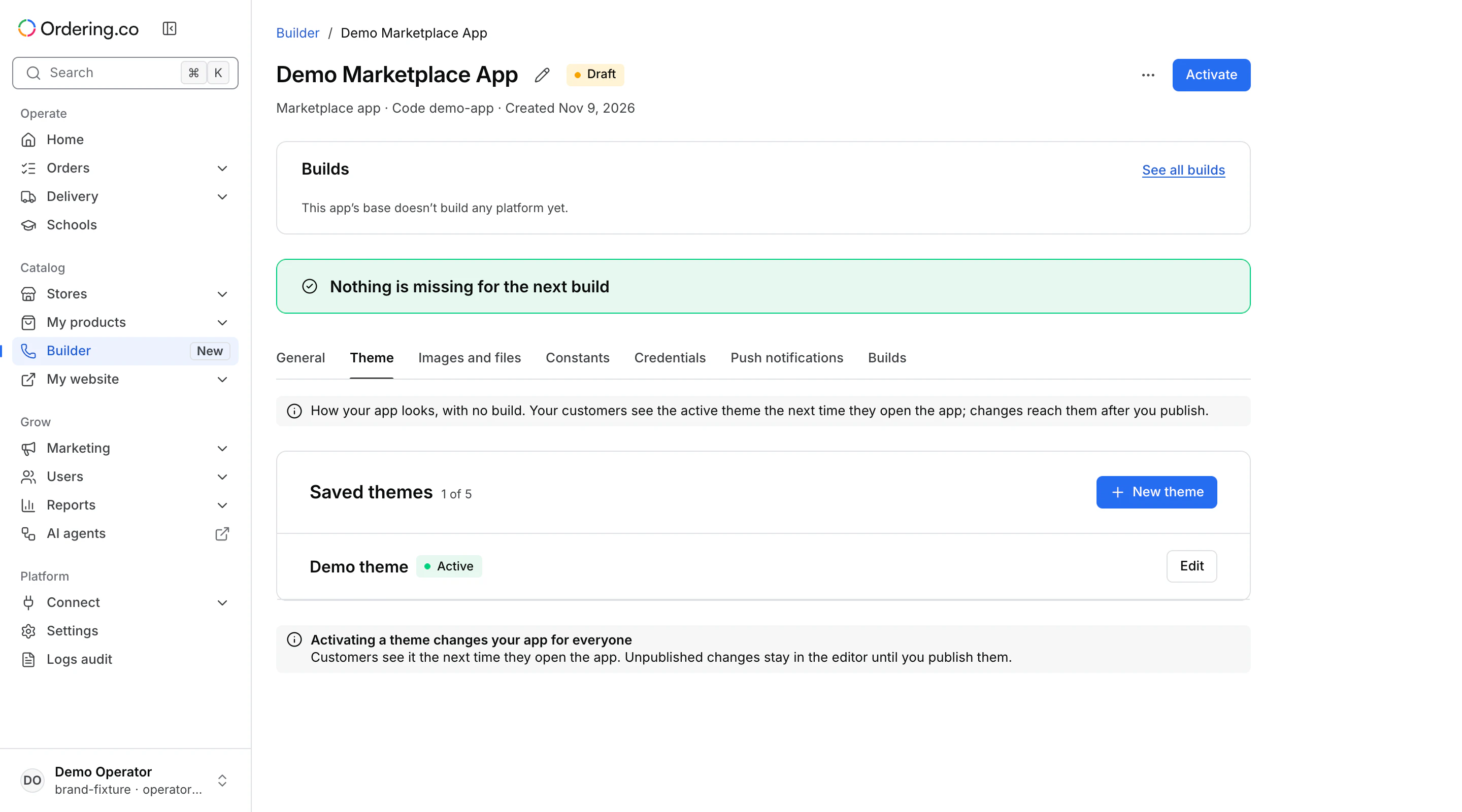
Create or open a theme
- In Theme, check which theme is active. If none is active, the website or app uses its defaults.
- Select an editable theme, or choose New theme. Enter a name and choose From scratch or an available preset. A website can also offer a copy of the current theme. Select Create and edit.
- A new theme starts inactive. Use Activate when you are ready for the product to use that theme. If the list reaches five themes, remove an inactive theme before creating another.
Edit sections and items
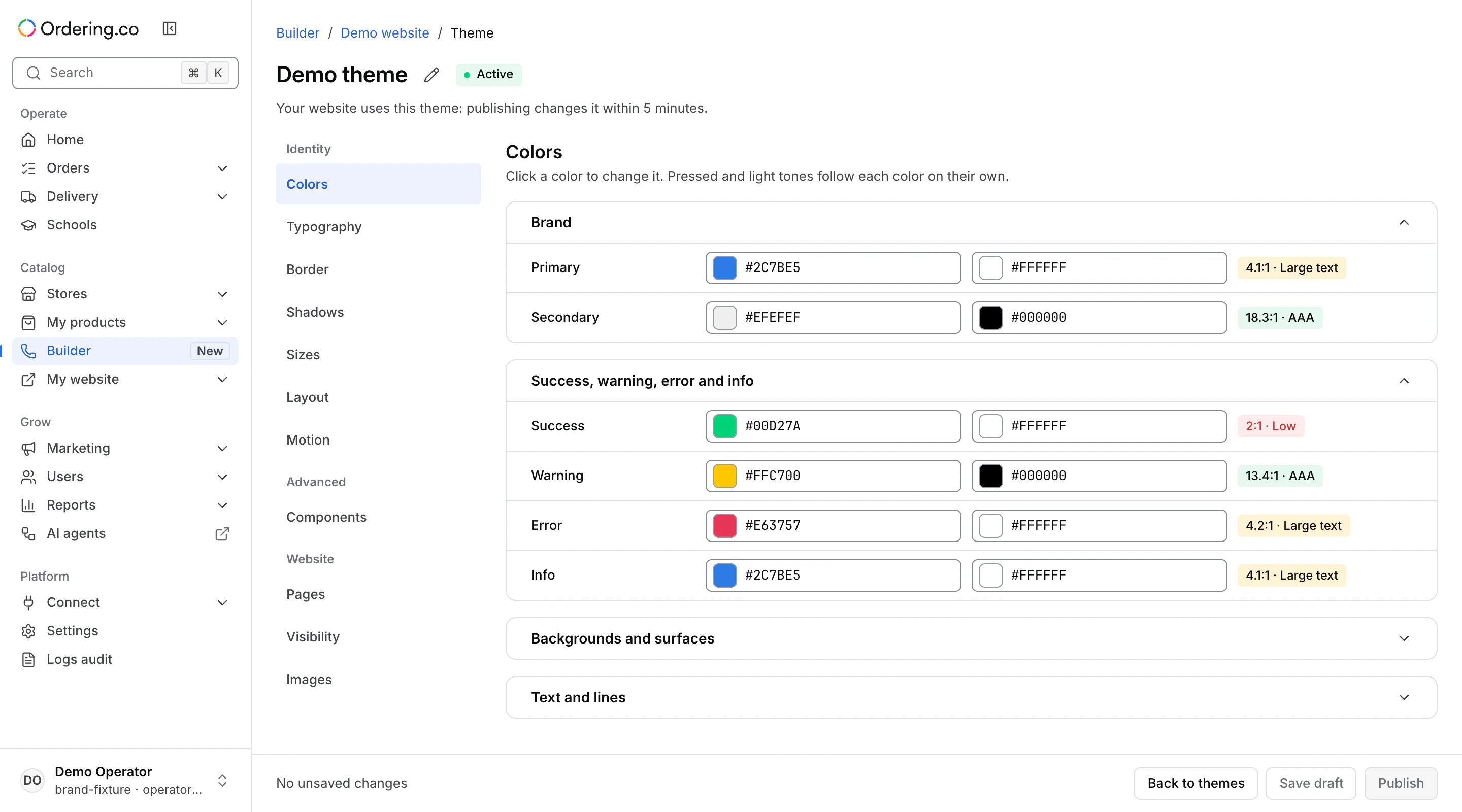
Choose a section in the editor. The product type controls which fields, components, or pages appear. Where a section lists items, select the item to edit its settings. Review the affected product and area before saving.
Save, publish, or leave
- Save draft stores changes for later editing. It does not change the appearance customers see.
- Publish saves pending changes and publishes the theme. If the theme is inactive, activate it to show its published appearance.
- If you leave with unsaved changes, choose whether to keep editing or discard them. Discard draft removes a saved draft, separately from leaving with unsaved changes.
After publishing the active theme, a website can take up to five minutes to show the changes. A supported Marketplace App reads the active theme when customers open it again, without a new build for the theme. Check the product itself to verify the published appearance.