Configure a Builder app
Open Catalog → Builder as an administrator with editing access and select the app. The product’s base determines which platforms, files, settings, and tabs are available. The product status is shown beside its name.
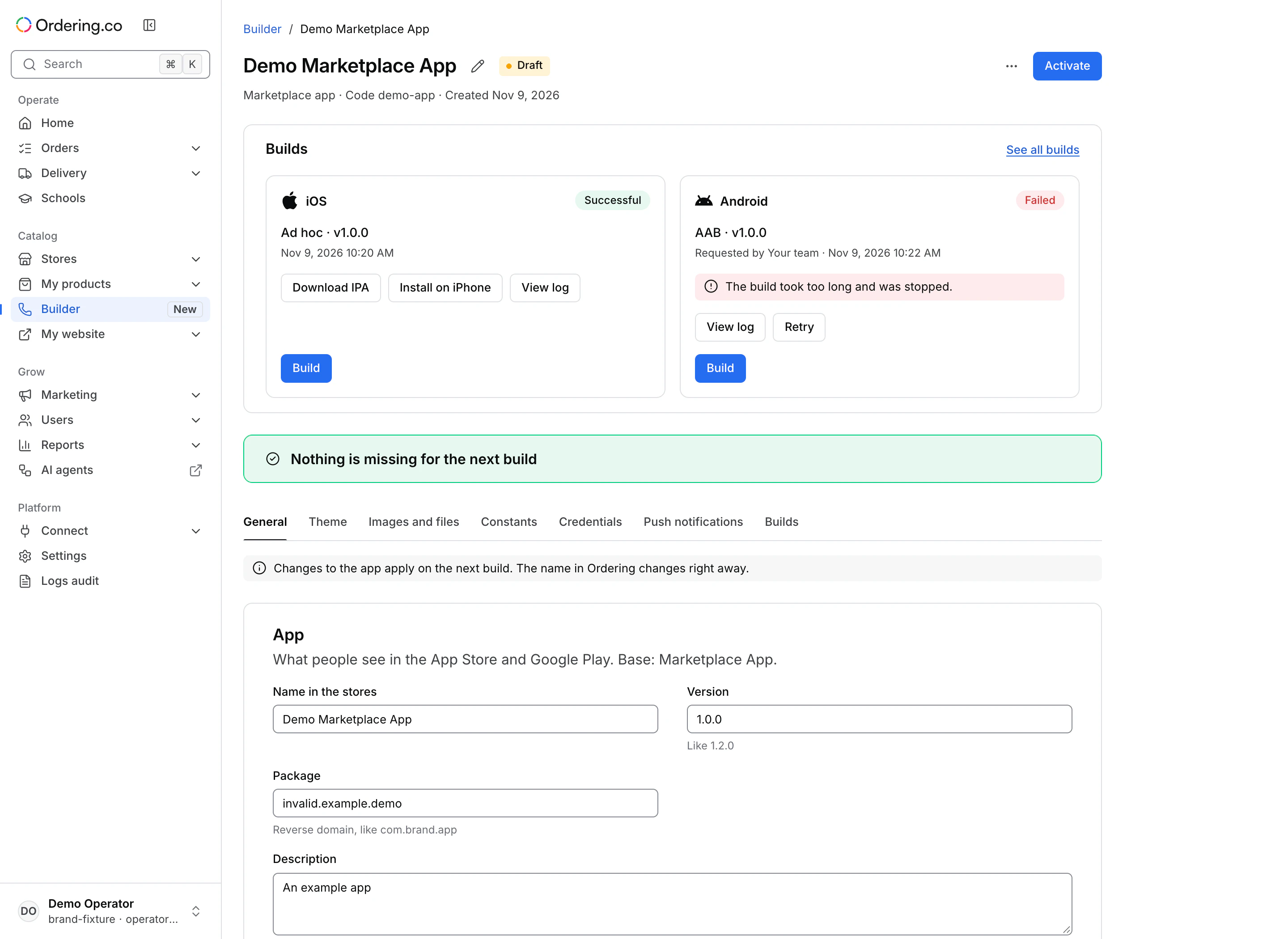
Choose the right tab
| Tab | What to review | When the change applies |
|---|---|---|
| General | App name for the stores, description, version, and package identifier. Review iOS or Android overrides where available. | App settings apply on the next build. Renaming the product in Ordering takes effect right away in the Dashboard. |
| Appearance | Build colors for apps that use this tab. | On the next build. |
| Theme | Visual settings for a theme-enabled app such as a compatible Marketplace App. It replaces Appearance. | After publishing the active theme. Customers see it the next time they open the app. See Theme editor. |
| Images and files | The images and files required by the base. Check the listed formats and sizes. | On the next build. |
| Constants | Values the app base uses in its build. | On the next build. |
| Credentials | Signing information for supported platforms. Keep signing files and passwords in an approved location. The Dashboard does not display them again after saving. | On the next build. |
| Push notifications | The Firebase account used by the app, including a project account if available. Use the Firebase project that the app is configured to use. | On save, without a build. Check delivery with a test device. |
| Builds | Platform builds, results, and downloads. | See Build an app in Builder. |
Review the checks and status
Use Before the next build when it appears. Fix the items assigned to you and check the affected platform. The Dashboard distinguishes customer action from issues Ordering is reviewing. Activate can be blocked by incomplete required settings. An archived app needs to be restored before building again. Check status, build readiness, and app store release separately.