Build an app in Builder
Open Catalog → Builder, select the app, and use Builds. The overview shows recent builds by platform. Open the Builds tab to see the history. Use an administrator account with editing access.
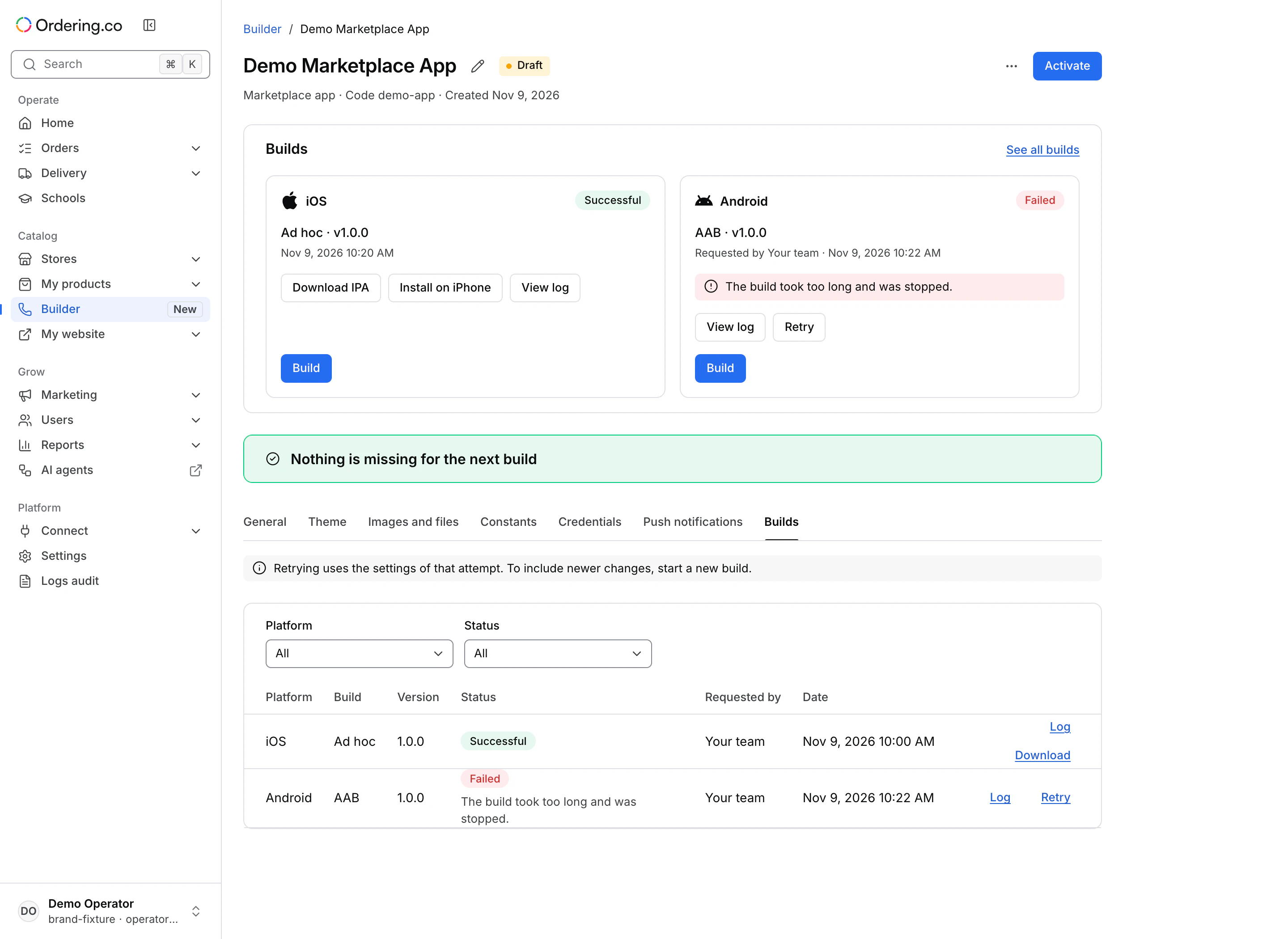
Choose the build
Review General for the version and package, and check any missing items. Choose an available platform and build type.
| Platform | Build type | Next step |
|---|---|---|
| iOS | Ad hoc | Install on registered devices for testing. |
| iOS | App Store | Upload the signed build to App Store Connect using the supported tool. |
| Android | APK | Install directly on an Android test device. |
| Android | AAB | Upload the bundle to Google Play Console. |
In the platform’s build dialog, review the version, type, and checks. Resolve any blocking items before choosing Build. Available modes and files depend on the base and product status. Follow the build result after the request.
Review history, logs, and retry
- Filter the history by platform or status. If an attempt fails, open its build log when available and review the reason. Keep any sensitive details out of shared support notes.
- Retry reuses the settings of that attempt. Use Build with current settings or request a new build to include later changes.
- Cancel build is available only where the attempt permits cancellation.
- Download the file from a successful build when available. Use the matching install or store-upload workflow. A successful build gives you an artifact to test or upload.
Use My products for legacy apps and debug builds where that workflow is still available. For the release sequence, see Test and publish app releases.