Builder overview
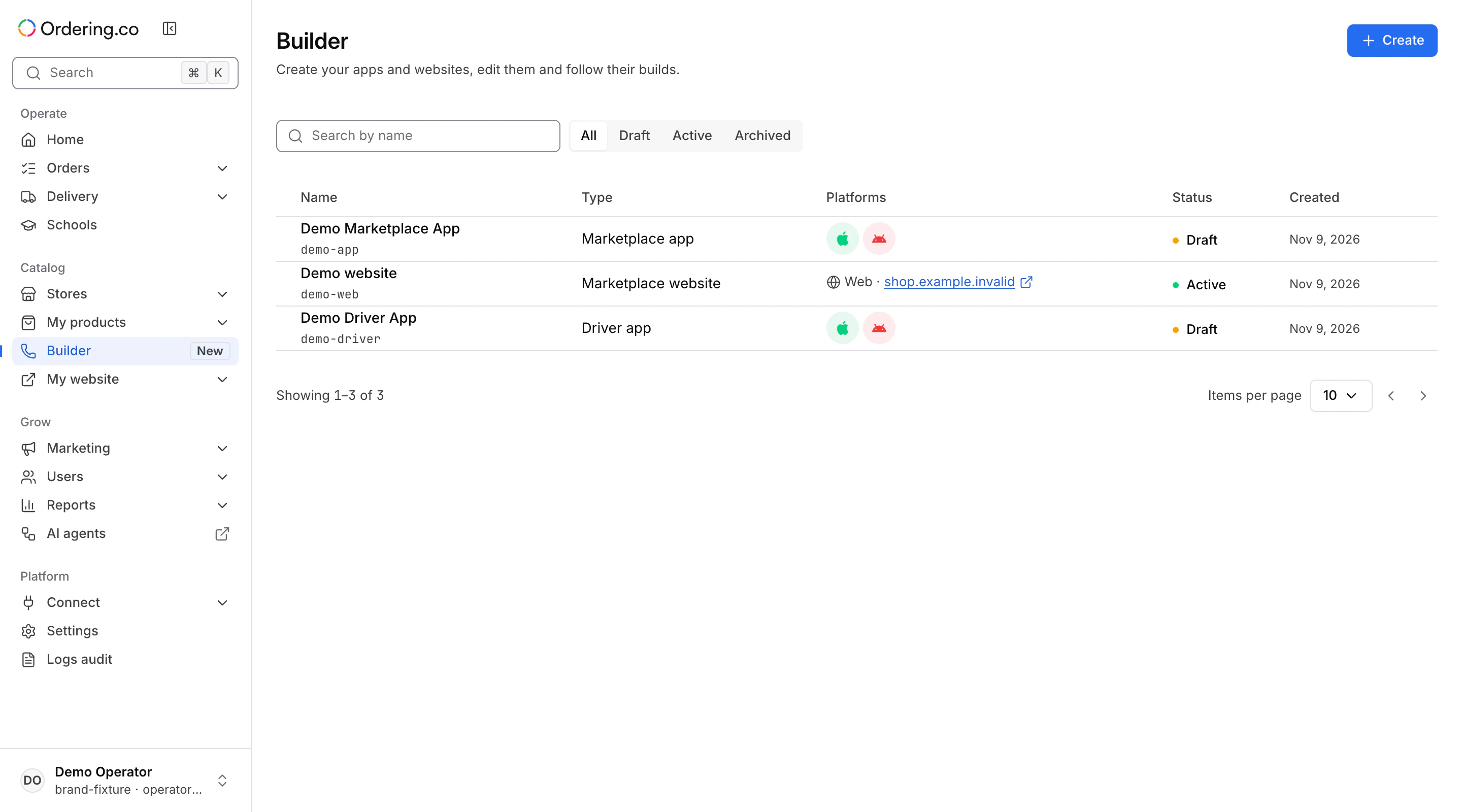
Open Catalog → Builder to manage the apps and websites available to your project. Use an administrator account with editing access.
Find a product
Search by name, filter by status, or use the list’s page controls. The Type column identifies each app or website. Select a row to open the product. The list can show Draft, Active, or Archived. A build status describes a build attempt for a platform, separately from the product status.
Create an app or website
- Select Create to open New app or website when the action is available.
- Choose an app or website, enter a name, and select one of the offered types. The catalog contains the products this project can create.
- Review the selection and choose Create app or Create website. Open the product to continue setting it up.
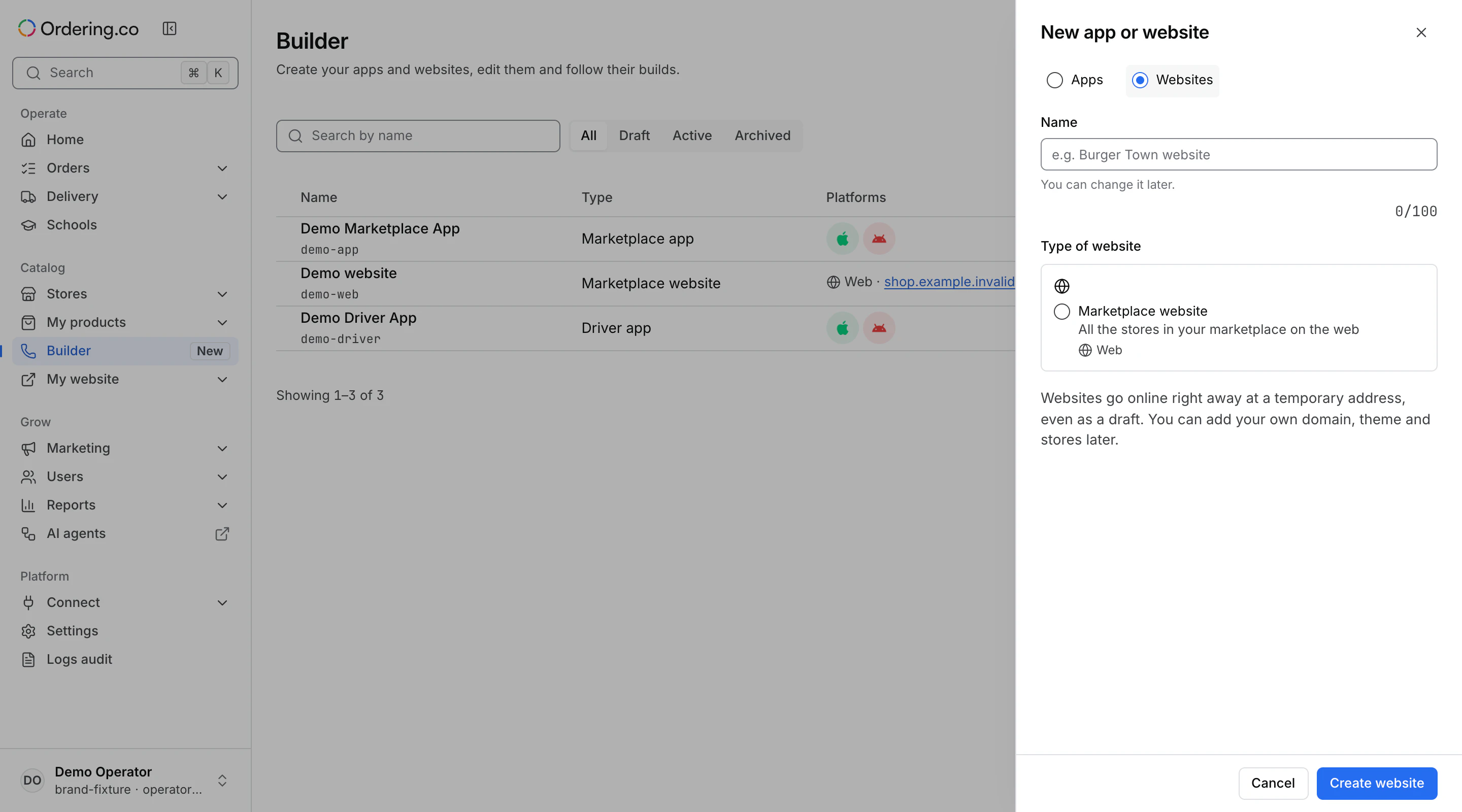
A new product starts as a draft. A new website can already open at a temporary public address, even as a draft. An app draft has separate configuration, activation, and build steps. Distribution through an app store is a later step.
When Builder or the create action is unavailable
Clear your search and filters when no products match. An empty catalog can mean there is currently nothing to create. If Builder reports an access restriction or is disabled for the installation, ask the project owner or Ordering support to confirm access. If the catalog fails to load, choose Try again.
Continue setup
- Apps: Configure a Builder app and Build an app in Builder.
- Websites: Manage a Builder website and its domains, Website settings, and Theme editor.
- Existing websites: Move an existing website to Builder.