Apps & Addons catalog
Use Apps & Addons to review add-ons that Billing reports as available for your project. Opening an add-on’s detail can lead directly to a real subscription purchase, so treat the catalog as a billing surface.
The canonical /purchase/addons route is protected for administrator-level users. The sidebar’s Apps & Addons control has an additional Billing-linked system-user gate. That control retains an older underscore URL as its native link, but its Dashboard navigation handler targets the canonical slash route. Neither gate proves Billing entitlement or deployed availability.
Review available add-ons
The catalog loads available add-ons and the project’s current Billing products. It shows cards for qualifying add-ons that Billing does not identify as already purchased. A card can display an icon, name, and description. Select a card only when you are authorized to review its commercial terms.
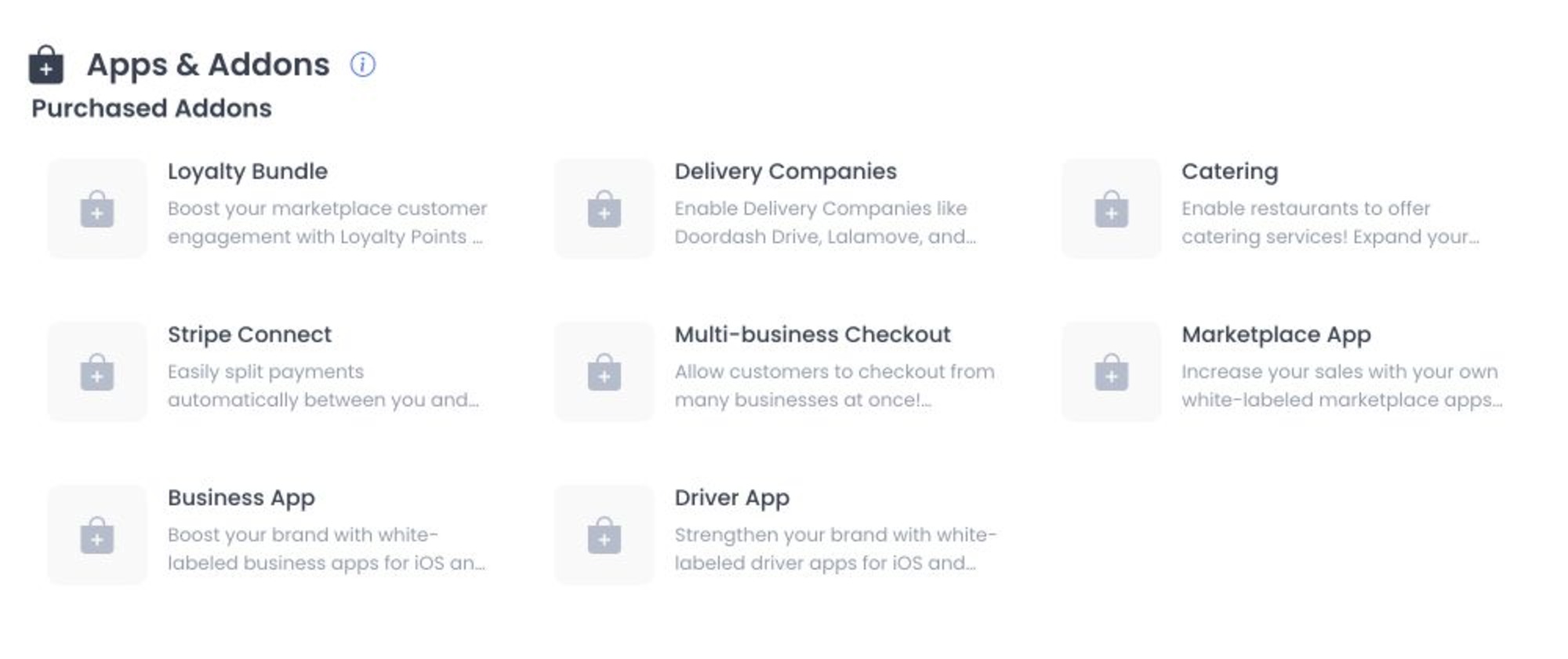
The retained screenshot shows a project’s Purchased Addons state. It does not evidence current add-on availability, pricing, or a Buy Addon control.
Pricing, currency, price type, availability, plan eligibility, and entitlement are supplied by Billing for the current project. Do not assume a card is available to every project or that a displayed price includes tax, proration, setup, or any specific feature.
Before selecting Buy Addon
The detail modal displays the add-on description and a monthly price. A recurring price is labelled per month; other price types can be shown without that recurring label.
Before selecting Buy Addon:
- Confirm that the add-on, price, billing period, and project are correct.
- Confirm that an approved default payment method is available.
- Confirm who owns the subscription decision and the downstream configuration work.
- Do not enter or expose card/payment details, billing identifiers, subscription information, or Billing error messages in screenshots or tickets.
Selecting Buy Addon sends a subscription request for the selected add-on with a monthly period. It is not a cart preview or a trial-only check. A missing default payment method can open payment-method selection, and a successful request can reload the Dashboard after Billing reports acceptable subscription state.
The request can fail because the account lacks Billing access, a payment method is required, Billing rejects the request, or the current subscription state is not eligible. Read the error and use your organization’s billing process rather than repeatedly submitting the purchase.
What this guide does not cover
This page does not document add-on removal, plan upgrades, payment-method management, refunds, tax/proration, or activation timing. Those operations can change billing or entitlement and require their own approved workflow.
Troubleshooting
Why is the catalog unavailable or empty?
You may not have the required administrator/Billing-linked account, Billing may return no qualifying add-ons, or available items may already be associated with the project. Do not interpret an empty list as a complete entitlement audit.
Why did the page request a default payment method?
The purchase request requires a Billing payment method. Adding or selecting one is a financial action; use the approved billing owner and process.
Why should I use /purchase/addons rather than the underscore URL?
The active Dashboard route is /purchase/addons. The sidebar’s older native-link path is not defined as a route, even though its click handler navigates to the correct route.
Related guides: My products · Platform settings