Stripe Connect V2 payouts
Stripe Connect V2 charges the order on the platform account and calculates the shares when an eligible order is completed. Check a transfer in the store's Payouts tab. Paid indicates transfer to a Stripe account. Bank deposit timing is separate.
Prepare the project for V2 transfers
- Review Stripe Connect platform setup.
- In Settings → Payments → Stripe Connect, use the settings tab to confirm the mode, client ID, and Stripe Connect payouts switch.
- Open Configuration for the platform fee and driver payment. Set the fixed amount or percentage and its base as applicable. The driver rule can also include shares of the delivery fee and tip, and additional amounts. Read the worked examples before saving each rule.
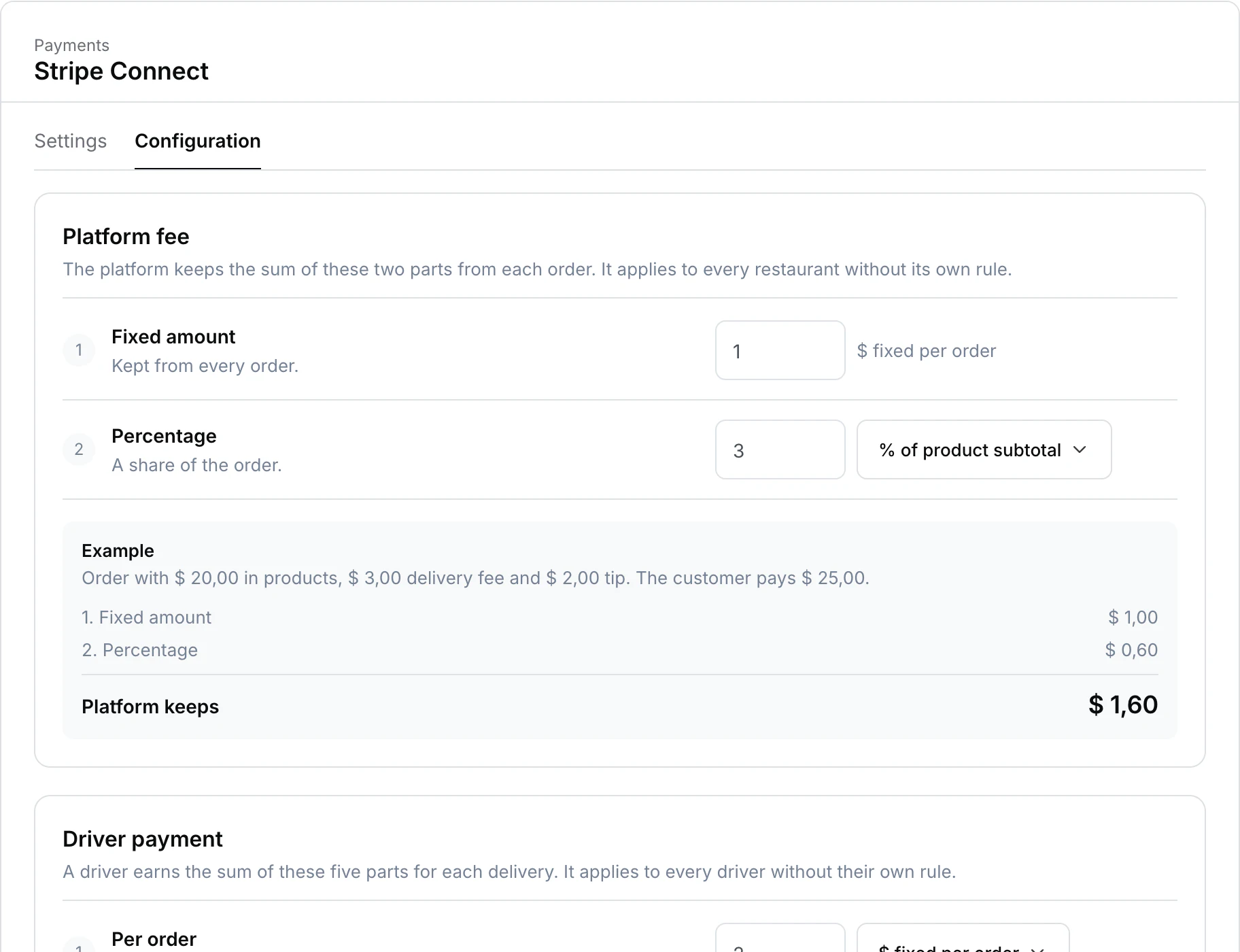
A saved rule applies only to later orders. A store or driver override changes the effective rule for that recipient.
Review the store and driver separately
- In Stores → select a store → Payment methods → Stripe Connect V2, use Stripe account for the store connection, Platform fee for the administrator-only store override, and Payouts for the store records.
- In Delivery → Drivers → select a driver → Stripe Connect, an administrator can review the driver account and its rule when payouts are enabled. A driver can use the Driver App's Stripe account flow when available.
Recipient accounts need to be ready for transfers. Check the linked account and effective rule before relying on the distribution.
Investigate pending or review statuses
If a payout is pending or needs review, open the order and inspect the reason in Payouts. The list can report a missing recipient account, charge mismatch, refund, missing rule, or rejected transfer. Administrators may see the full split. A store owner sees the store's share when it is available. Confirm the customer payment and bank deposit in the appropriate systems.