Configure loyalty levels
Use Levels to create and maintain the loyalty-level records available in the Dashboard. A level can hold a name, image, accumulation rate, points requirement, maximum-points value, and expiration setting.
Back to Points wallet and levels
Before you create or change a level
You need administrator access and the points-and-levels add-on enabled. Review the current level list and any customer or promotion processes that depend on it before you save, edit, or delete a record.
A level is a configuration record. Creating or editing it does not move a customer into that level, prove that a customer is eligible for a benefit, create a discount or promotion, award points, or make a level visible in a customer-facing product.
Open Levels and add a record
- Go to Addons > Points wallet and levels.
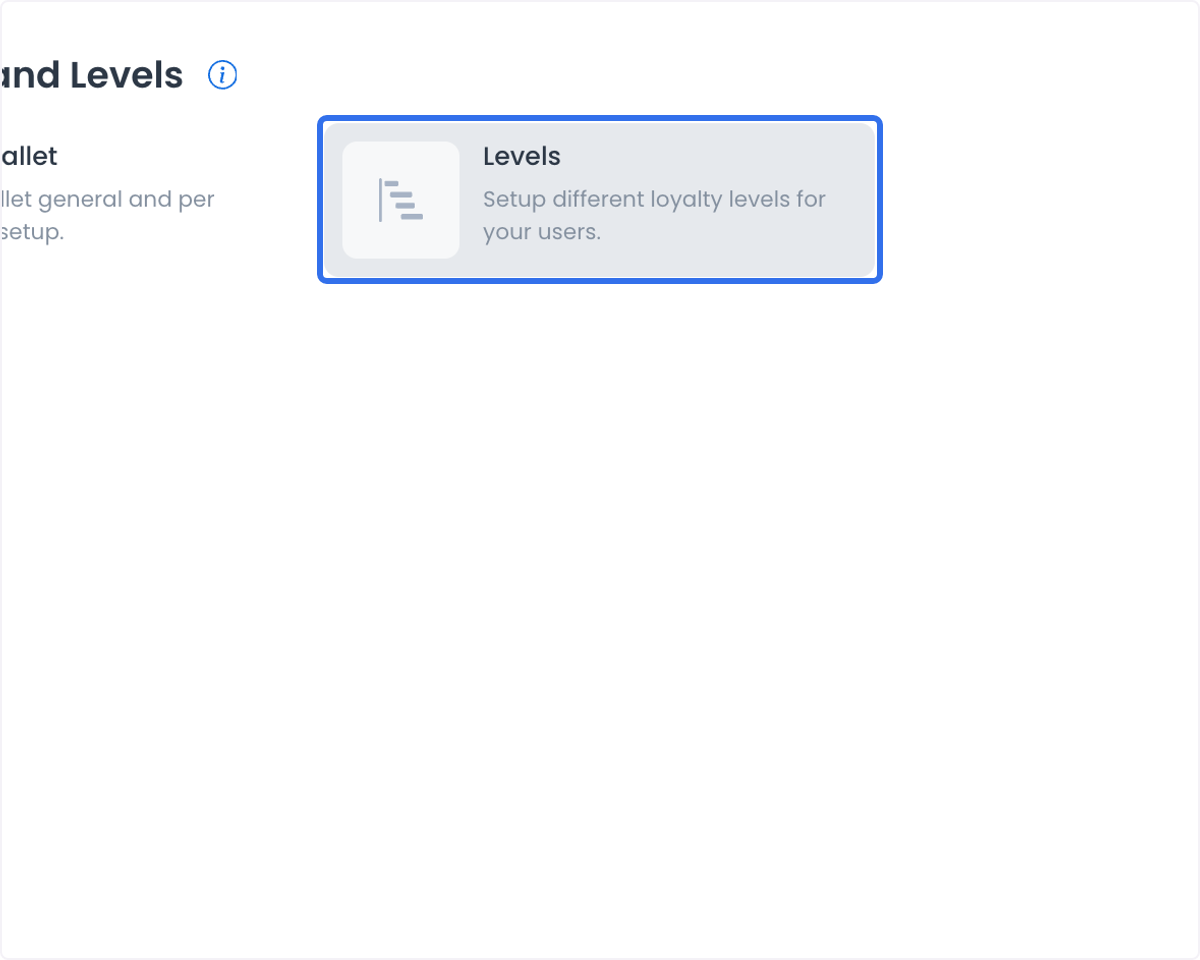
- Select Levels.
- Review the existing list so you do not duplicate a record.
- Select Add new level to open a new record.
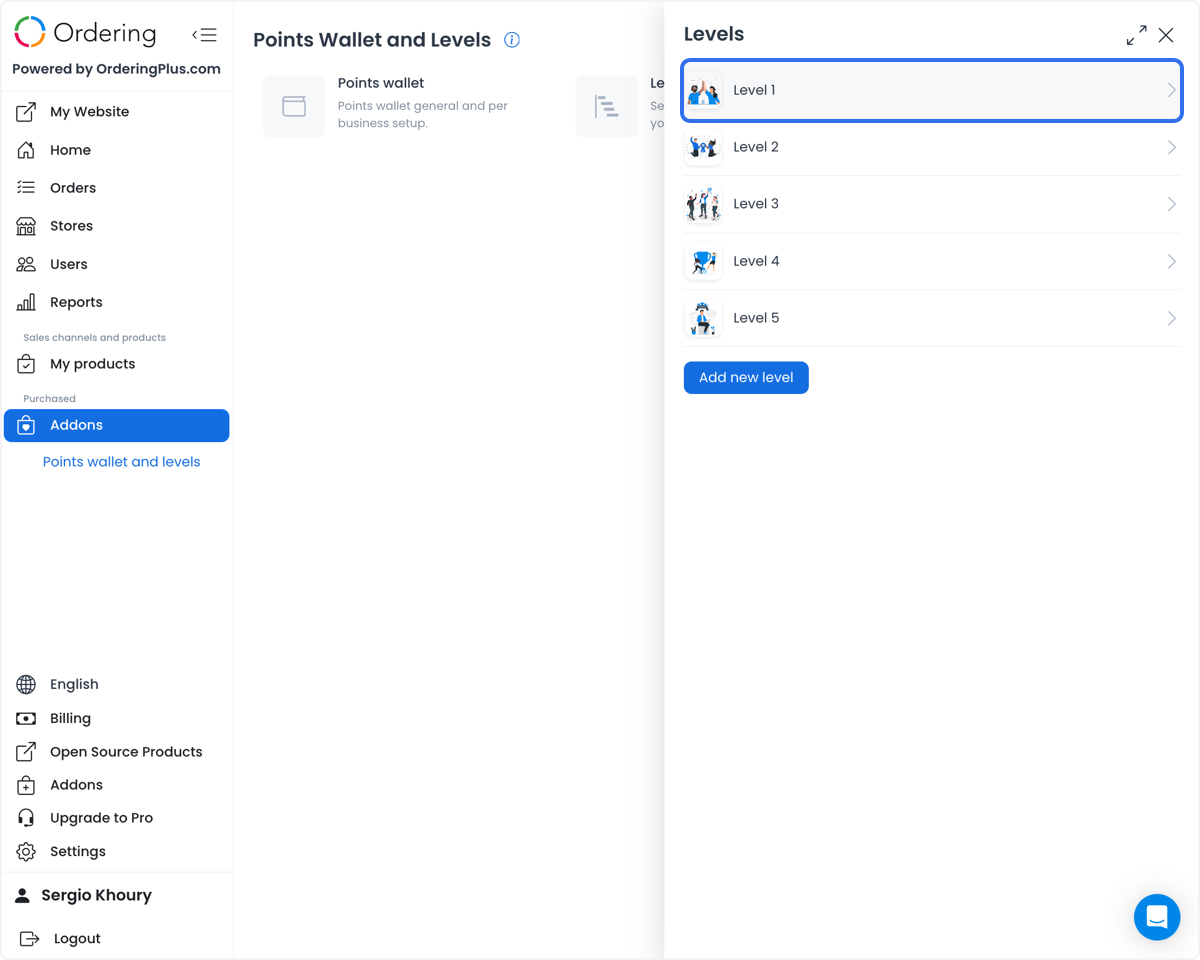
The list can show a record name and image. Seeing a named level in that list means the record is available to the Dashboard; it does not establish a customer’s current status or any benefit.
Complete the level fields
For a new or existing level, review and set the fields that apply to your program:
- Image — add an identifying image if your program uses one. The current form accepts PNG and JPEG/JPG images and checks for a maximum file size of 2 MB before its crop flow.
- Name — use a clear, stable label for the level.
- Accumulation rate — enter the rate value for this level.
- Points required — enter the threshold value shown by the level form.
- Maximum of points — enter a value when the program needs that saved field.
- Expiration — choose no expiration or expiration in days.
- Select Save after reviewing the full record.
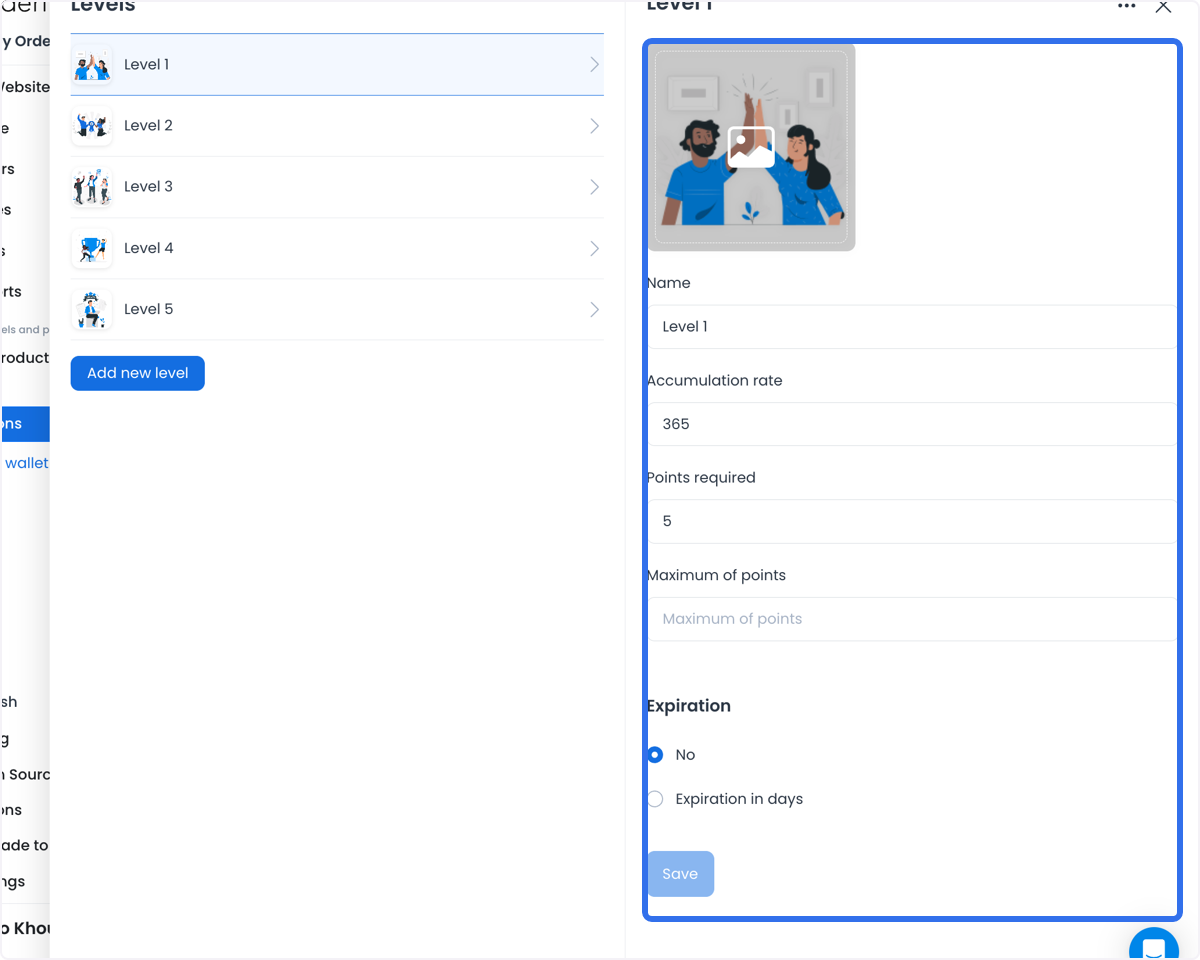
The fields are inputs to a level configuration. They are not a complete calculation contract, and they do not guarantee an award, a level transition, a wallet balance, a benefit, or a checkout result. Use values approved for your project and validate their effects in an approved non-production workflow before relying on them.
Configure expiration
The level form lets you choose No or Expiration in days. When you enter a number of days, the Dashboard converts it to its saved duration value.
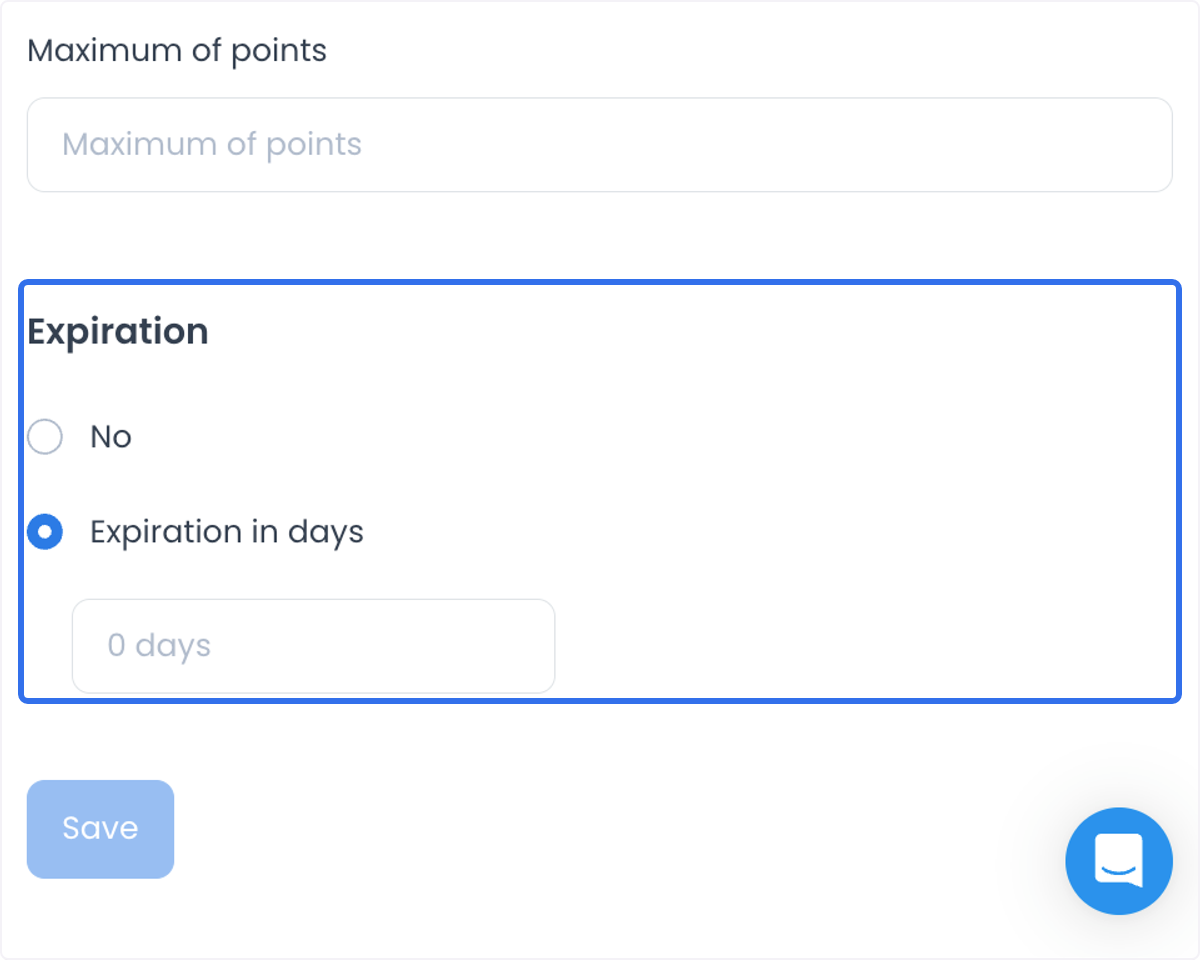
An expiration setting is saved configuration. It does not by itself prove when an existing customer’s points expire, that a wallet history changed, or that a future order, payment, or refund will use the level.
Edit or delete a level
Select an existing record to open its details. Update only the intended fields, review the record, and select Save. The level details also provide a delete action with confirmation.
Editing or deleting a level can change how an existing loyalty configuration is interpreted elsewhere. Confirm the intended customer, business, promotion, and support impact before saving or confirming deletion. A success message confirms the configuration request returned without an error; it does not prove every downstream customer result.
Customer status, visibility, and eligibility
Customers can progress as they accumulate points and other configured engagement or purchase activity, and can see their level in a website or Customer App profile. Treat those as separate customer-facing conditions:
- A customer must have the relevant access, record, wallet state, and product configuration before a level can be shown.
- A record’s Points required value is not proof that a particular customer has met the threshold.
- A level name is not a benefit, discount, early-access rule, delivery promise, or promotion rule.
- Selecting or saving a level does not configure a payment provider, authorize a payment, complete an order, or issue a refund.
If a level is later used to target a promotion or customer segment, review that workflow’s eligibility rules and outcome separately.
Use levels with a defined program
Levels can support programs for an e-commerce store, a food-delivery service, a subscription offering, or a fitness experience. For example, you might define a level structure for repeat purchase activity, order frequency, renewal activity, or another approved engagement goal.
Benefits defined outside this form can include discounts, free shipping, early access, special or complimentary items, event access, additional products or content, membership offers, personalized help, or coaching. Define the reward, qualification event, customer communication, provider dependencies, and success measure outside this form. The level record supports the configuration; it does not guarantee retention, engagement, lifetime value, data insight, or a customer outcome.
Related guides
For a product-level overview of Ordering.co points, loyalty levels, and their customer-facing limits, see Ordering Loyalty.