Multi-business checkout
Use Multi-business checkout to configure a customer checkout flow that can include carts from more than one business. The combined experience can make it easier for customers to shop across businesses in one flow, while each business continues to have its own cart and order outcome.
A single checkout screen does not create one combined order. Treat the shared screen as group context: each member cart can have its own availability, fulfillment, coupon, fee, tip, payment, provider, and order state.
Do not use a visible cart, a combined fee or total, a refreshed group summary, a returned checkout screen, an enabled Place Order control, a provider return, or one created order as proof that every member cart settled. Confirm each member's current result separately before describing the group as complete.
What the configuration supports
Multi-business checkout is designed for marketplaces where customers may want to buy from several businesses without starting a separate customer flow for each one. It can help make multi-business shopping more convenient, reduce the number of customer steps, and simplify the presentation of the grouped cart. Potential benefits include:
- a more convenient customer experience by reducing separate checkouts;
- a simpler path that can encourage additional purchases and support sales volume;
- less operational effort for customers and businesses that need to coordinate several carts;
- a marketplace experience that can stand apart from alternatives without this flow; and
- a more satisfying experience that can support customer loyalty.
These outcomes depend on the project configuration and the customer journey.
Common uses include:
- holiday shopping across several stores;
- event planning that requires items from multiple vendors;
- corporate purchasing from more than one supplier; and
- bulk purchases that span different businesses.
When the project is configured to expose it, this experience is intended for the Ordering.co Website and Marketplace App. It is a unified checkout presentation, not a promise that every cart shares one payment, one provider result, or one order.
Keep the scopes separate
| Area | Scope | What it does not establish |
|---|---|---|
| Dashboard configuration | Project-level checkout settings | That a customer can reach the flow, that every cart is eligible, or that a setting has reached every checkout surface. |
| Global order context | Shared customer choices such as order type, address, or time | That each member cart accepts or has refreshed to the same choice. |
| Group and member carts | One grouped presentation plus one cart for each business | Current membership, a common revision, or one shared business outcome. |
| Customer selection | A chosen coupon layout, tip display, payment method, or order action | Successful persistence, calculation, provider acceptance, or order creation. |
| Recalculation | A changed fee, discount, tip, or combined total | That every cart and financial branch used the same current inputs. |
| Availability | A visible cart, business, option, or payment method | Eligibility for every member cart or the final checkout state. |
| Payment and provider | A selected method, provider handoff, or provider return | Platform confirmation, settlement, or an order for every business. |
| Checkout submission | A Place Order request or changed customer screen | Exactly-once placement, payment completion, or complete group membership. |
| Order creation and outcome | One returned order or grouped details screen | That all input carts became orders or that every financial effect completed. |
If one member is stale, unavailable, pending, failed, or unknown, preserve that member's state instead of treating the group as successful.
Open Multi-business checkout
The add-on must be enabled for the project, and the Dashboard account must have the required level-0 access. If you do not see the item, ask a Dashboard administrator to confirm the project configuration and your access.
- In the Dashboard sidebar, select My addons.
- Select Multi-business checkout.
- Open Settings.
- Wait for the returned configuration before changing a value. The navigation item can appear while settings are still loading, and the available fields can vary by project.
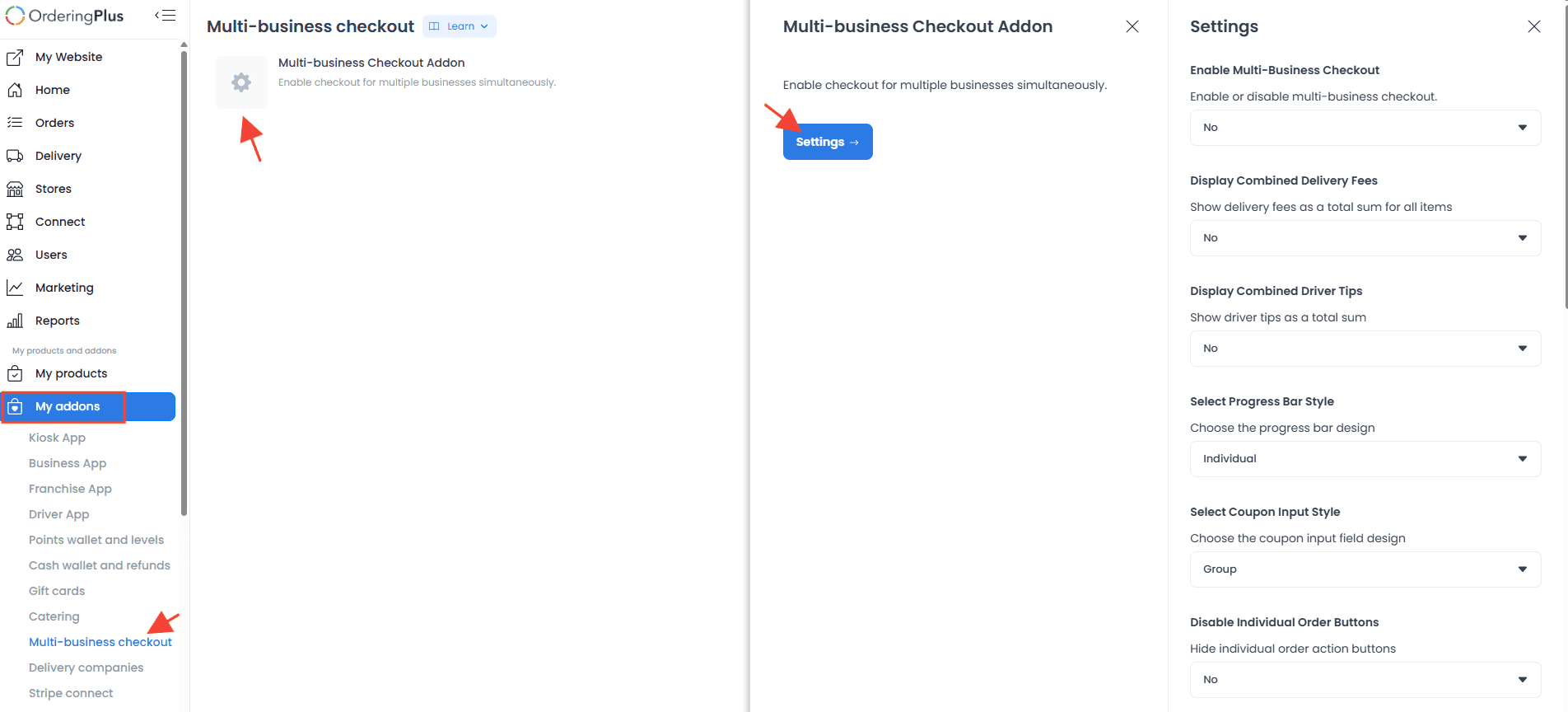
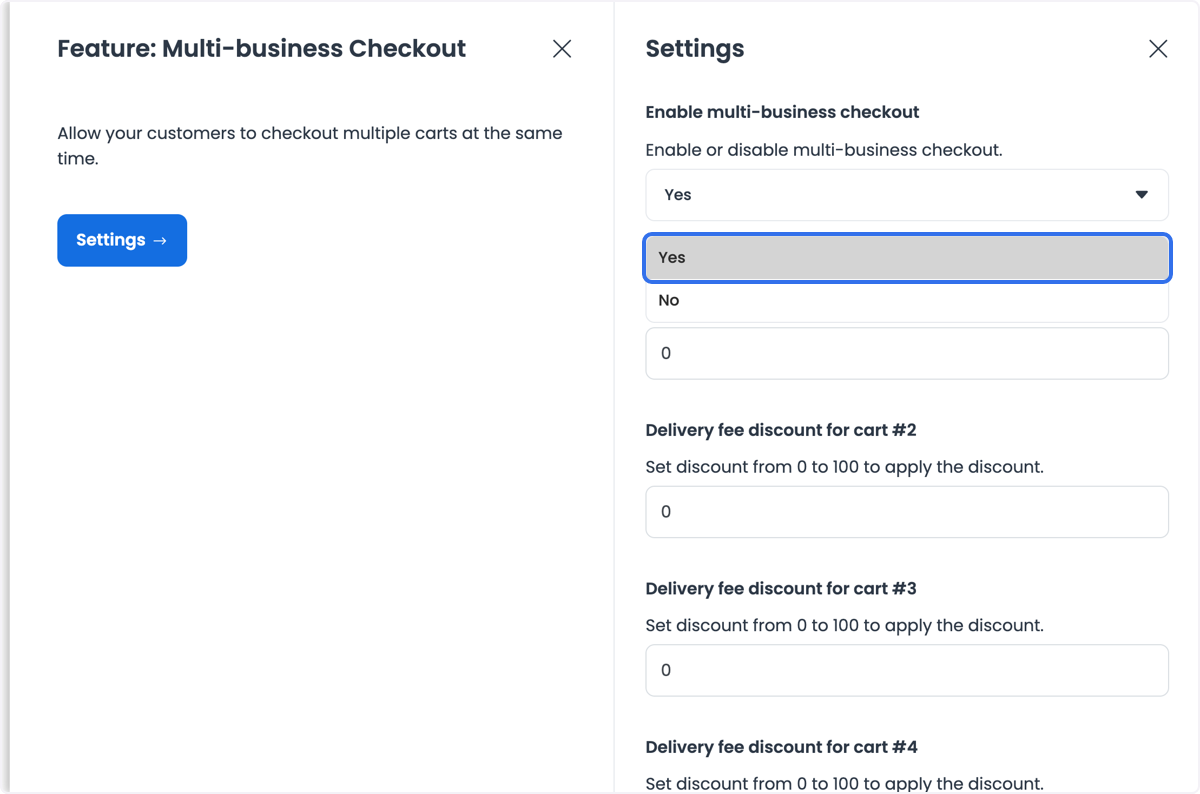
Select the image to open an enlarged reference.
The settings category is dynamic rather than a universal fixed schema. Use the labels and options returned for the current project; do not assume that a field visible in one project is available or behaves identically in another.
Some Dashboard variants use shorter control labels, such as Combine Delivery Fee, Combine Driver Tip, Progress Bar Style, Coupon Input Style, or Remove Individual Buttons. Use the returned description and scope of the field before saving; a similar label alone does not establish identical behavior.
Configure the main checkout settings
Set the main controls before adjusting fee discounts. Record the values you intend to change, then select Save. Changed configuration entries are written sequentially, so an interruption can leave only part of a grouped change persisted. If saving is interrupted or a response is unclear, reload the add-on and verify every changed field before making another change.
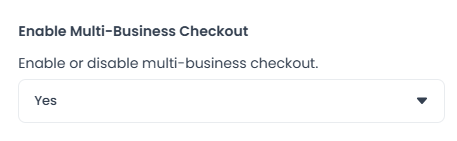
Enable Multi-Business Checkout
Use Enable Multi-Business Checkout to turn the multi-business checkout flow on or off.
- Yes allows customers to check out with multiple businesses.
- No limits checkout to one business.
Display Combined Delivery Fees
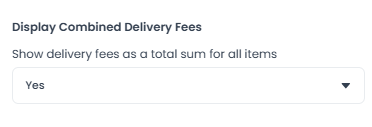
Use Display Combined Delivery Fees to choose how delivery fees are shown.
- Yes presents one combined delivery-fee value.
- No shows delivery fees separately for each business.
This setting changes presentation, not the underlying calculation. A combined fee is not proof that fees have been recalculated, collected, or settled for every cart.
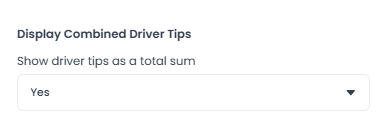
Display Combined Driver Tips
Use Display Combined Driver Tips to choose whether driver tips appear as one combined value or separately for each business.
- Yes displays one combined tip value.
- No displays tips per business.
A combined tip display does not establish how a tip is applied, allocated, collected, or settled for every member cart.
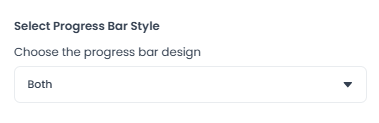
Select Progress Bar Style
Use Select Progress Bar Style to choose the visual treatment for checkout progress. Documented options can include Single, Multiple, and Both. The option set can differ by project.
This is a visual setting. It does not change checkout functionality, cart membership, payment readiness, or order creation.
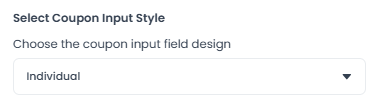
Select Coupon Input Style
Use Select Coupon Input Style to choose how coupon fields appear in the customer checkout.
- Individual presents a coupon input for each business.
- If available, a shared or group-style input presents a common entry point.
The selected layout affects how customers enter discounts, but a visible field does not confirm that a coupon is eligible, applied, recalculated, or accepted for all carts.
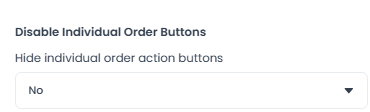
Disable Individual Order Buttons
Use Disable Individual Order Buttons to control individual business actions within the grouped experience.
- Yes shows only the global checkout action.
- No keeps individual business actions visible.
Hiding an individual action changes the customer interface; it does not combine the underlying member-cart, payment, or order outcomes.
Configure delivery-fee discounts by cart position
For this configuration, each cart represents one business. Delivery-fee discounts are assigned by cart position, not globally across the group.
The documented controls use a range from 0% to 100%:
- 0% means no discount for that cart position.
- 100% makes delivery free for that cart position.
Confirm the current field validation and returned configuration before relying on a value in a customer flow. A displayed cart count, combined amount, or one updated fee does not establish that every member has recalculated.
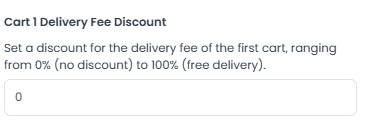
Cart 1 Delivery Fee Discount
Set the discount for the first cart's delivery fee.
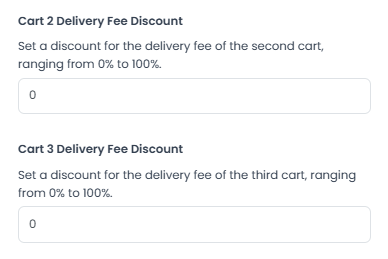
Cart 2 and Cart 3 Delivery Fee Discounts
Set these fields for the second and third cart positions. Each applies to the delivery fee for its own position in the group.
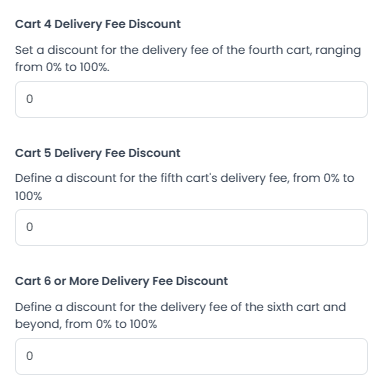
Cart 4, Cart 5, and Cart 6 or More Delivery Fee Discounts
Set the fields for the fourth and fifth cart positions, and use Cart 6 or More Delivery Fee Discount for every cart beyond the fifth. Each field controls only its specific position.
Position-based example
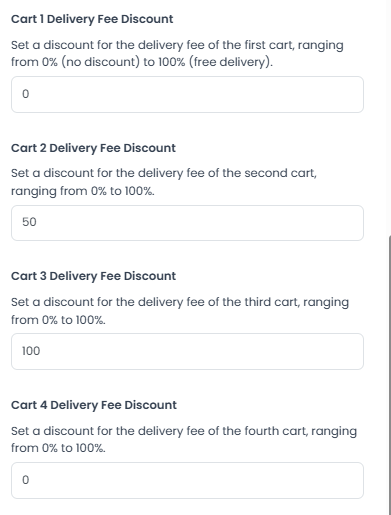
The following configuration illustrates how the documented per-cart positions can produce a delivery-fee presentation:
- Cart 1: 0%
- Cart 2: 50%
- Cart 3: 100%
- Cart 4 and later: 0%
| Cart | Business | Delivery fee | Discount | Final delivery fee |
|---|---|---|---|---|
| 1 | Store A | $40 | 0% | $40 |
| 2 | Store B | $60 | 50% | $30 |
| 3 | Store C | $50 | 100% | $0 |
The illustrated delivery total is $40 + $30 + $0 = $70. This is a configuration example, not a price quote or a financial settlement receipt.
For a simpler free-delivery example, set Cart 1 to 0% and Cart 2 to 100%. With example delivery fees of $40 and $60, the illustrated delivery total is $40 because the second cart's delivery fee is free. If only one cart has a 100% discount, only that cart's delivery fee is expected to be free.
Configure the group purchase threshold
Use Delivery Fee Free for Multi Checkout to set a minimum purchase amount for free delivery across the group. The documented rule evaluates the combined order amount:
- 0 disables the rule.
- A value greater than 0 makes delivery free when the combined amount is equal to or greater than the configured value.
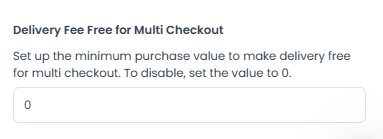
For example, a minimum of $100 with a combined order amount of $120 is intended to make delivery free for all carts in the group. Treat this as a configuration rule to verify against the current returned cart state, not as proof that every fee or order has settled.
More than one scoped field can share this label. Confirm the field's position and returned configuration before editing it. If delivery is not fully free, check the cart position, the configured discount for that position, and the current threshold configuration without using a displayed total as a substitute for every member's result.
Review the customer experience
The grouped cart can show multiple business sections and a combined summary. The checkout can also show customer details, payment choices, coupons, tips, and a group-level action. These screens are useful for reviewing the intended presentation, but their visible state remains separate from availability, calculation, provider, payment, and order results.
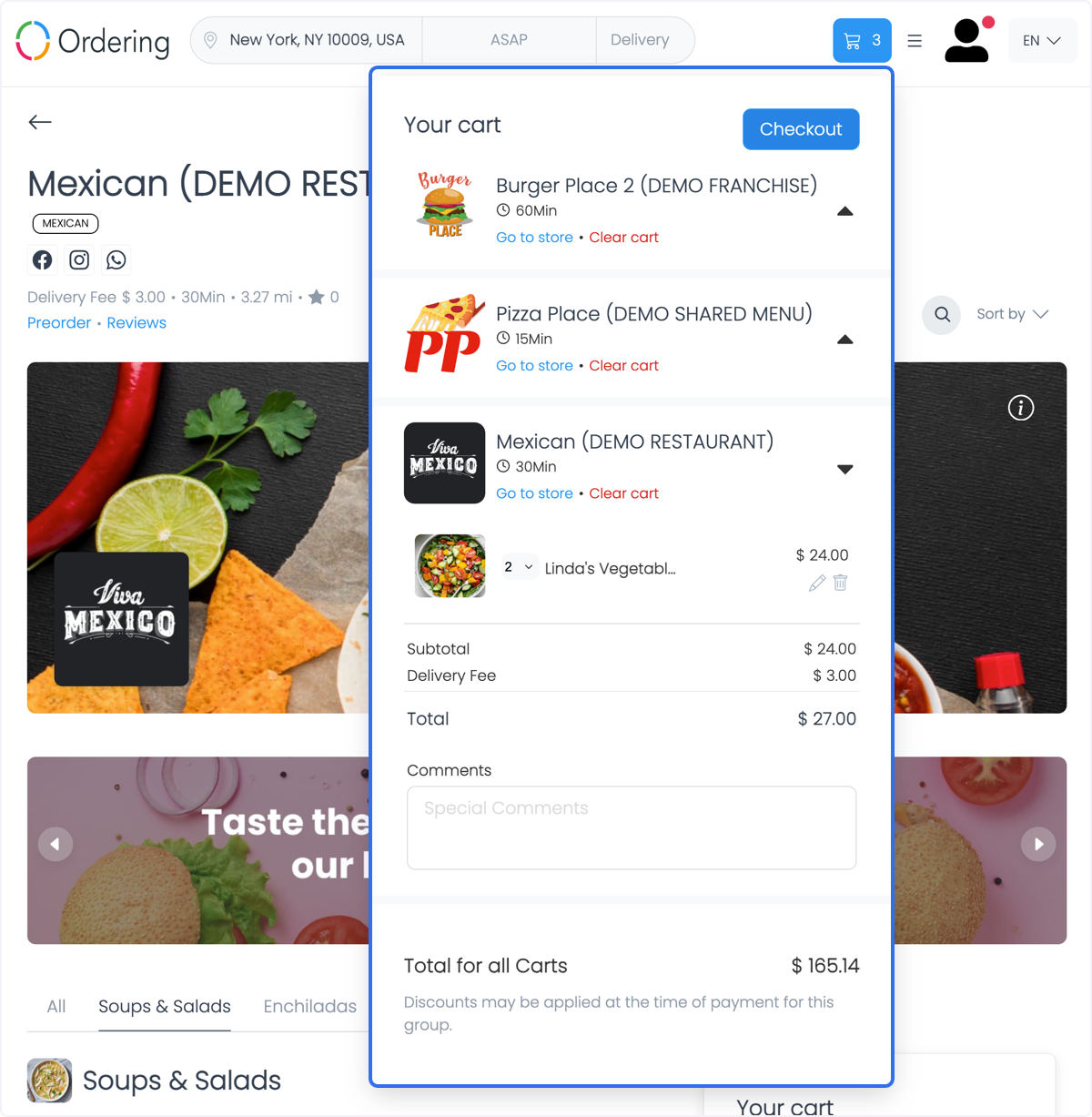
Select the image to open an enlarged reference.
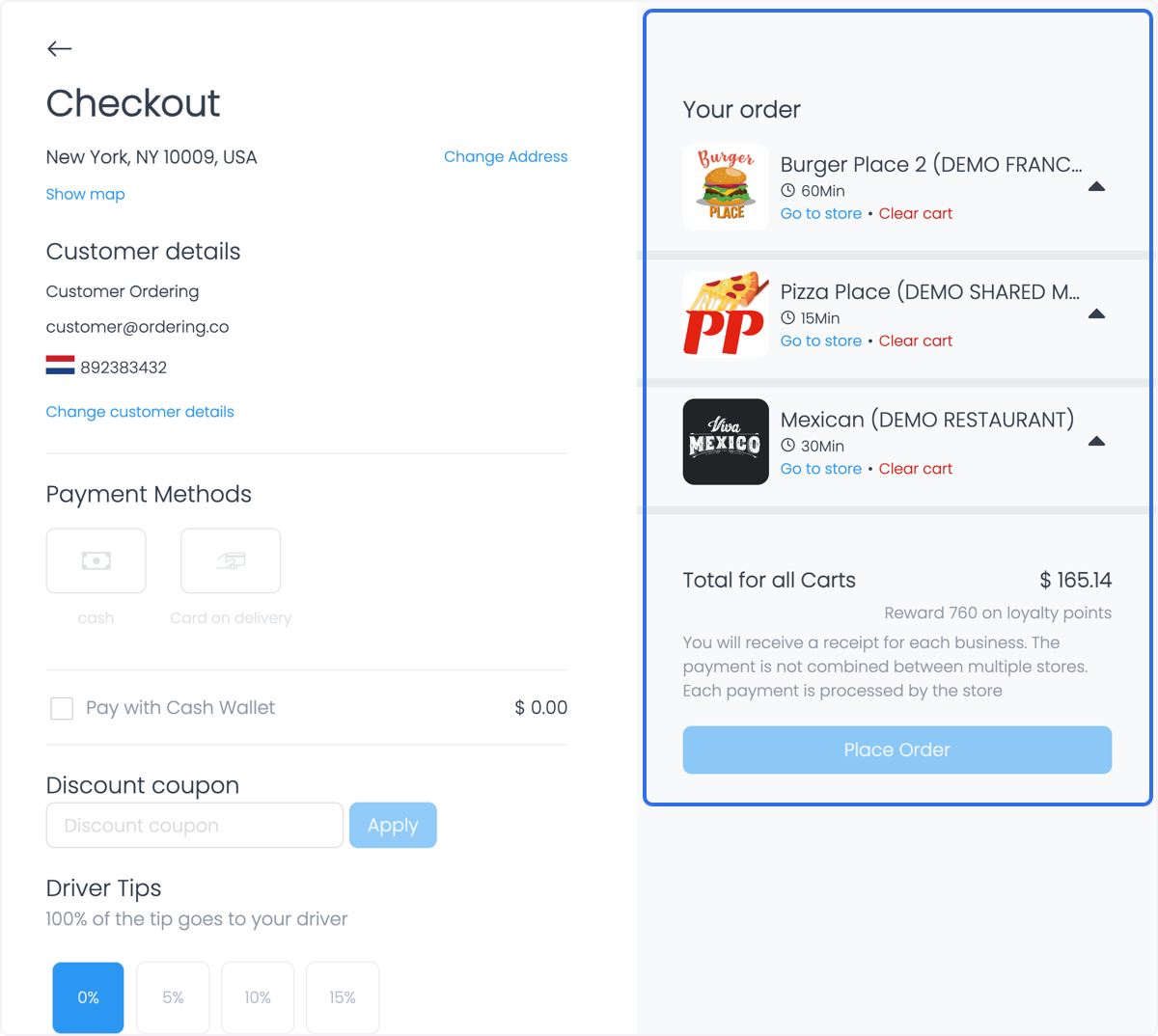
Select the image to open an enlarged reference.
Do not infer that a shared-looking address, selected order type, delivery time, coupon, tip, payment method, or total has been accepted by every member cart. Any of those values can be current for one scope while another member needs a different availability check or recalculation.
Interpret checkout, payment, and order outcomes safely
Use the following boundaries when reviewing a live customer report or a configuration result:
- A customer can choose a global order context and return to a grouped checkout before every member cart has refreshed. Preserve each cart's state when a member accepts, rejects, or lags behind a changed choice.
- A combined subtotal, delivery fee, tip, discount, or total is a presentation value. It does not prove a locked amount, complete membership, common currency revision, payment settlement, or provider result.
- A visible payment method is a candidate for the current screen. Selecting it, opening a provider, or returning from a provider does not confirm platform payment reconciliation or order creation.
- A Place Order request can begin a multi-stage operation. Do not submit it again to diagnose an unclear response, and do not use one returned order to infer that all members were created.
- A partial outcome remains partial. If one cart becomes an order while another is pending, unavailable, failed, missing, or financially unresolved, report the members separately rather than calling the group complete.
If the customer outcome remains unknown, do not change payment methods, repeat payment or provider work, repeat the checkout submission, or use another cart change as a test. Keep the state value-free and use the approved support path.
Troubleshooting
Why do I not see Multi-business checkout?
Confirm that the add-on is enabled for the project and that the Dashboard account has the required level-0 access. Because the settings can load after the navigation item appears, wait for the returned configuration before assuming a field is unavailable.
Why does the combined delivery fee or total look different?
Display Combined Delivery Fees changes the presentation of delivery fees, not their calculation. Check the current configuration, cart position, and member-cart state. Do not recalculate a replacement total or assume a combined row proves that every business used the same fee, coupon, tip, or discount.
Why is only one delivery fee free?
A 100% delivery-fee discount applies to the configured cart position. Other carts still need their own matching discount or a verified group-threshold result.
Why is delivery not free for the entire group?
Review the current cart-position discounts and Delivery Fee Free for Multi Checkout threshold. The group rule is disabled at 0. If another field shares the same label, verify its position and returned value before editing.
Why did only some configuration changes persist?
Configuration entries save sequentially. Reload the add-on, compare every changed field with the intended values, and resolve the partial configuration before making further edits.
What should I do after a provider return, failed-looking message, or one order appears?
Treat payment, provider, and each member order as separate outcomes. Do not retry checkout, payment, provider, wallet, coupon, or cart actions to discover the result. A provider return, grouped order screen, or one visible order does not certify complete group settlement.
Related guides: Checkout by order type · Multi-business checkout availability · Fees, taxes, discounts, and tips · Payment-method availability · Checkout recovery states · Grouped order states