Connect PickerExpress
Use this workflow to prepare a PickerExpress integration in the Dashboard. The integration can route configured delivery work to PickerExpress, which can coordinate available fleets. Plugin installation and configuration do not prove that PickerExpress selected a fleet, accepted an order, dispatched a Driver, or completed a delivery.
Adding a plugin, changing its environment setting, creating the delivery company, or storing a business key changes project configuration. Use an approved test environment and provider account; do not use a real customer order as a setup test.
Request and add the approved plugin
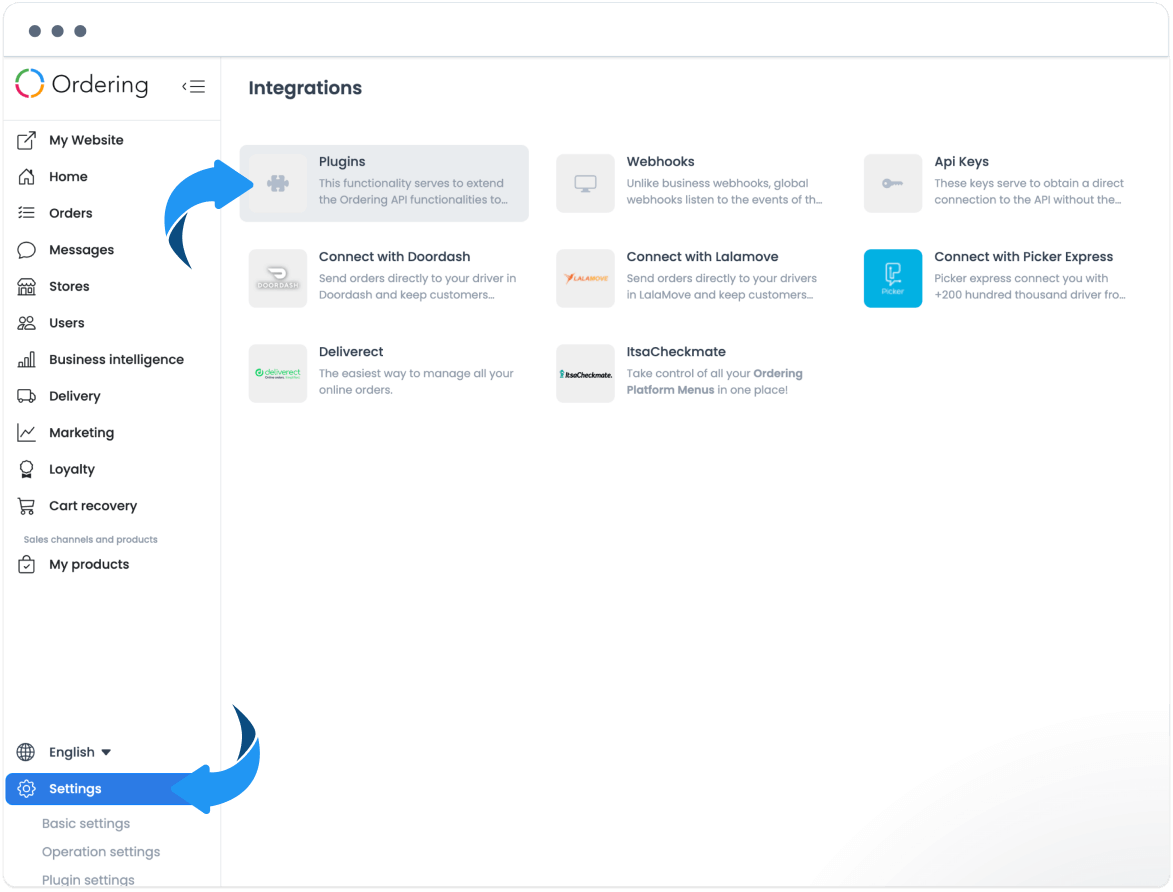
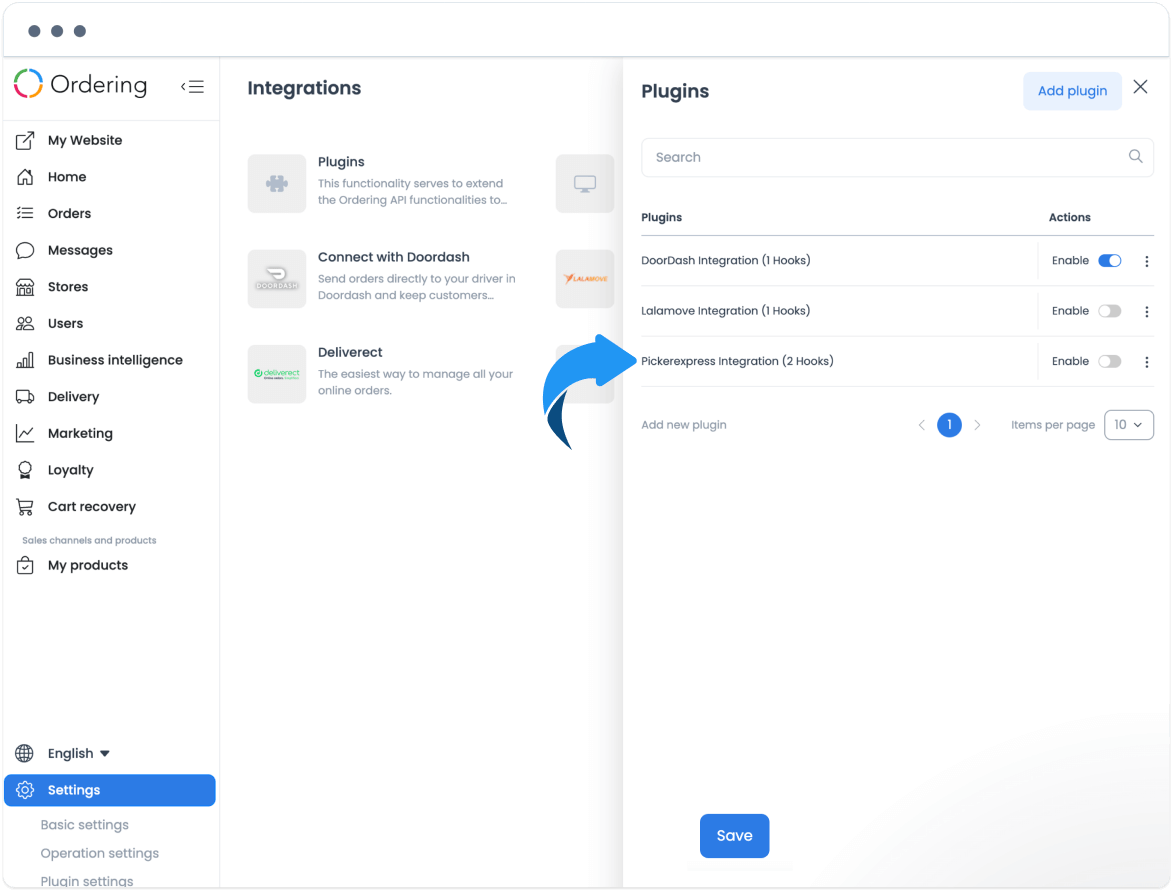
Open the Dashboard's Plugins area and request the PickerExpress plugin URL through your authorized Ordering.co configuration process. The URL is specific to the approved setup. Do not substitute a URL from another project or provider.
- Add the approved plugin URL.
- Confirm that the PickerExpress plugin entry appears.
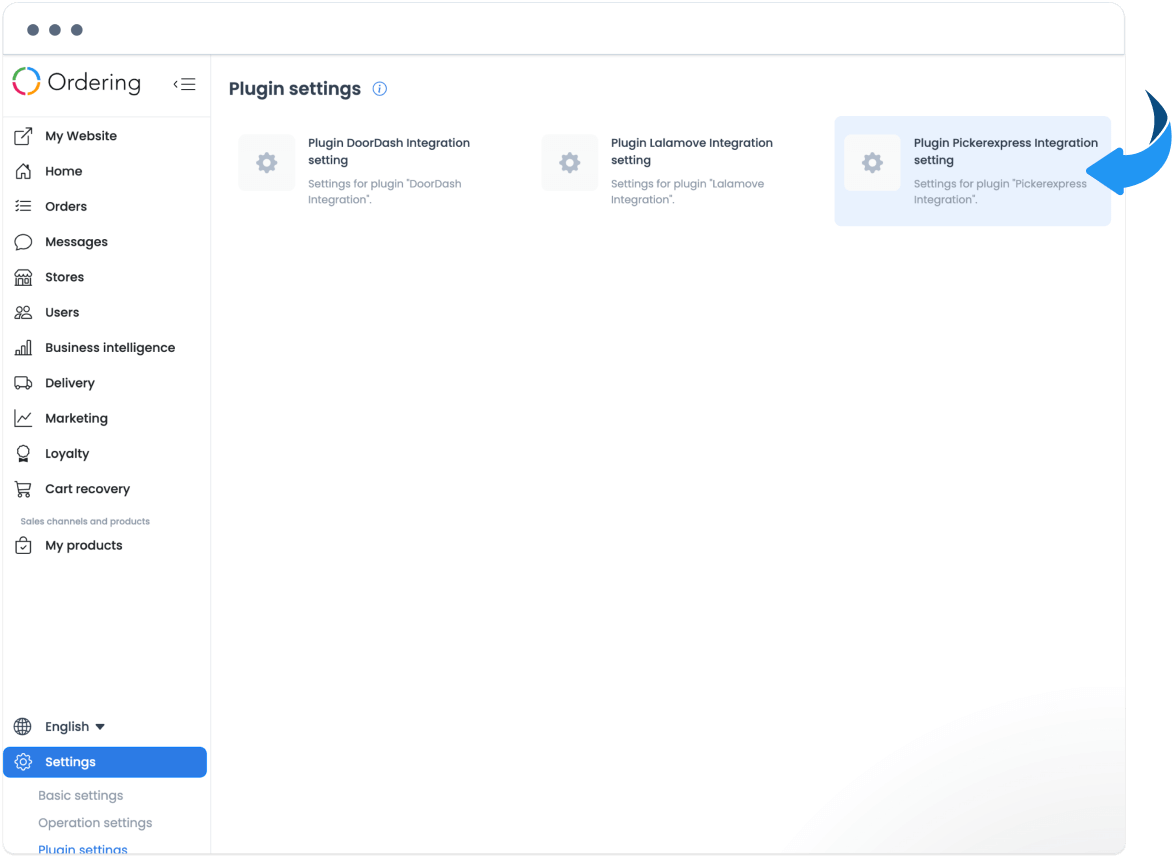
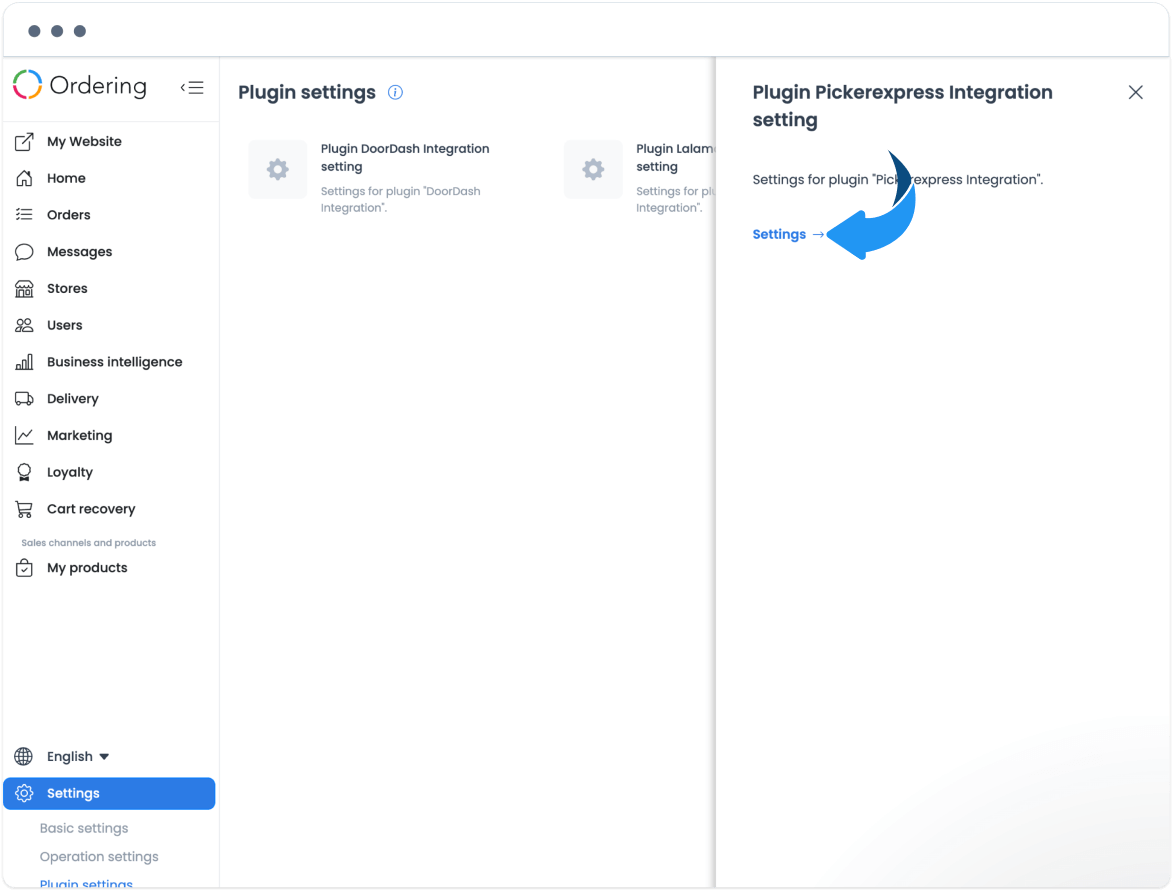
- Open the plugin entry, then select Settings.
An installed plugin is a configuration state only. It does not establish provider acceptance or a completed connection.
Choose the approved environment setting
When you are using the approved development configuration, set Set the development API instead of production to Yes. A development setting chooses configuration mode; it does not send a test delivery, validate credentials, or prove that a test provider account is connected.
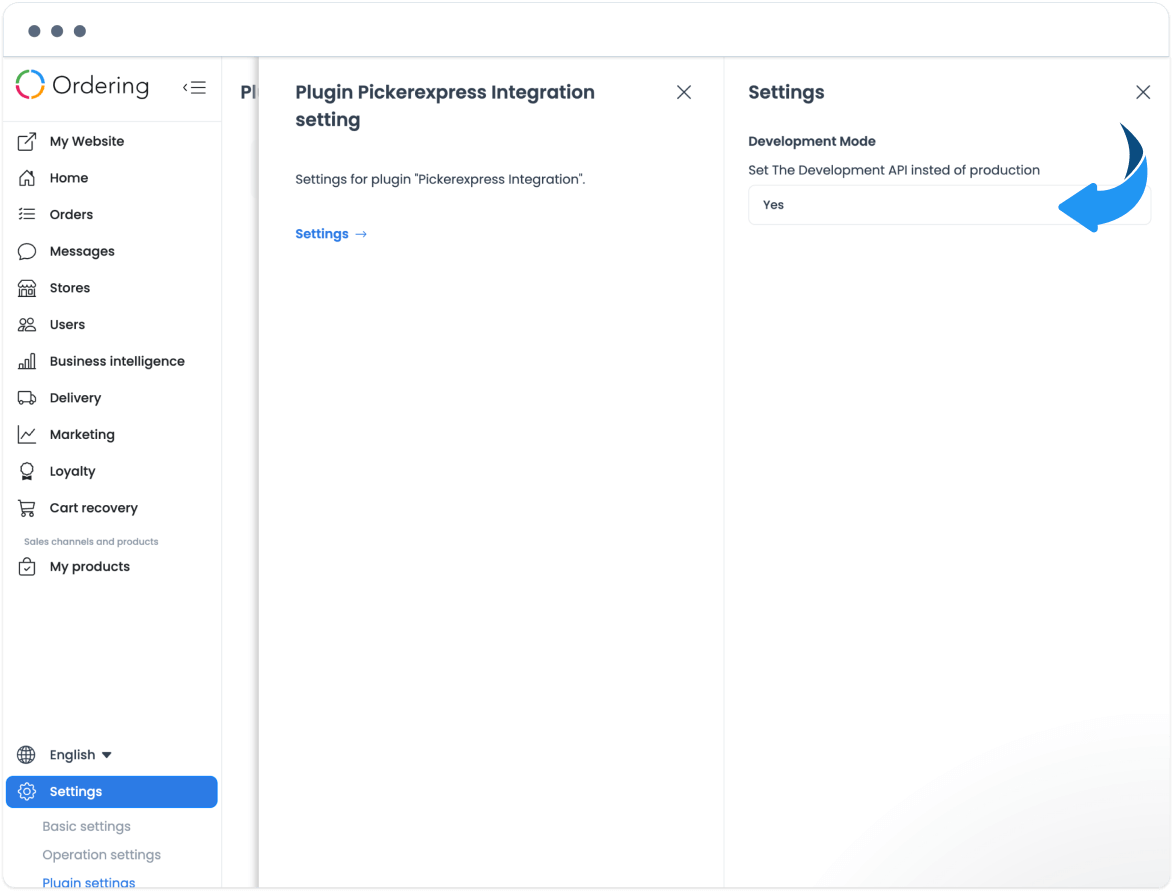
Do not switch environments to diagnose a delivery issue. Confirm the intended account and environment with the configuration owner first.
Review the PickerExpress delivery-company name
Available setup material uses both Pickerexpress and pickerexpress for the delivery-company name. It does not establish a verified current hook spelling, so do not use either value in this guide as a current hook requirement.
- Do not create or rename a delivery company solely from either historical spelling.
- When the approved configuration owner provides the required value, enter it exactly and review the address, time zone, schedule, capacity, and priority before saving.
- Review the related Driver group shown under Delivery Automation only as a configuration record, not as proof that a hook, fleet, or order handoff is active.
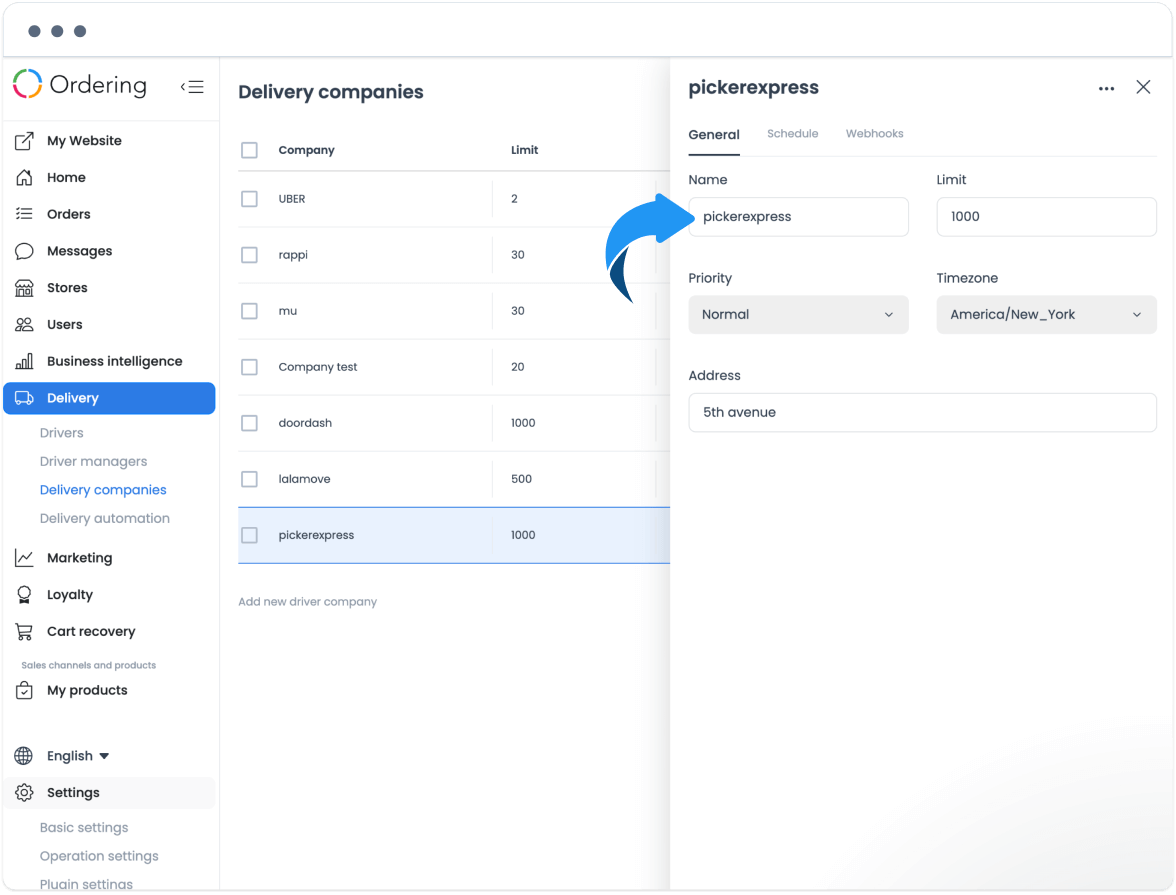
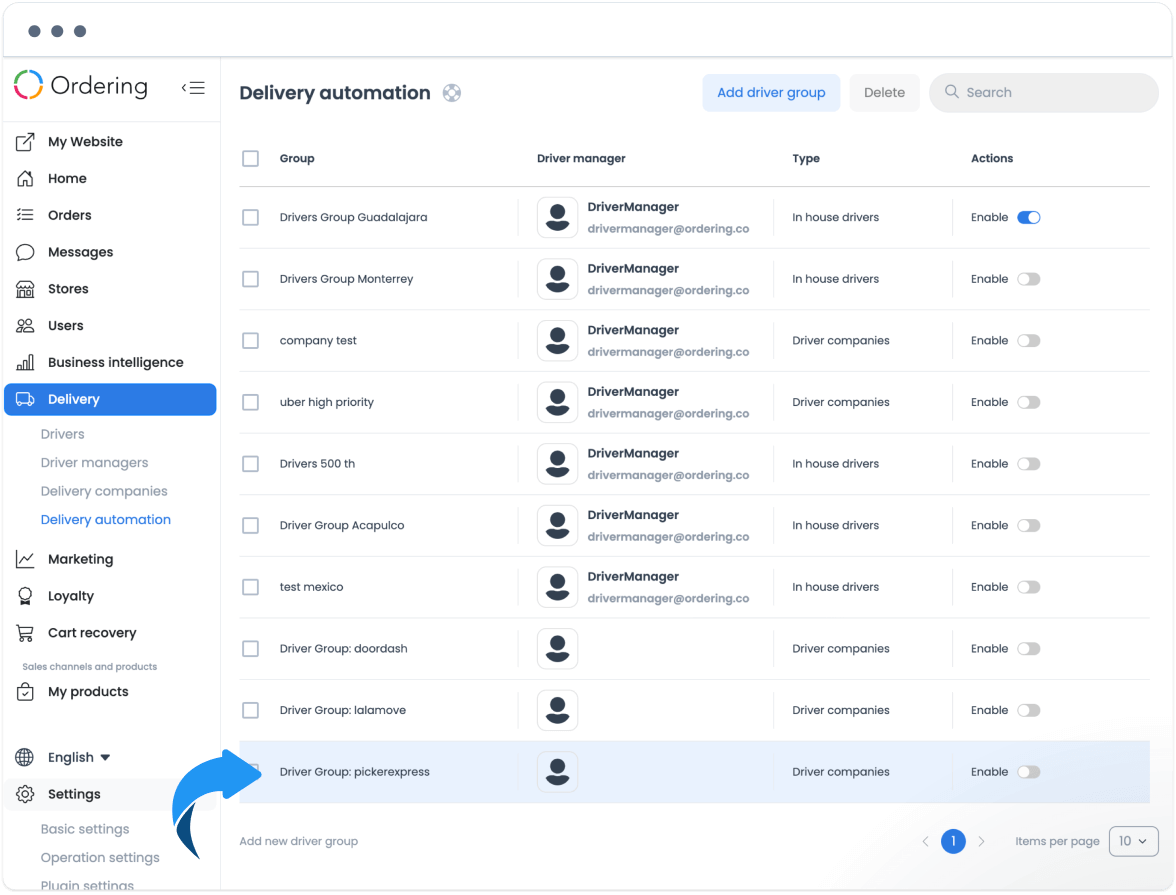
The company and Driver-group records define configuration relationships. They do not prove that a provider fleet is available or that an order is assigned.
Store the business key securely
For the store that uses this integration, open Custom Fields and add a meta field named picker_business_key. This field holds sensitive provider account data.
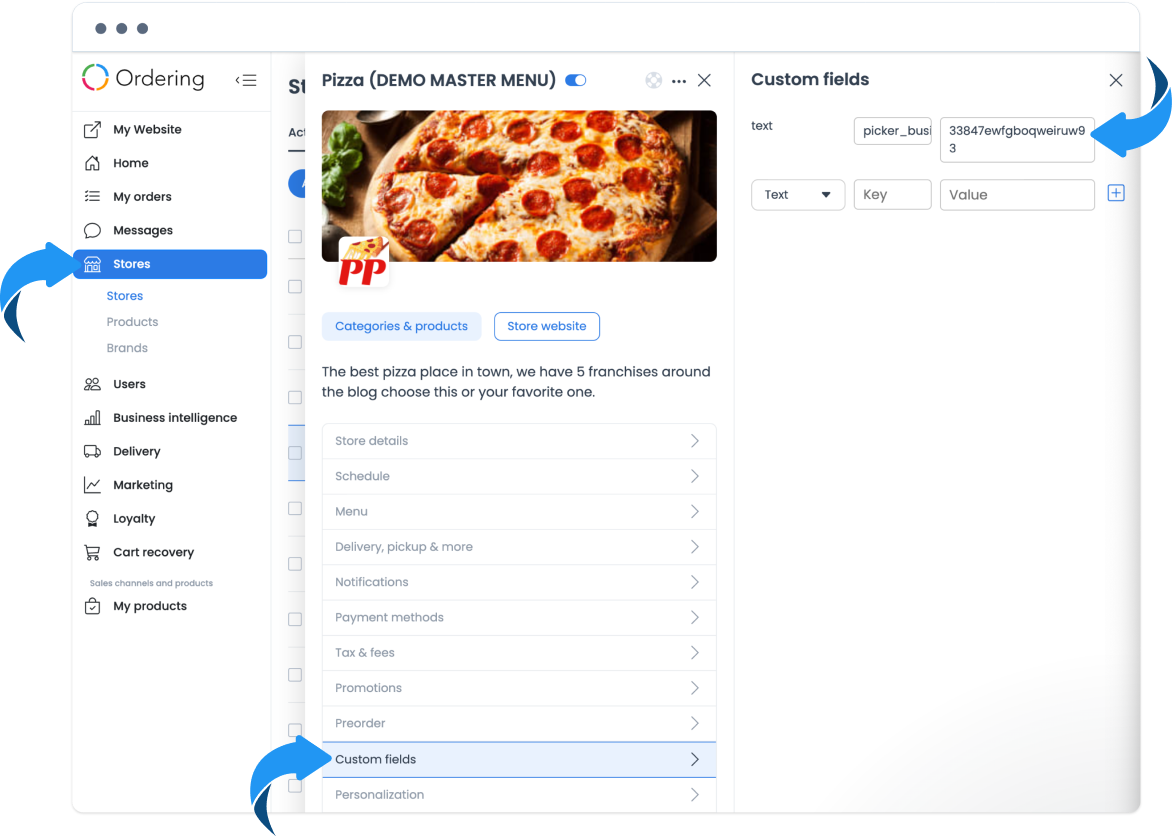
Enter the value only through the approved secret-handling process. Never display, link, paste, or share the value in documentation, tickets, chat, screenshots, or recordings.
Verify the setup boundary
After an approved save, reopen the intended plugin, delivery-company, Driver-group, and store configuration records. Confirm only the non-secret labels and selected environment shown in the Dashboard.
This does not establish provider acceptance, menu synchronization, order synchronization, a delivery quote, dispatch, tracking, payment, a notification, physical delivery, or customer receipt. Verify each outcome through the approved PickerExpress and order-operation processes.
Related guides: Delivery companies · Configure a delivery service · Assign and manage a delivery