Connect Lalamove
Use this workflow to prepare a Lalamove integration in the Dashboard. The process covers the approved plugin configuration, provider account data, an exact delivery-company name, and the related delivery configuration. It does not confirm that Lalamove has accepted the account, that orders are synchronized, or that a delivery has been dispatched or completed.
Adding a plugin and saving provider data change project configuration. Use only the account, environment, and credentials approved for this project. Do not enter a value from another project or use a live order to test the setup.
Request the approved plugin configuration
Open the Dashboard's Plugins area and request the Lalamove plugin URL through your authorized Ordering.co configuration process. The plugin URL is project-specific; do not substitute a URL from another provider, project, or environment.
- Add the approved Lalamove plugin URL.
- Confirm that the Lalamove plugin entry appears in the Plugins list.
- Open that plugin's settings when the approved Lalamove account data is ready.
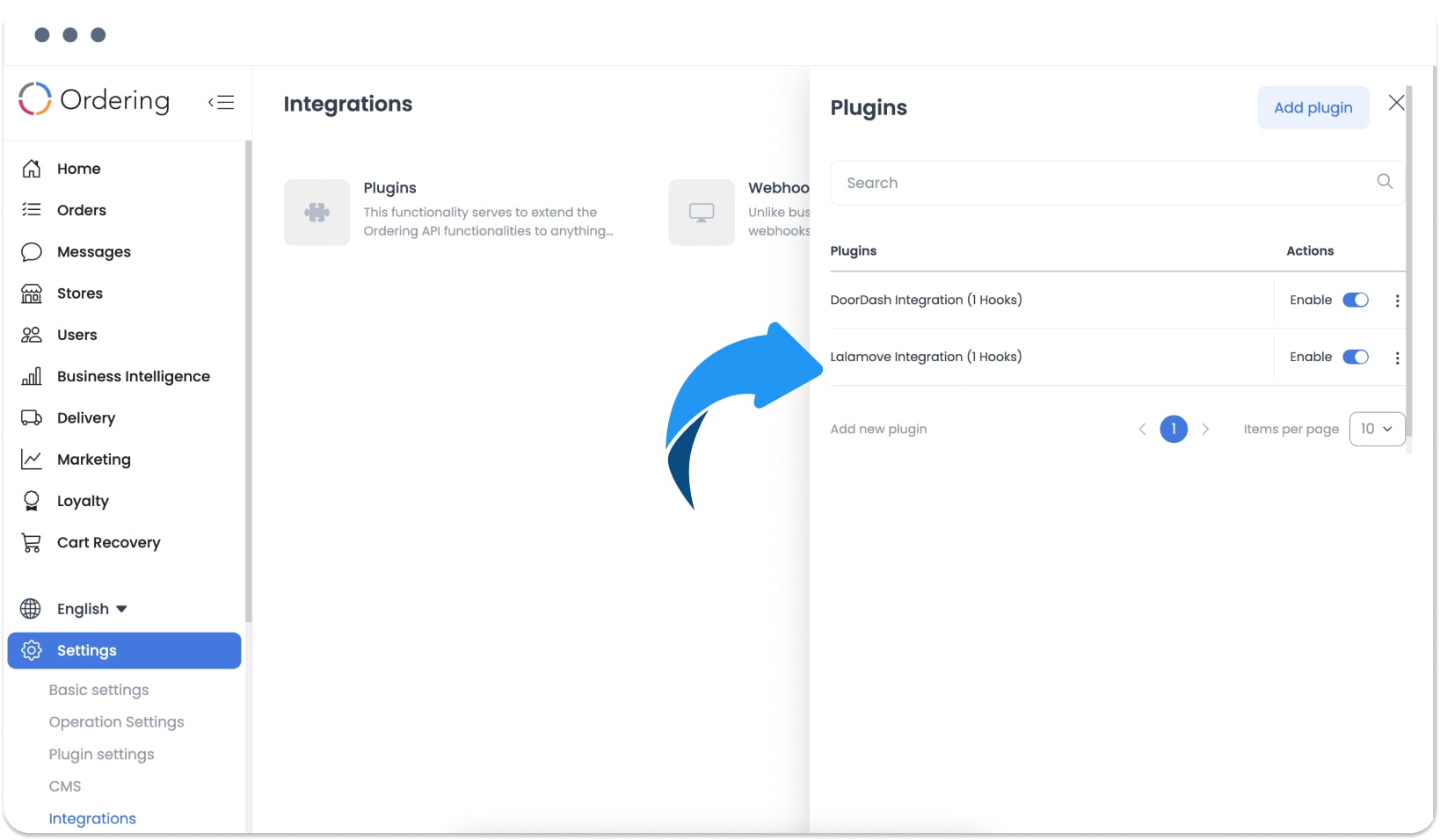
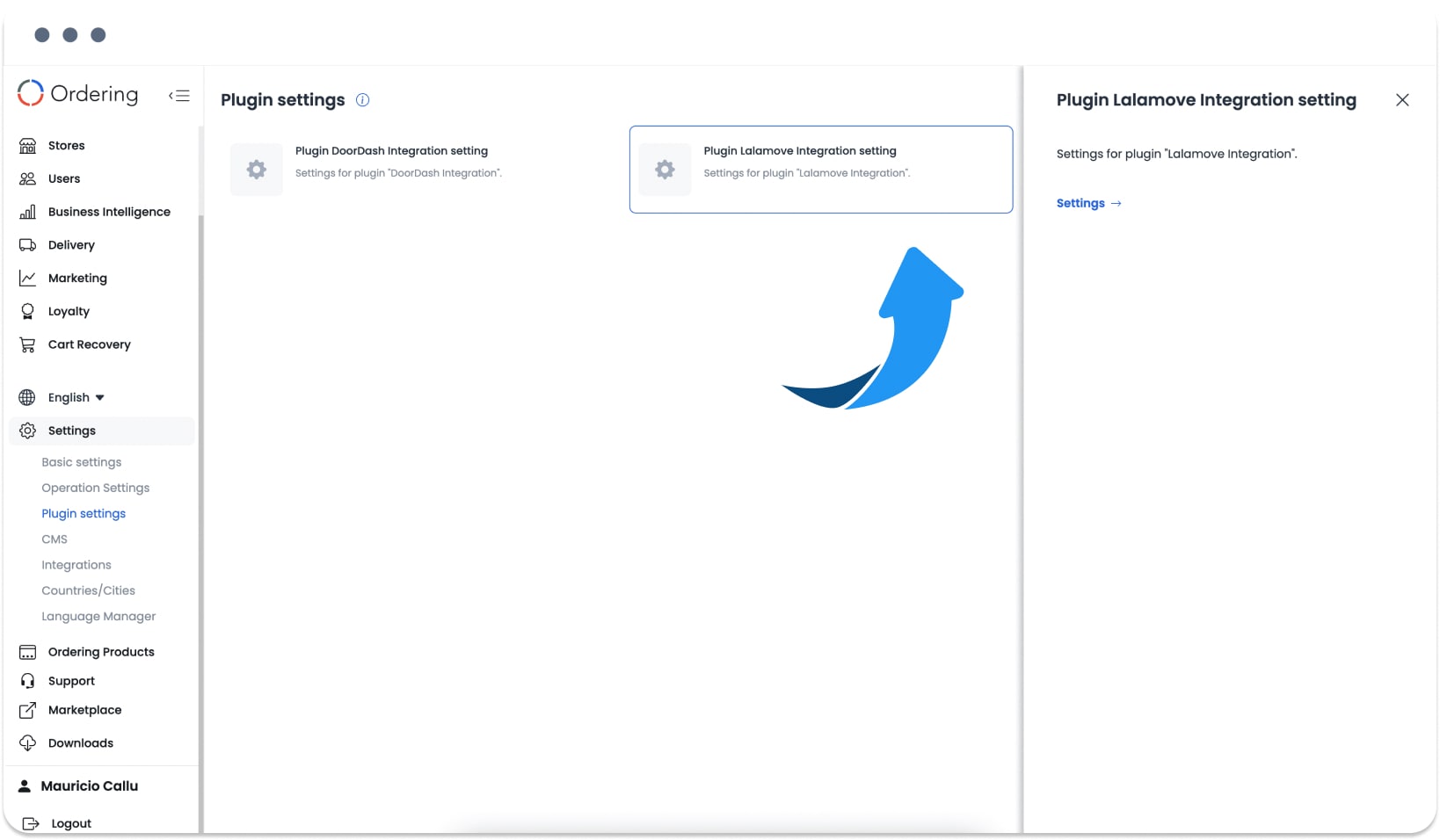
The plugin entry shows that configuration has been added to the project. It is not evidence of a connected provider account or a successful delivery handoff.
Enter Lalamove account data
In the plugin settings, use the values issued through the Lalamove partner portal for the intended environment:
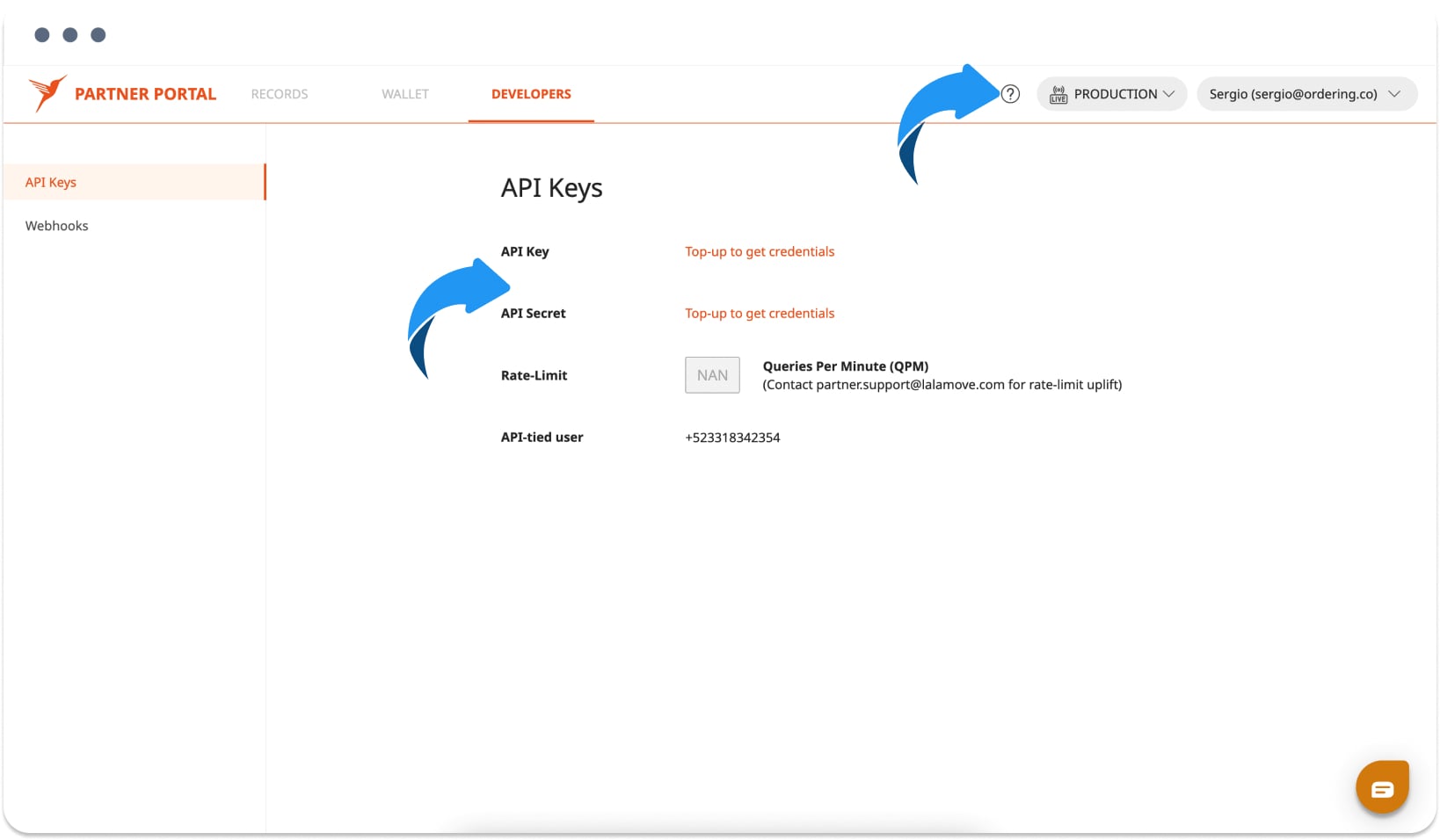
- API key and API secret identify the provider account configuration.
- Partner ID identifies the origin of orders in the Lalamove account.
- Test and live credentials are separate provider account data; select the intended environment before saving.
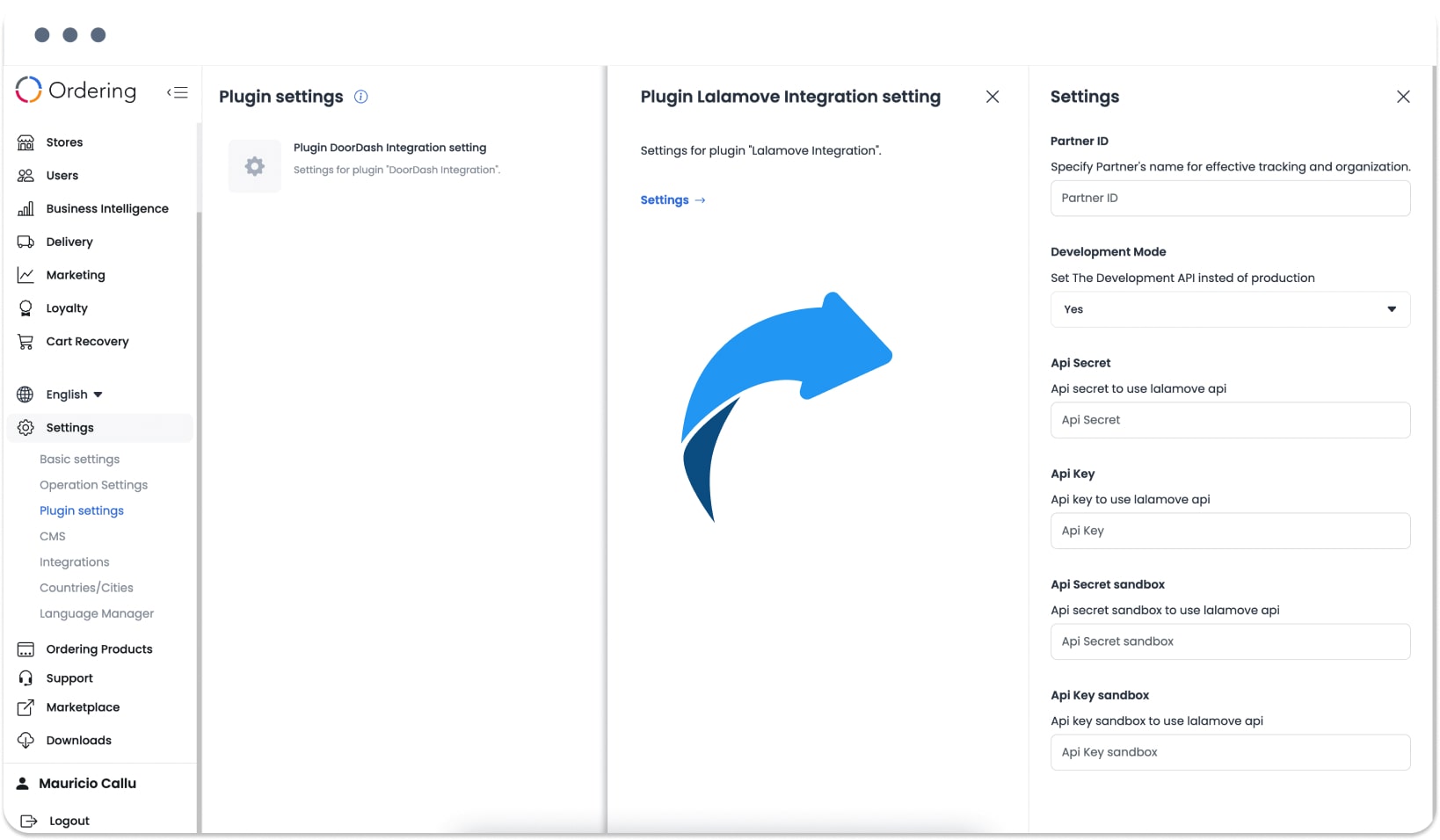
Enter credentials only in the approved Dashboard fields. Do not copy keys, secrets, or account details into documentation, tickets, chat, screenshots, or recordings. A saved credential is configuration data, not proof that a provider request succeeded.
Create the Lalamove delivery company
In Delivery > Delivery Companies, create the delivery company with the exact lowercase name lalamove. This exact name is part of the integration workflow and can be used to create the related webhook configuration.
- Enter
lalamoveexactly as shown. - Review the associated company and delivery-group records that the Dashboard displays.
- Set the approved address, time zone, schedule, capacity, and priority values.
- Save only after confirming the project and provider account are the intended ones.
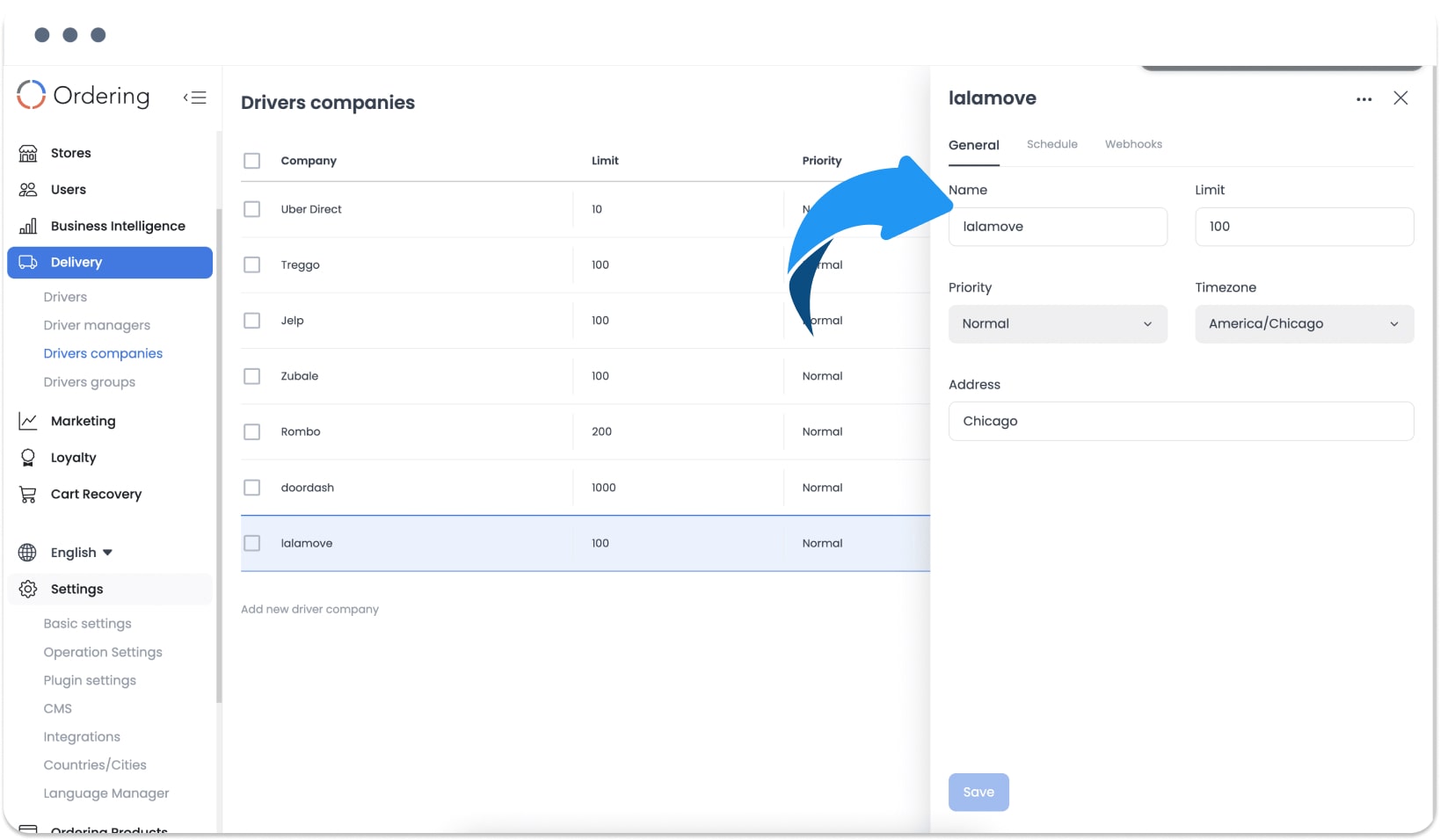
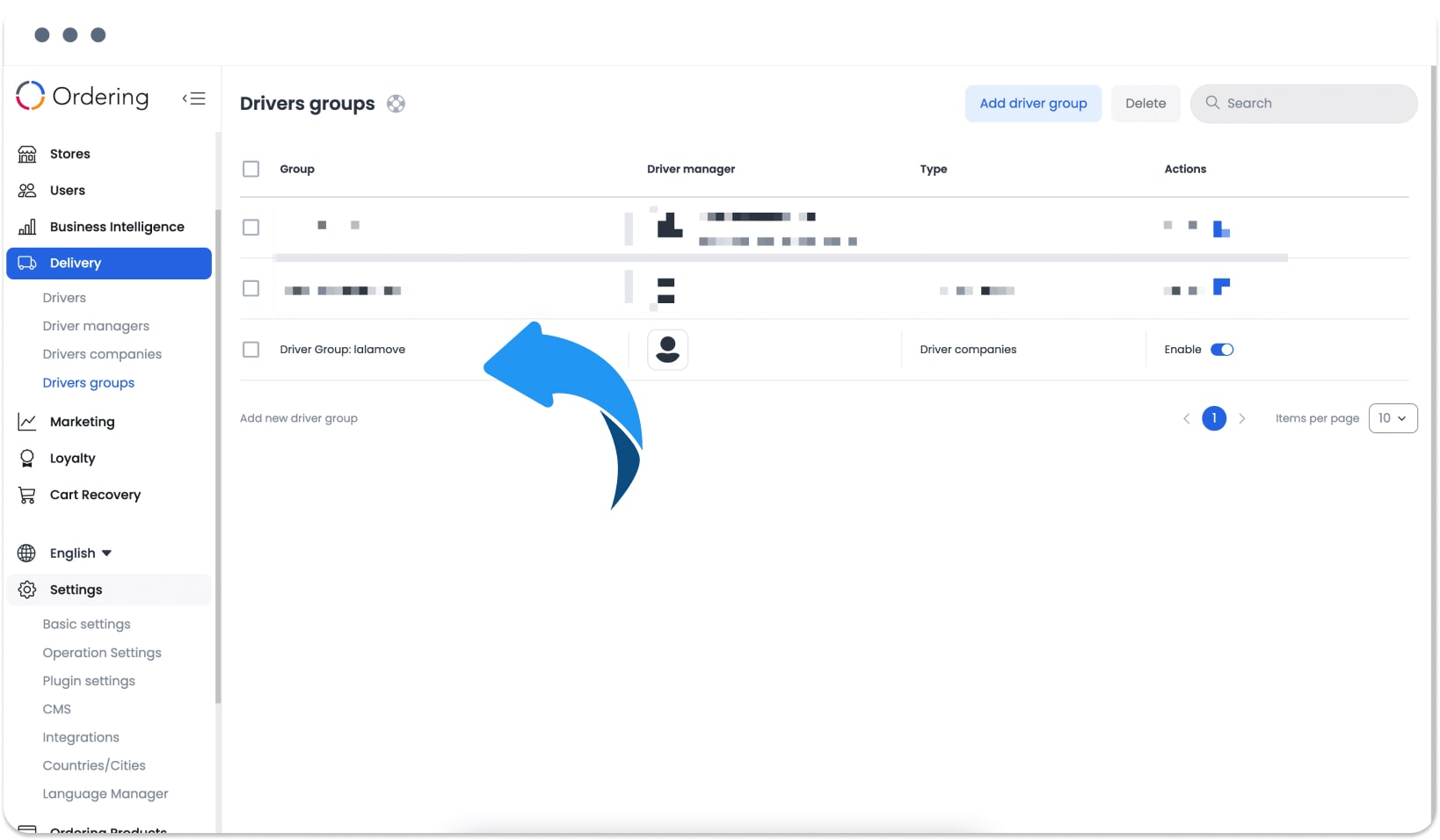
The related company, webhook, or Driver-group record expresses a configuration relationship. It does not prove that Lalamove has accepted the account, has capacity, or will receive an order.
Review the provider account context
Use the Lalamove partner portal to obtain and manage the account data for the intended environment. Review the provider account context before changing the Dashboard configuration, and keep the provider-account data private.
Verify the setup boundary
After an approved save, reopen the intended plugin and delivery-company records to confirm the labels and non-secret configuration fields displayed in the Dashboard. This verifies only the configuration visible to your account.
It does not establish provider acceptance, menu synchronization, order synchronization, a delivery quote, dispatch, tracking, payment, a notification, physical delivery, or customer receipt. Use the approved Lalamove and order-operation processes to verify those separate events.
Related guides: Delivery companies · Configure a delivery service · Assign and manage a delivery
Ordering.co integration page: Lalamove