Delivery companies
Use Delivery companies to organize the delivery-company records that your project can use with external delivery providers. A record can hold capacity, scheduling, and webhook settings for a provider or delivery partner. Creating, saving, or enabling that record prepares configuration; it does not confirm that a provider account has been accepted, that an order has been sent, or that a delivery has occurred.
Opening Delivery companies requires an Administrator (level 0) account. The My addons sidebar separately excludes read-only sessions. The entry depends on the current project's applicable configuration; appearing in the Dashboard does not confirm a provider connection.
Saving a company, changing its enabled state, or removing it changes operational configuration. Before making a change, confirm the intended provider, delivery group, schedule, and approved owner for the configuration.
Open Delivery companies
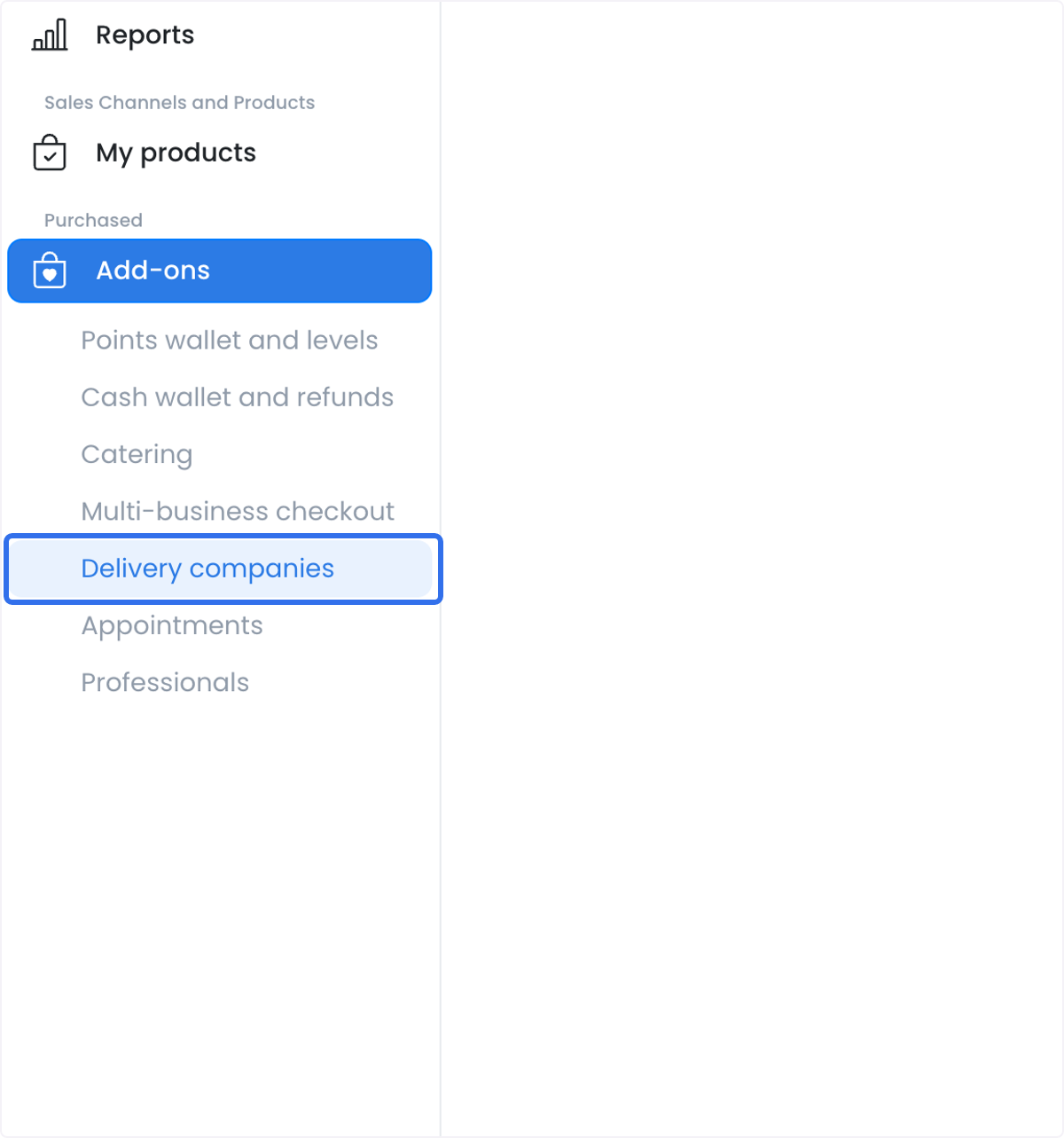
- In the Dashboard sidebar, select Delivery.
- Select Delivery Companies.
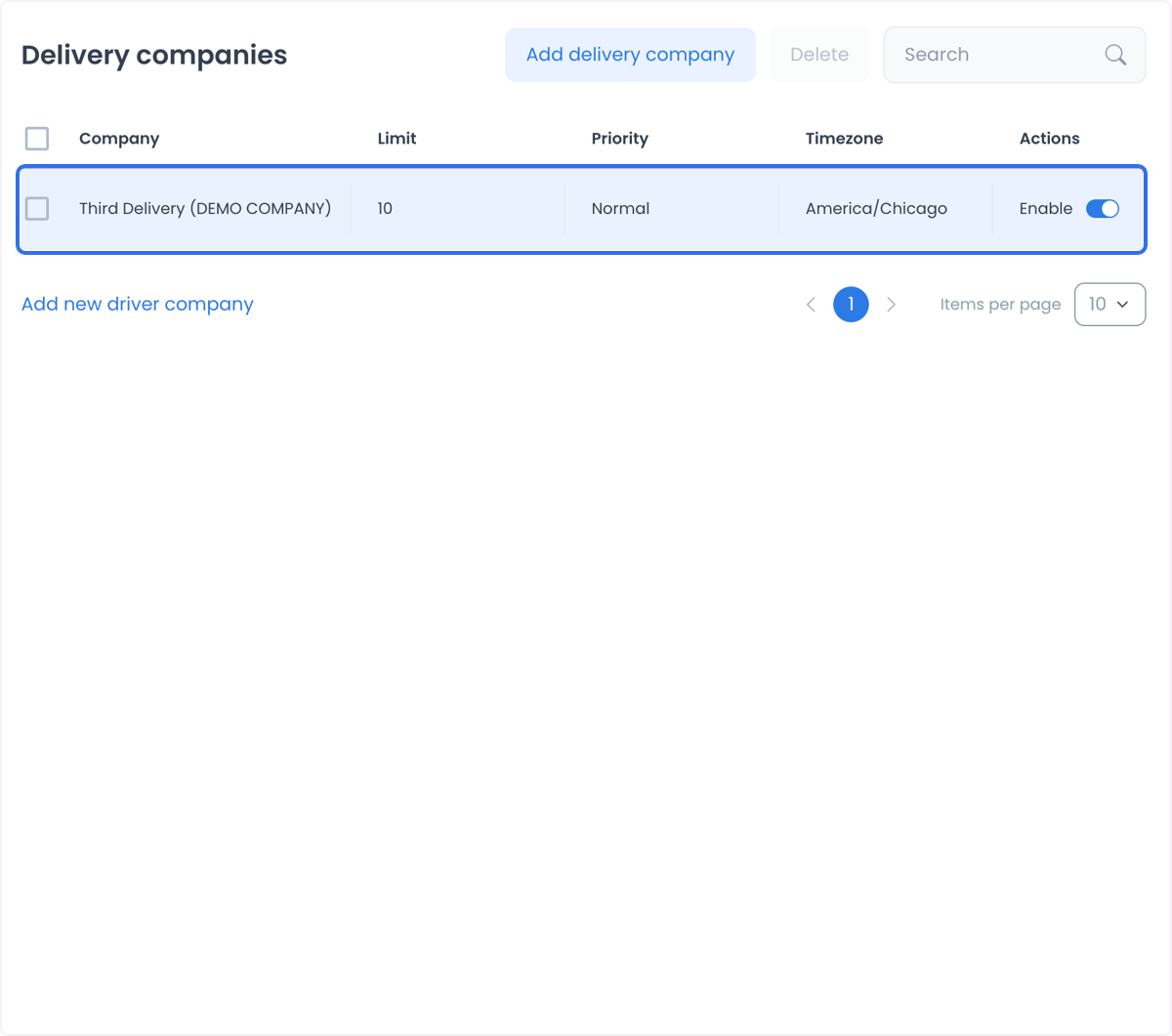
- Review the company list before adding or changing a record.
The list can show a company name, capacity limit, priority, time zone, and enabled state. A visible or enabled record is not proof that the provider can receive an order.
Add or update a delivery company
- Select Add delivery company, or open the company that you need to review.
- Enter the company Name, Address, and Timezone.
- Set the capacity and priority values that match the approved delivery arrangement.
- Define the days and hours when the company is expected to be available.
- Add the approved webhook destinations when the provider workflow requires them.
- Review the values, then save the record deliberately.
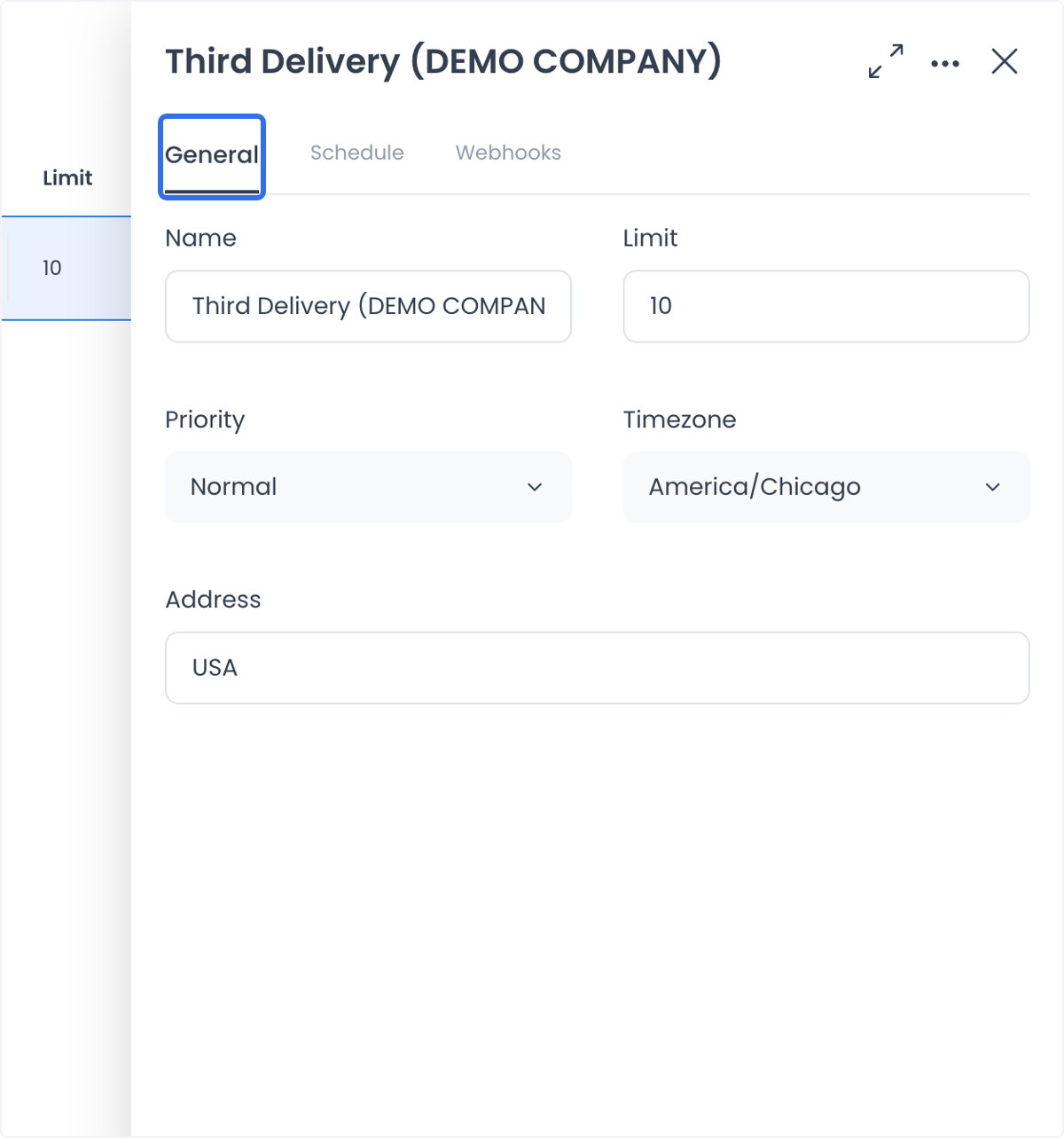
The detail form's Save submits its changed values. The list's Enable switch sends its own update immediately; it is not included in a later form save.
Understand the general settings
| Setting | What it configures | What it does not confirm |
|---|---|---|
| Name | The label used to identify the delivery company in the Dashboard. | A verified provider account or connection. |
| Address and Timezone | The location and time context used for the company configuration. | A provider service area, pickup, or completed delivery. |
| Limit | The capacity value used to help manage concurrent delivery work. | That a Driver is available or that the provider will accept an order. |
| Priority | The preference used when more than one configured company is eligible. The available choices can include Low, Normal, High, and Urgent. | That this company will receive, quote, accept, or dispatch a particular order. |
| Enable | Whether the company record is available to the configured workflow. | A completed connection, webhook delivery, or physical delivery. |
Understand write effects
- Capability: Creating a company can create a related Driver group and company association. Renaming a company or changing its enabled state can update that associated group. When a company deletion is accepted, its related Driver group can also be deleted.
- Event: Saving the detail form submits the edited record, while the list Enable switch submits an update immediately. Confirming a batch deletion sends one deletion for each selected company.
- Result boundary: A returned or reopened Dashboard record can show only the resulting Dashboard configuration. It does not establish provider acceptance, an order handoff, a webhook delivery, assignment, dispatch, or physical delivery.
After you confirm a batch deletion, Dashboard processes the selected companies one at a time. If one deletion errors, companies deleted earlier in the sequence can remain deleted while later selections can remain unchanged. Do not use batch deletion to test a configuration.
Set an availability schedule
Use the Schedule tab to record when the company should be considered available. This is especially useful when an external partner supplements an in-house fleet during selected hours or periods of higher demand.
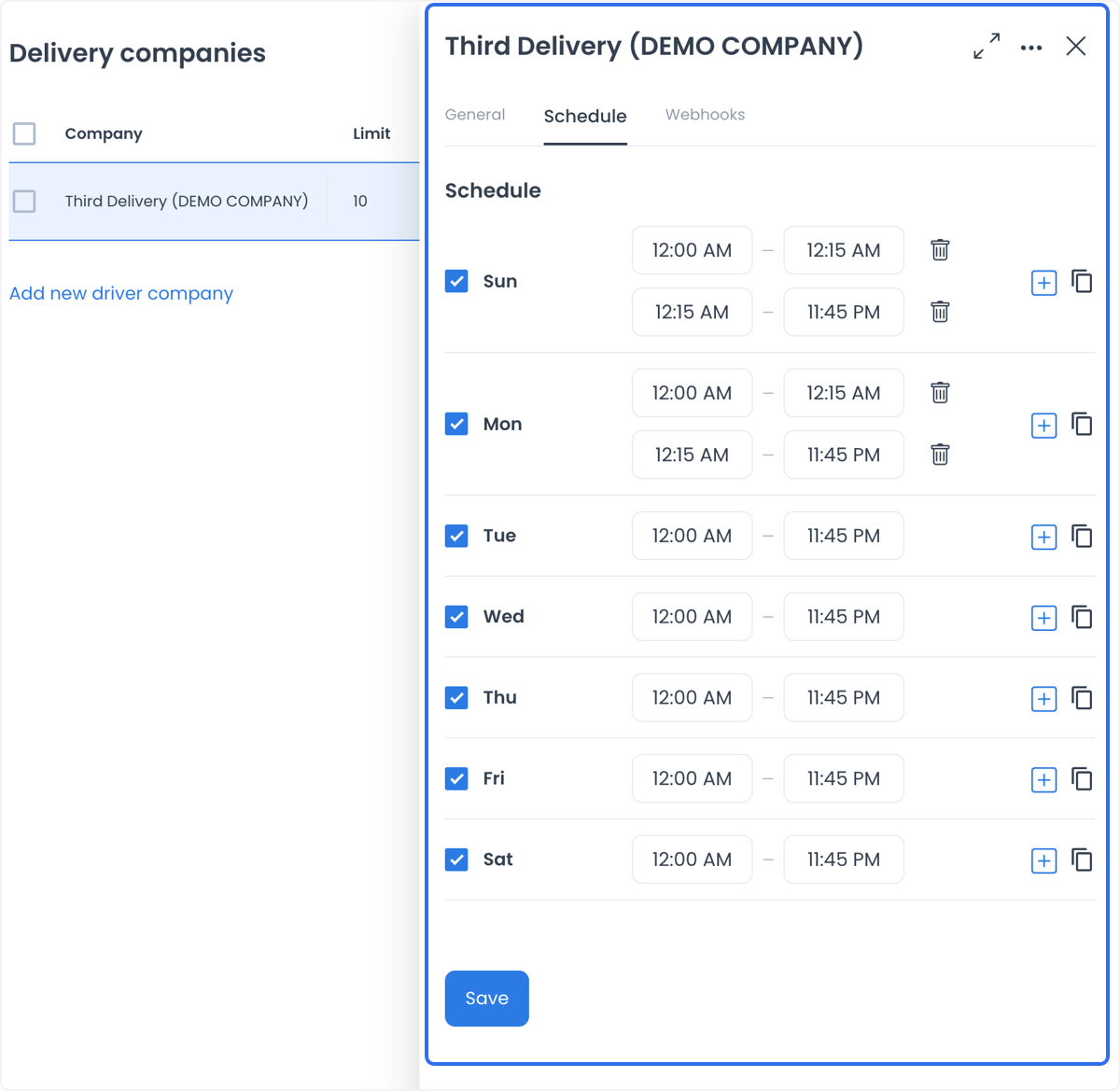
Review all seven days and the selected time ranges before saving. A saved schedule expresses the intended availability for the company record; it does not establish that a provider has capacity, that a Driver is assigned, or that a delivery will be completed on time.
Configure webhook handoffs
The Webhooks tab can hold destinations for these provider handoffs:
- New order webhook — a destination configured to receive new-order details.
- Cancel request webhook — a destination configured to receive a cancellation request.
- Order status changed webhook — an optional destination configured to receive delivery-status changes.
- API key — a credential associated with the delivery-company configuration.
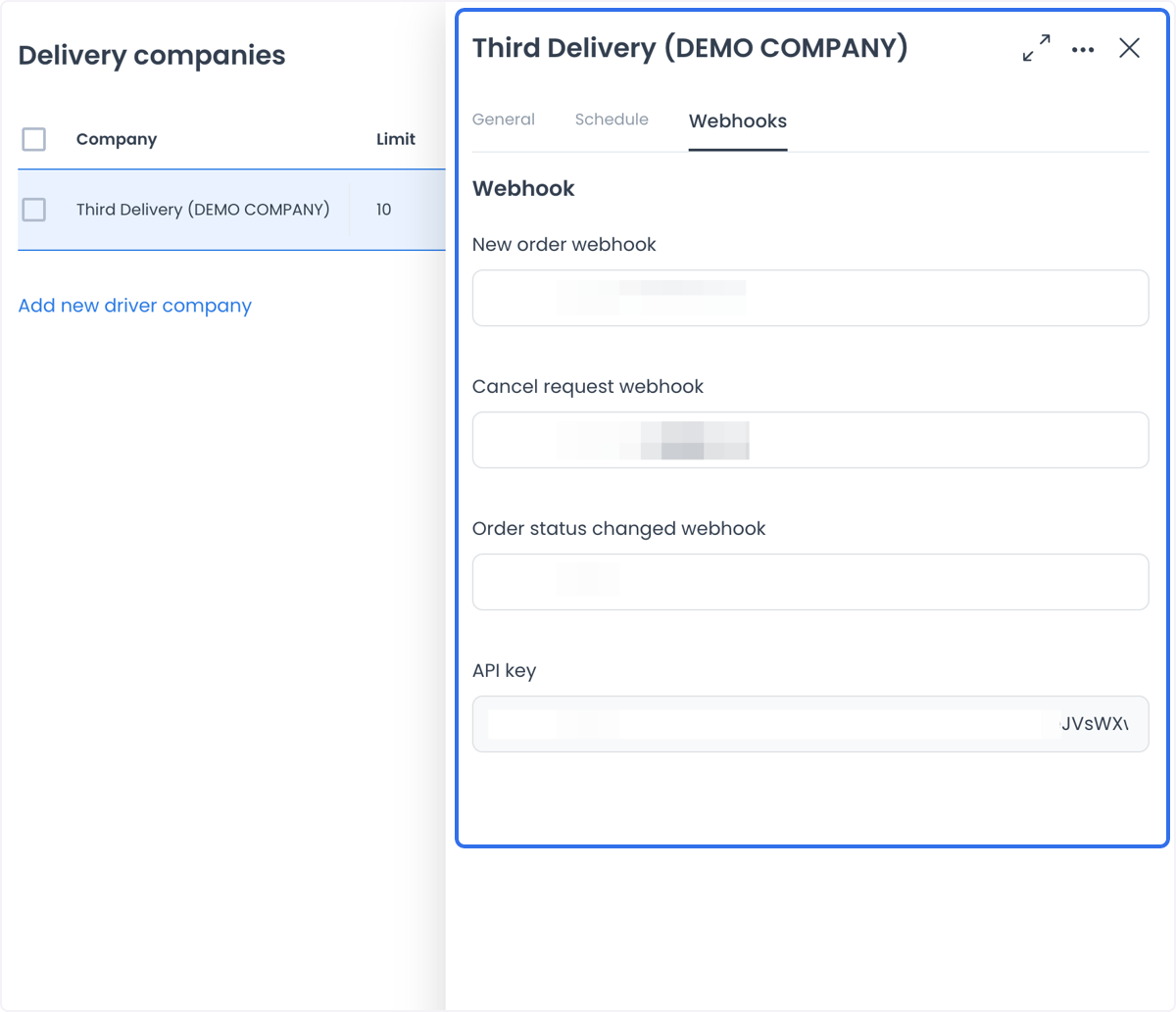
Treat webhook URLs and API keys as sensitive operational data. Do not copy them into documentation, tickets, chat, screenshots, or recordings. A saved URL is a configuration value, not confirmation that an event was delivered or processed.
Use multiple delivery companies deliberately
Multiple configured companies can help your team plan for different service areas, schedules, order volumes, or operating periods. Capacity limits, priorities, and schedules provide a way to organize that configuration without requiring an in-house fleet for every delivery scenario.
Common examples include:
- An online store preparing for a promotion or other higher-volume period.
- A restaurant coordinating an external partner during a busy service window.
- A retailer planning delivery coverage for selected order volumes.
- A local service business organizing a delivery partner for items or appointments.
When the provider-specific setup is separately confirmed, these records can reduce manual coordination and help teams plan capacity across multiple partners. They do not guarantee a delivery cost, provider capacity, transfer, dispatch, delivery time, or customer satisfaction.
Use this page to prepare and maintain the records. Use each provider's process to establish its account, credentials, approval, and any connection test. Do not change priorities or enable states merely to test whether an order will move to another provider.
Continue with a provider guide or coordination note
| Provider | Use this resource for |
|---|---|
| DoorDash | Choosing the Drive or Drive Classic plugin, adding provider credentials, preparing a delivery company and Driver group, and configuring status updates. |
| Lalamove | Requesting the approved plugin configuration, entering Lalamove account data, and using the exact lalamove delivery-company name. |
| PickerExpress | Preparing the approved plugin configuration, using the development setting when appropriate, and securely setting the picker_business_key store meta field. |
| Stuart | Preparing a project-scope discussion about locations and the intended delivery workflow; this note is not a Dashboard setup procedure. |
| Borzo | Preparing a project-scope discussion about locations and the intended delivery workflow; this note is not a Dashboard setup procedure. |
| Nash | Preparing a project-scope discussion about the provider network and operating rules; this note is not a Dashboard setup procedure. |
- Connect DoorDash
- Connect Lalamove
- Connect PickerExpress
- Coordinate a Stuart connection
- Coordinate a Borzo connection
- Coordinate a Nash connection
Verify the configuration boundary
After an approved change, reopen the intended company record and confirm the displayed name, address, time zone, schedule, priority, enabled state, and webhook labels. That review confirms only the Dashboard configuration shown to you.
It does not by itself establish provider acceptance, menu synchronization, order synchronization, a delivery quote, dispatch, tracking, payment, a notification, physical delivery, or customer receipt. Verify those outcomes through the approved provider and operational processes for the affected order.
Troubleshooting
Why is a company missing from the list?
Delivery companies requires an Administrator (level 0) account. Confirm that you are in the correct project; the My addons sidebar excludes read-only sessions, and the entry depends on the project's applicable configuration. Ask an administrator to review the intended access before creating a duplicate record.
Why did an enabled company not receive an order?
An enabled record is only one part of the configuration. Review the provider-specific setup, schedule, capacity, priority, delivery-group relationships, and the approved order workflow. Do not treat an enabled switch as proof that an order was transferred or accepted.
Can I delete a company to test a configuration?
No. Removing a delivery company can affect its related delivery group and active operations. Batch deletion can also leave a partial result. Use an approved non-production test process rather than deleting a live configuration.
Related guides: Delivery overview · Assign and manage a delivery · Configure a delivery service · Add-ons overview