Refund an order to Cash Wallet
Use this procedure to request a refund to a customer's Cash Wallet from order details. The request, refund authorization, order state, submission, wallet record, provider or payment settlement, notification, expiry, and customer use are separate outcomes. Follow your approved refund policy; this guide does not confirm a live refund.
Do not use a live order or customer wallet to test this workflow. Before submitting a refund, confirm the intended customer and order, the authorized actor, the permitted refund destination, and the amount through your approved operational process.
Before you submit
- Confirm that you are authorized to issue or request this refund.
- Review the intended order and its current state. The examples show refund settings for canceled orders, but a visible order label does not by itself prove final cancellation, payment settlement, delivery, or refund eligibility.
- Confirm that Cash Wallet is an approved refund destination for the current payment method and order context. A visible setting is configuration evidence, not payment authorization.
- Record the amount and reason according to your operating policy. A comment can explain the request, but it does not approve or settle it.
Confirm the refund configuration
In the Dashboard, review the Cash Wallet destination setting in Cash wallet and refunds. Cash Wallet is only one possible destination, so review it against the current payment method and refund policy rather than enabling every visible option.
A saved-looking setting does not submit a refund, change an order state, create a wallet credit, settle a provider payment, or notify a customer.
Find the order
- Go to My orders > Orders list.
- Locate the intended order, then open its details.
- Reconfirm the customer, order context, payment method, and state before continuing.
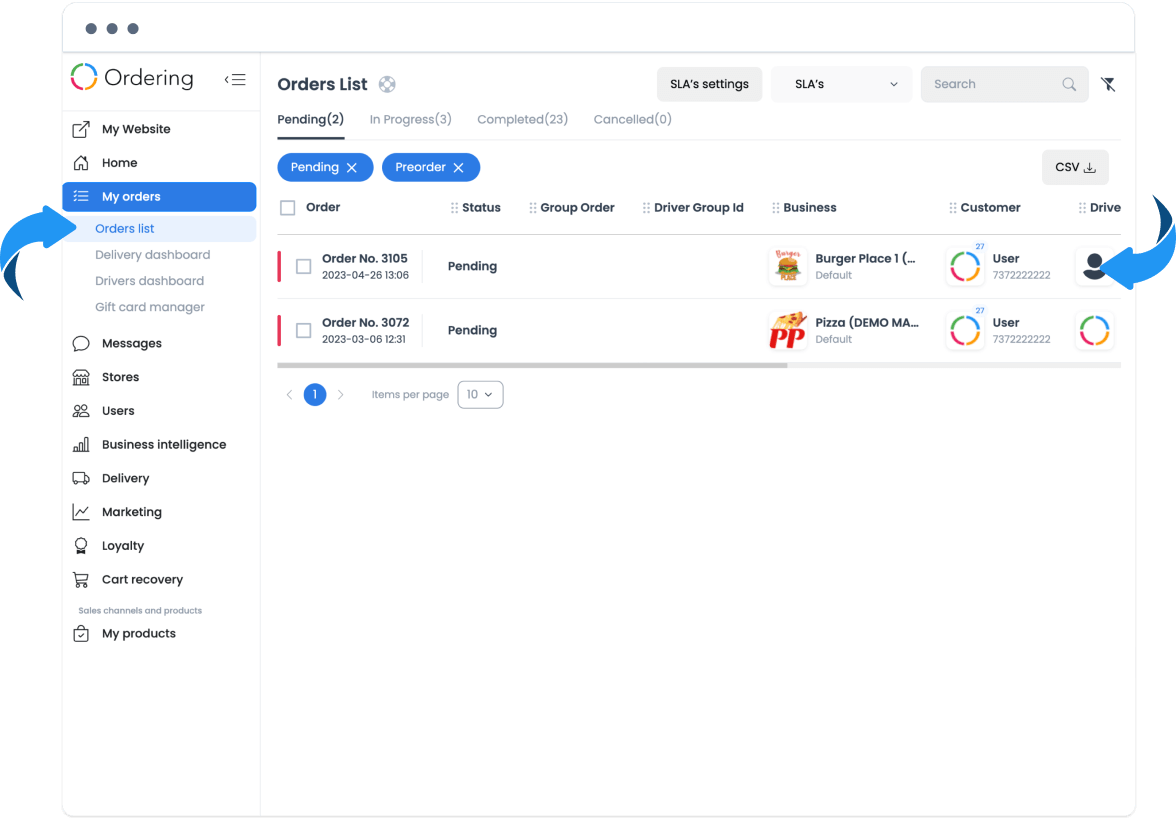
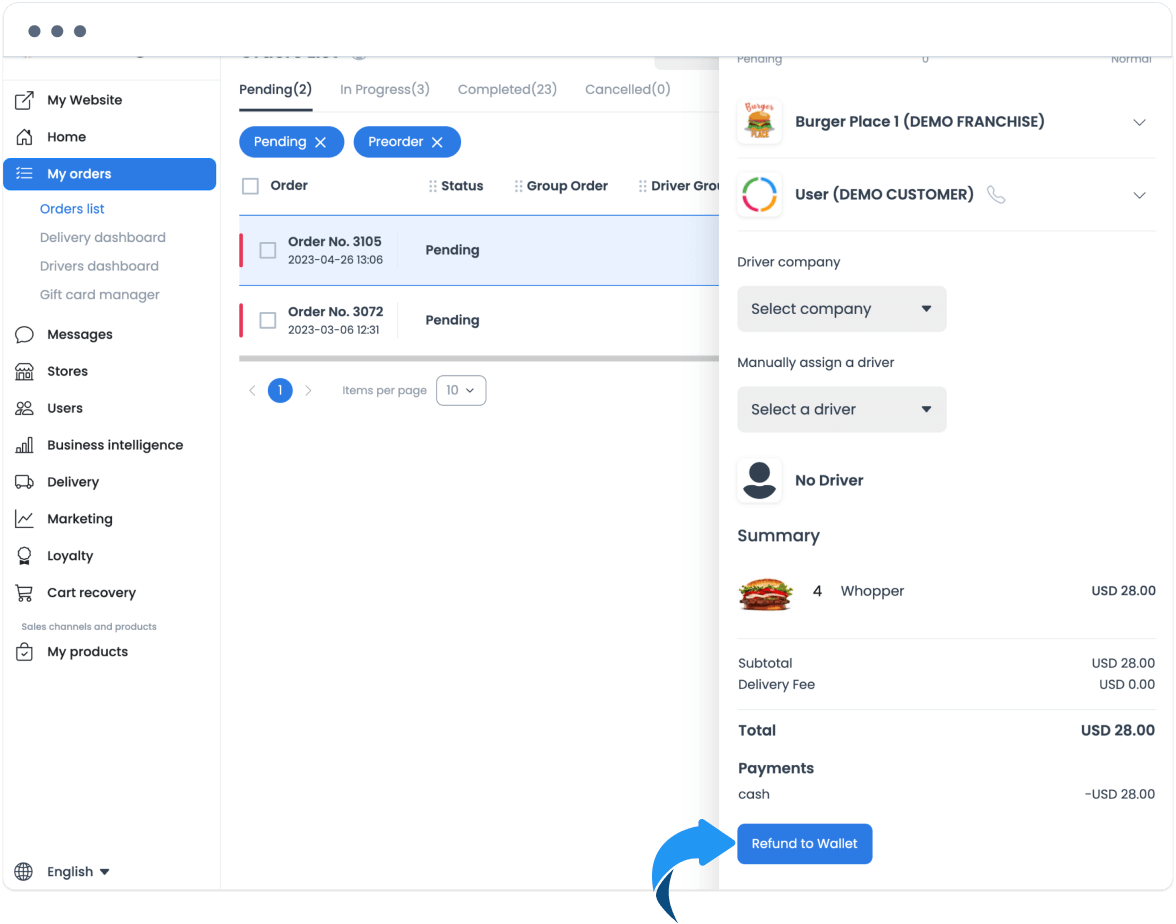
The order details can show a Refund to Wallet control when the current record and configuration make it available. Its presence does not prove eligibility or that a refund will be accepted.
Submit the refund request
- Select Refund to Wallet in the order details.
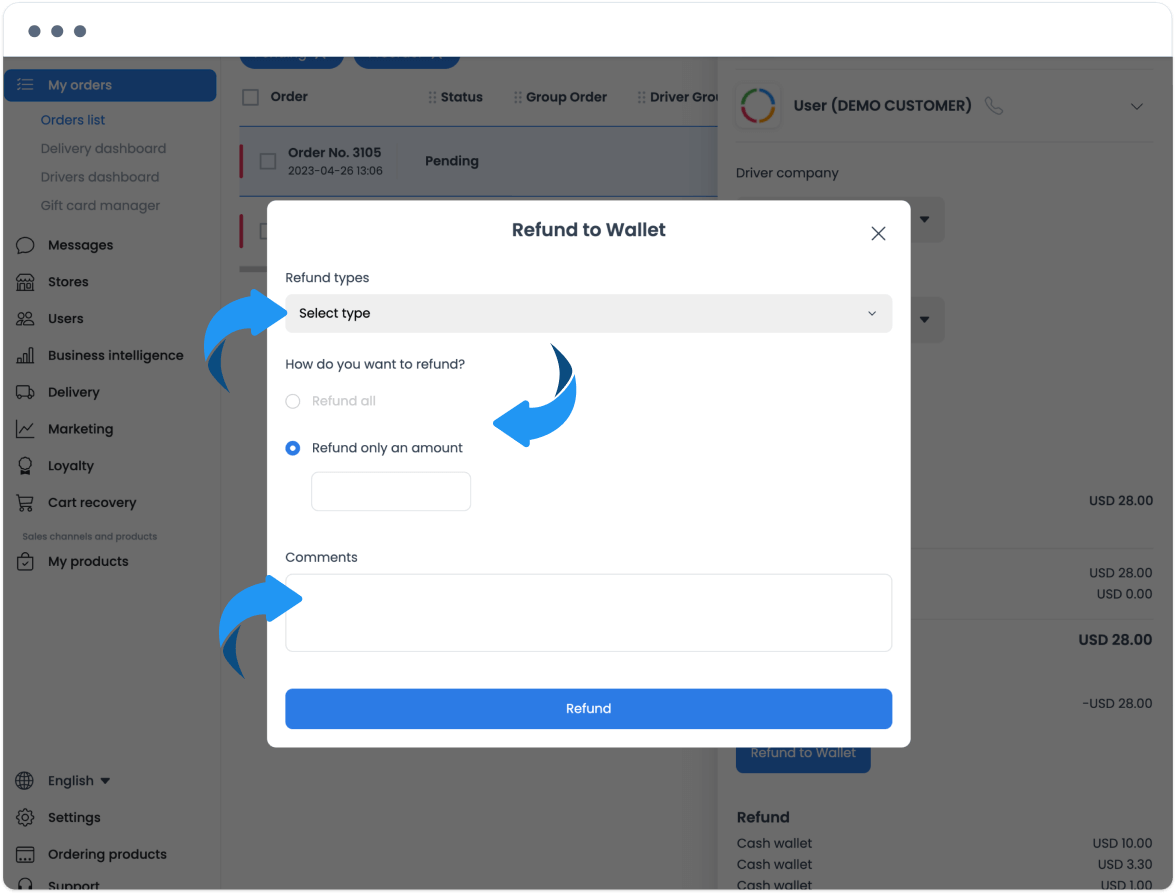
- Choose only a refund type offered in the current dialog. The example includes a refund type and full or amount-based refund choices; availability can differ by the order and configuration.
- If the dialog requires an amount, enter the approved amount. Add a clear comment when your policy requires one.
- Review the selected type, amount, comment, customer, and order one final time.
- Select Refund to submit the request.
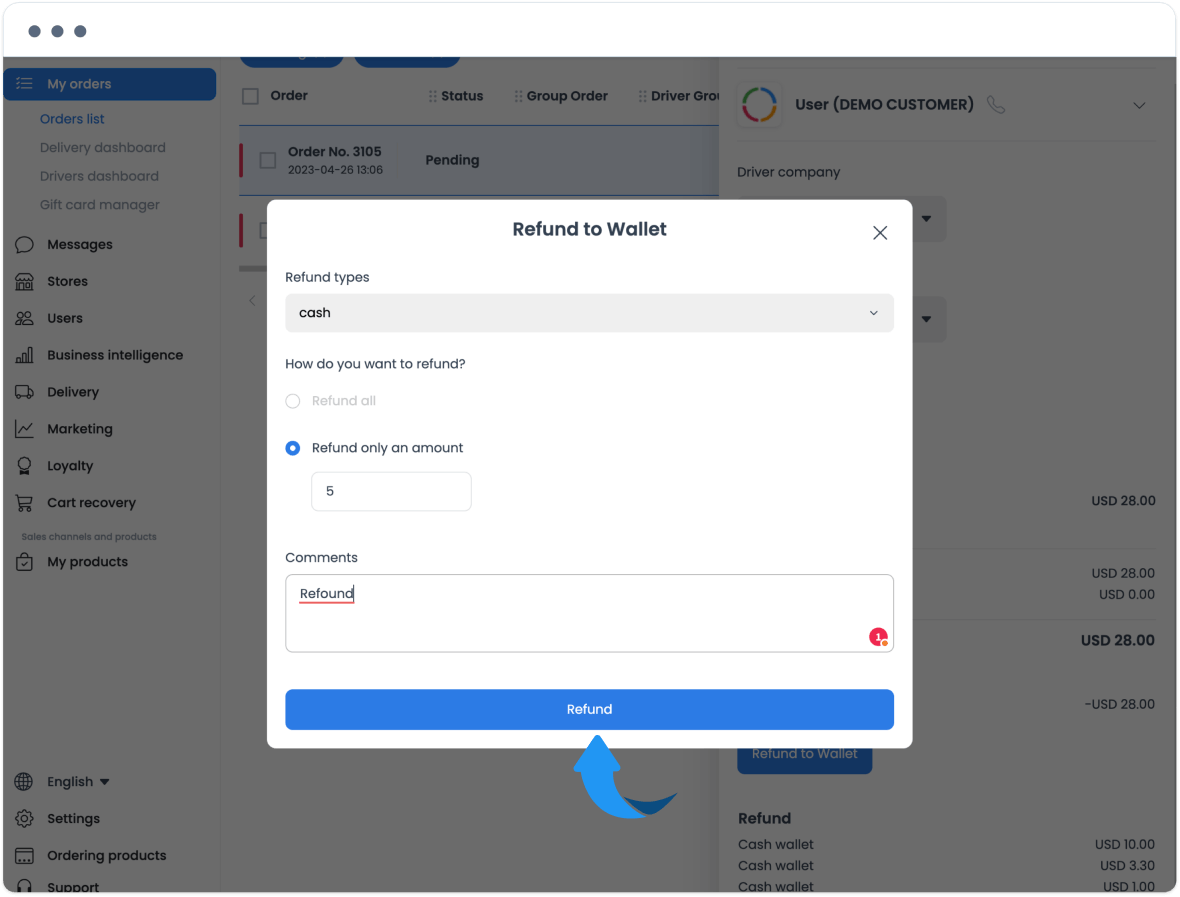
Selecting Refund is the submission step, not confirmation that the request was accepted, that a wallet credit posted, or that any related payment reversal or provider settlement completed. If the response is unclear or unavailable, do not submit the request again to force a result; use the approved reconciliation process.
Review the wallet record
After the appropriate processing time for your operation, go to Users > Customers, open the intended customer, and select Cash wallet when it is available. The panel can show a balance and a Transaction history tab.
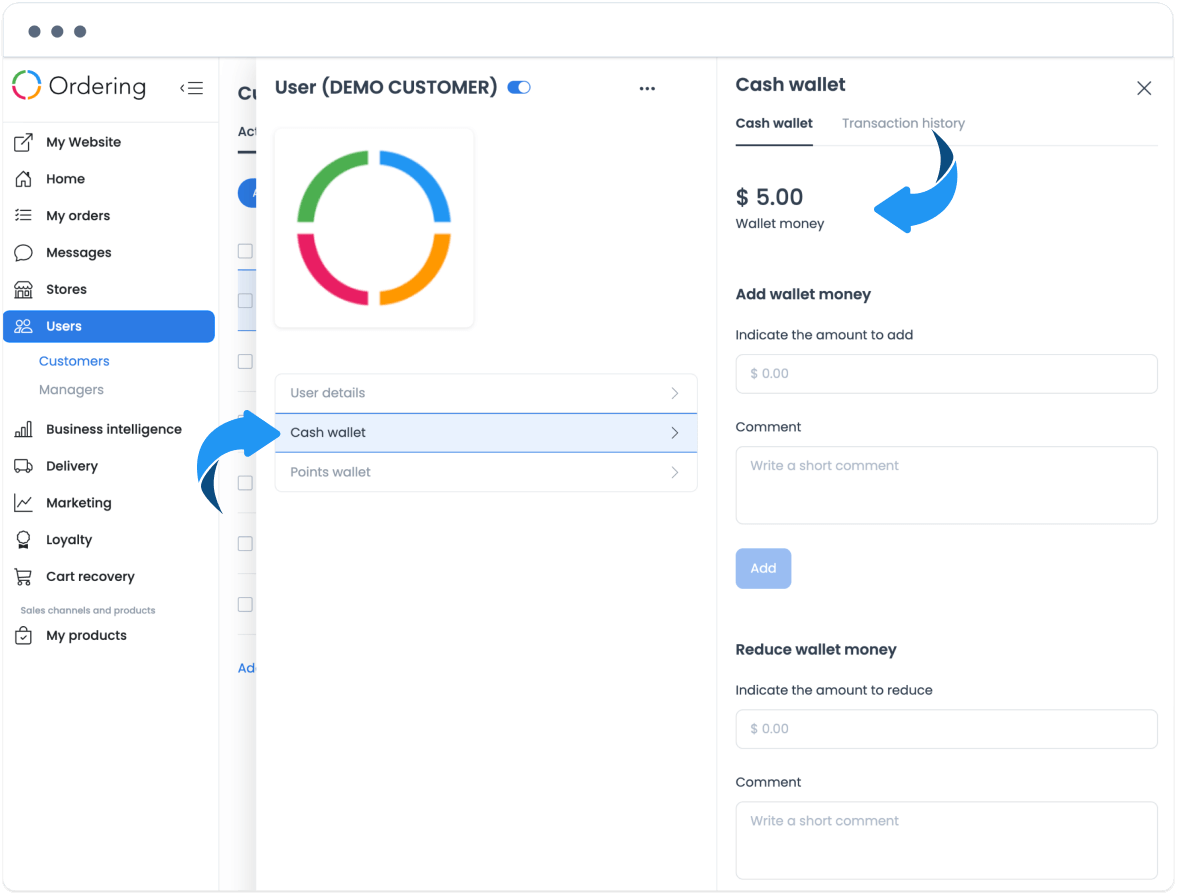
Review any relevant dated history entry and the displayed balance through your approved audit process. A displayed balance or activity row does not guarantee available funds, checkout eligibility, a completed refund, payment or provider settlement, or customer redemption.
Verify each outcome independently
| Outcome | Verify separately | Do not infer it from |
|---|---|---|
| Authorization | The applicable role, refund policy, and payment-method rules | A visible button or enabled setting |
| Order state | The approved order-review record | A list label, count, or details screen alone |
| Refund submission | The outcome returned by the approved operational process | Selecting Refund or closing the dialog |
| Wallet credit | The permitted wallet audit record and current account view | A request form, a screen refresh, or an apparent balance change |
| Payment or provider settlement | The appropriate payment or provider reconciliation record | A Cash Wallet destination setting or wallet history entry |
| Notification | The channel's delivery and recipient evidence | A submitted refund or a visible wallet row |
| Expiry | The applicable wallet policy | A displayed balance, activity date, or refund request |
| Customer outcome | The customer's actual eligible wallet or checkout experience | A posted-looking record or customer profile view |
This workflow does not define an expiry rule or confirm notification delivery, payment settlement, or redemption. Confirm those outcomes with the systems and records authorized for your operation.