Route mobile website visitors to Customer App
A mobile-web routing journey has two separate jobs:
- Present an app-install or app-open path to eligible visitors on your mobile website.
- Keep Customer App navigation and notification requests within the current customer, project, session, and authorization context.
Do not treat a browser banner, a store handoff, an app link, or a notification as proof that a customer installed the app, opened the intended screen, or completed an order or payment action.
Before you configure a website-to-app journey
The documented setup requires:
- An iOS and/or Android app already published in the applicable app store.
- Access to the Branch dashboard for the app and website, with the Web-to-App journey and selected template capability enabled for that account. The provider decides whether those capabilities are enabled for a particular account; this guide does not establish current eligibility.
- Control of the website domain and its header or third-party-code configuration.
- The correct app listing, website URL, country, and device audience for the experience you intend to present.
- A safe test environment or a tightly scoped test audience before wider use.
The screenshots document a historical Branch Web-to-App journey configuration. Provider labels, journey and template capabilities, eligibility, and integration requirements can change. In the authorized Branch account, confirm that the required journey and selected template are enabled, then confirm the current Branch documentation and the website's supported third-party-code boundary before adding or replacing code. Do not copy a key, secret, app ID, or script value from a screenshot, document, or another configuration.
Select an image to enlarge it.
Configure the Branch journey
Step 1: Create the journey
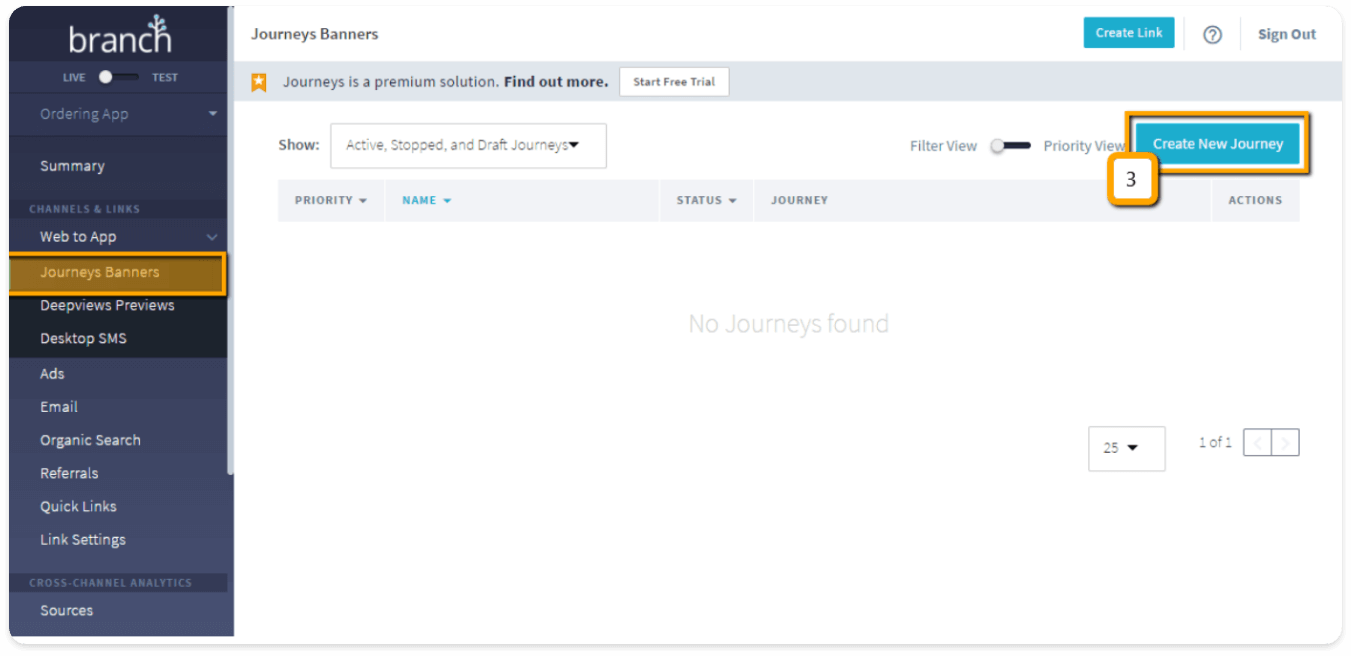
In the Branch dashboard, open the Web-to-App journey area and create a new journey. The documented path is dashboard.branch.io/web/journeys.
2. Select the audience
Give the journey a clear internal name. Select the mobile-web audience and the devices that should see the banner, such as iOS users, Android users, or both. Confirm the target regions and any filters before continuing.
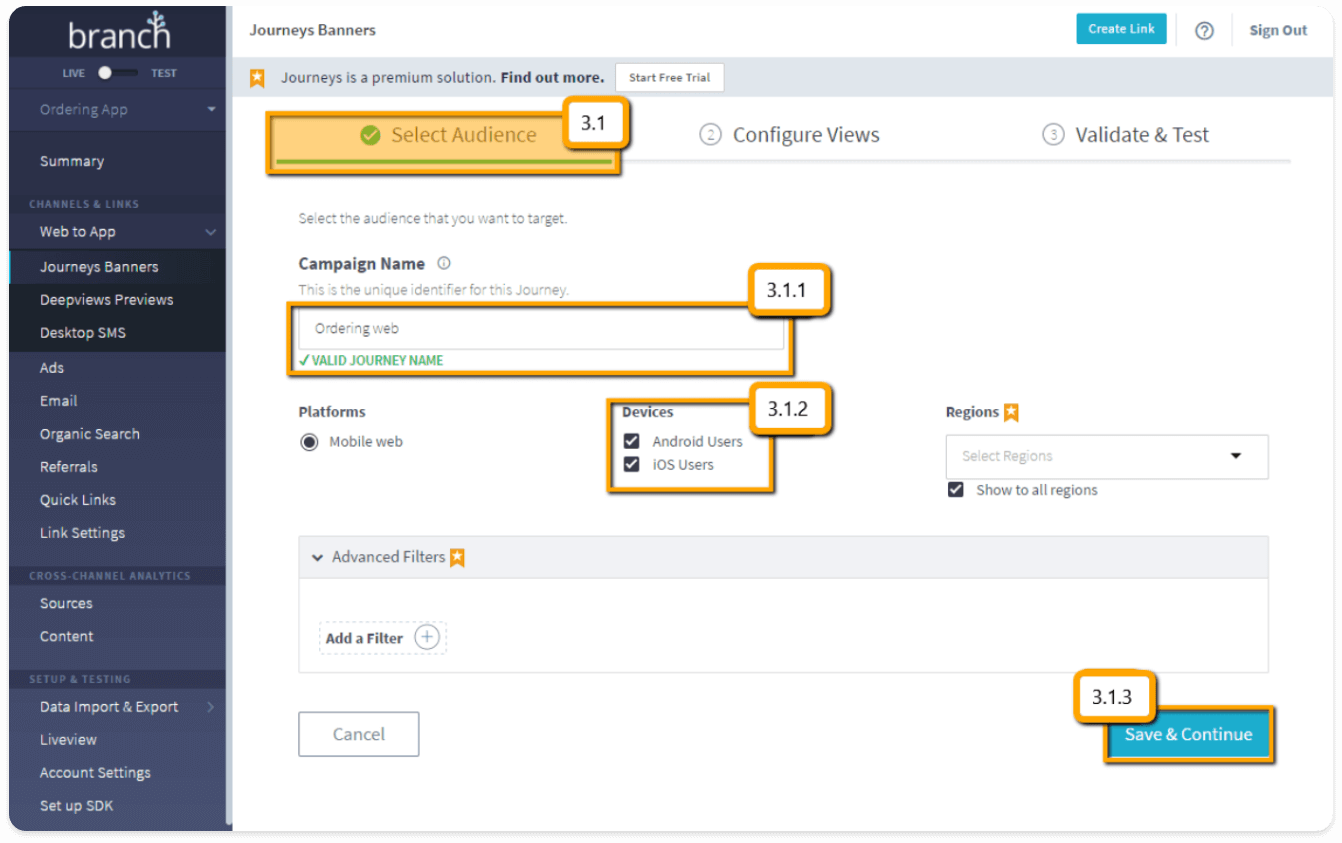
The audience controls decide who is eligible to see the journey. They do not prove that an app is installed, that a store listing is available, or that an eligible visitor will complete a later action.
3. Configure the view
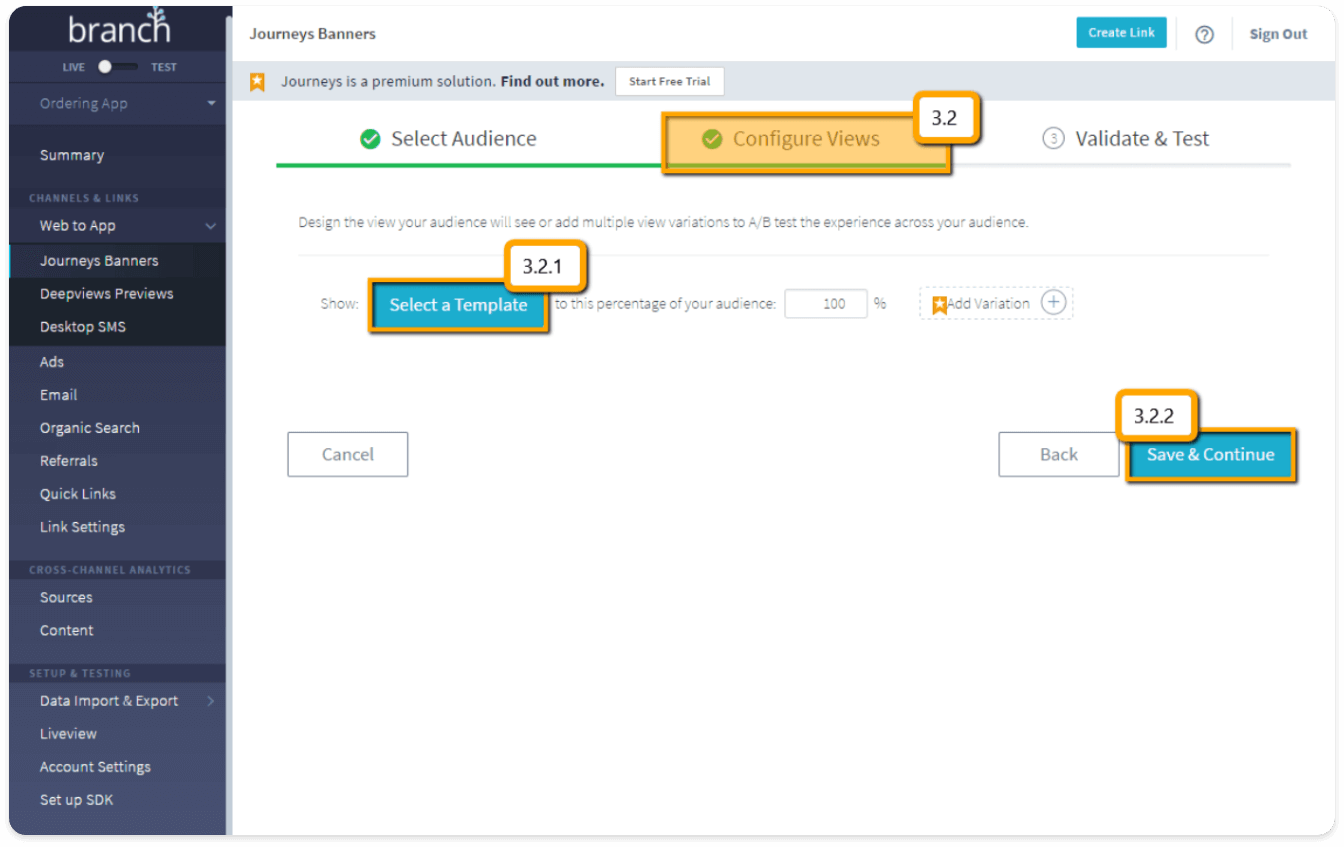
Continue to Configure Views, select a template that the authorized Branch account is enabled to use, then open it for editing.
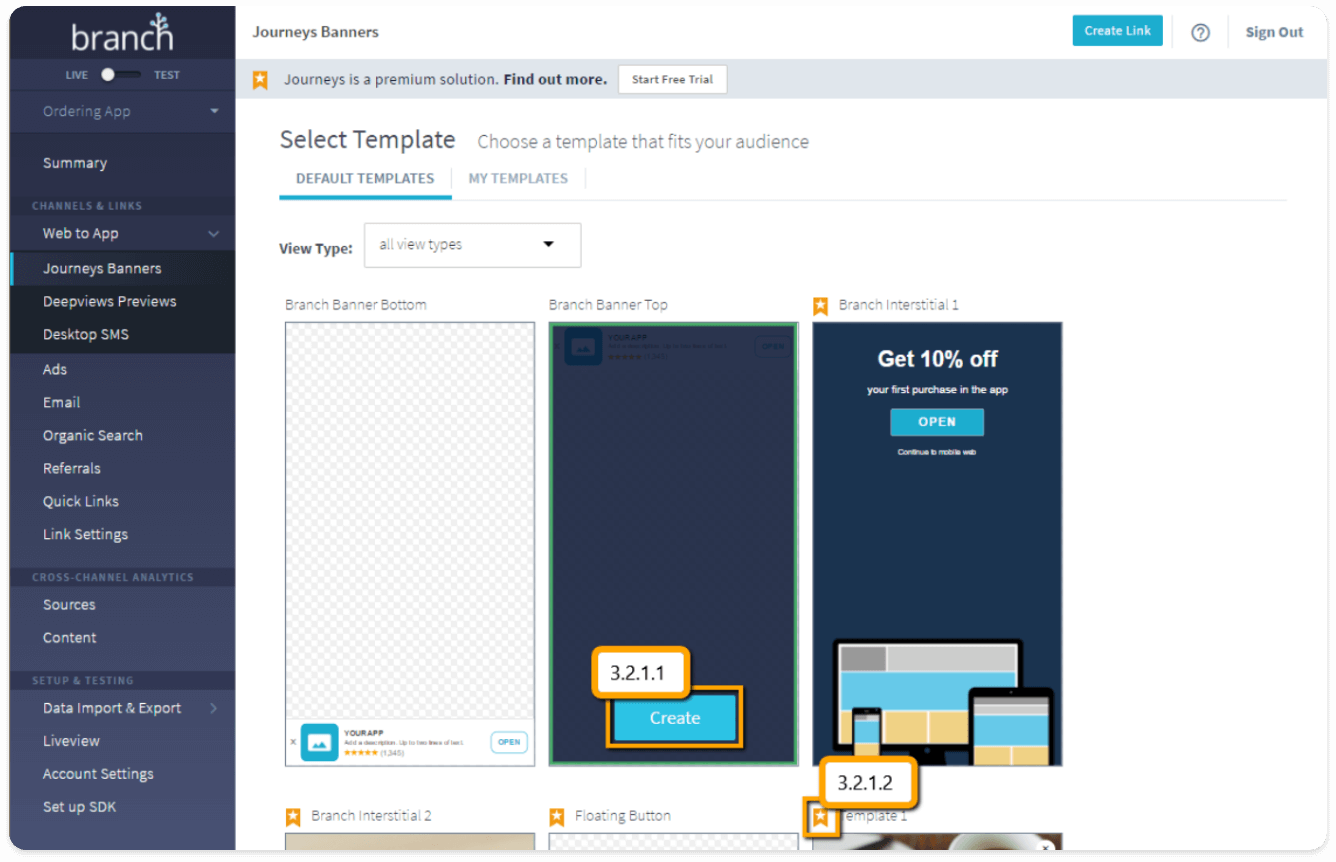
Set the view name for internal identification. Then customize only the customer- visible app name, description, logo, and background choices that are approved for the intended website experience. Confirm the template behavior before creating it, because the provider can restrict later editing.
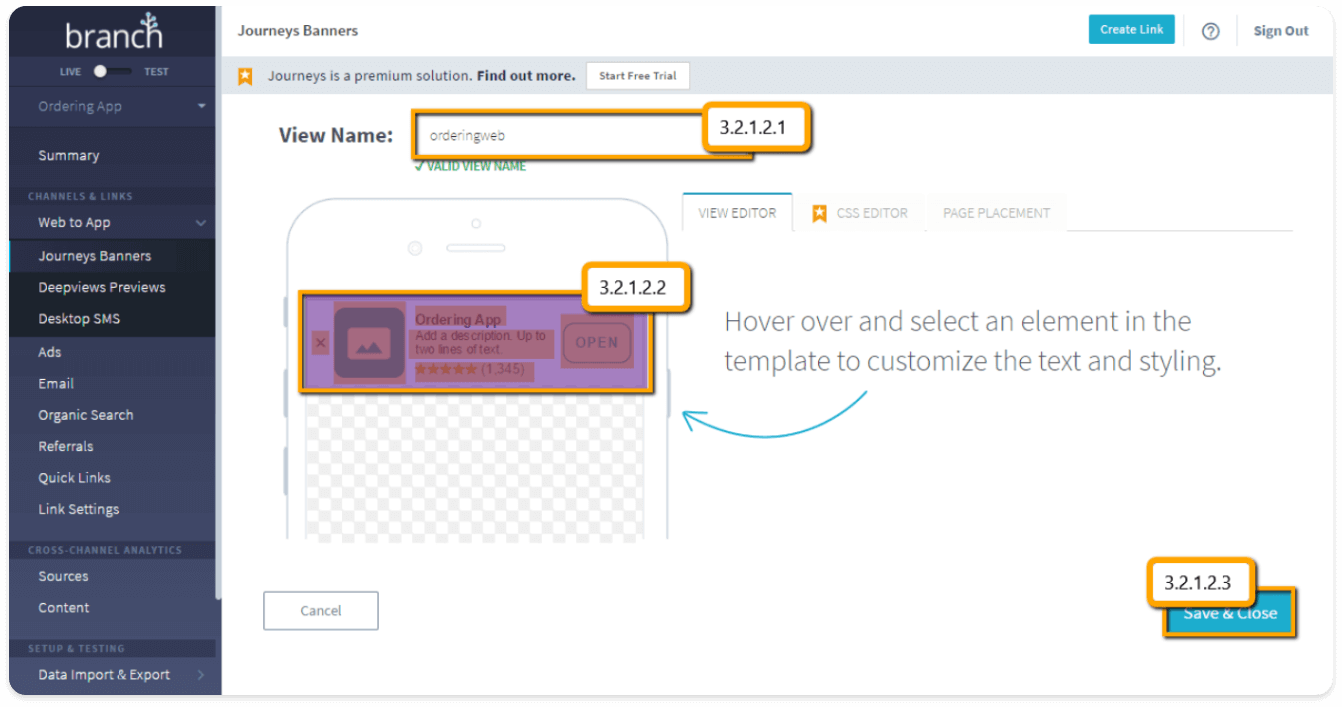
4. Validate the journey and integration
Open Validate & Test and resolve the current integration requirements before starting the journey. A successful audience or view check does not prove that the website script, iOS app, Android app, store handoff, or customer destination is ready.
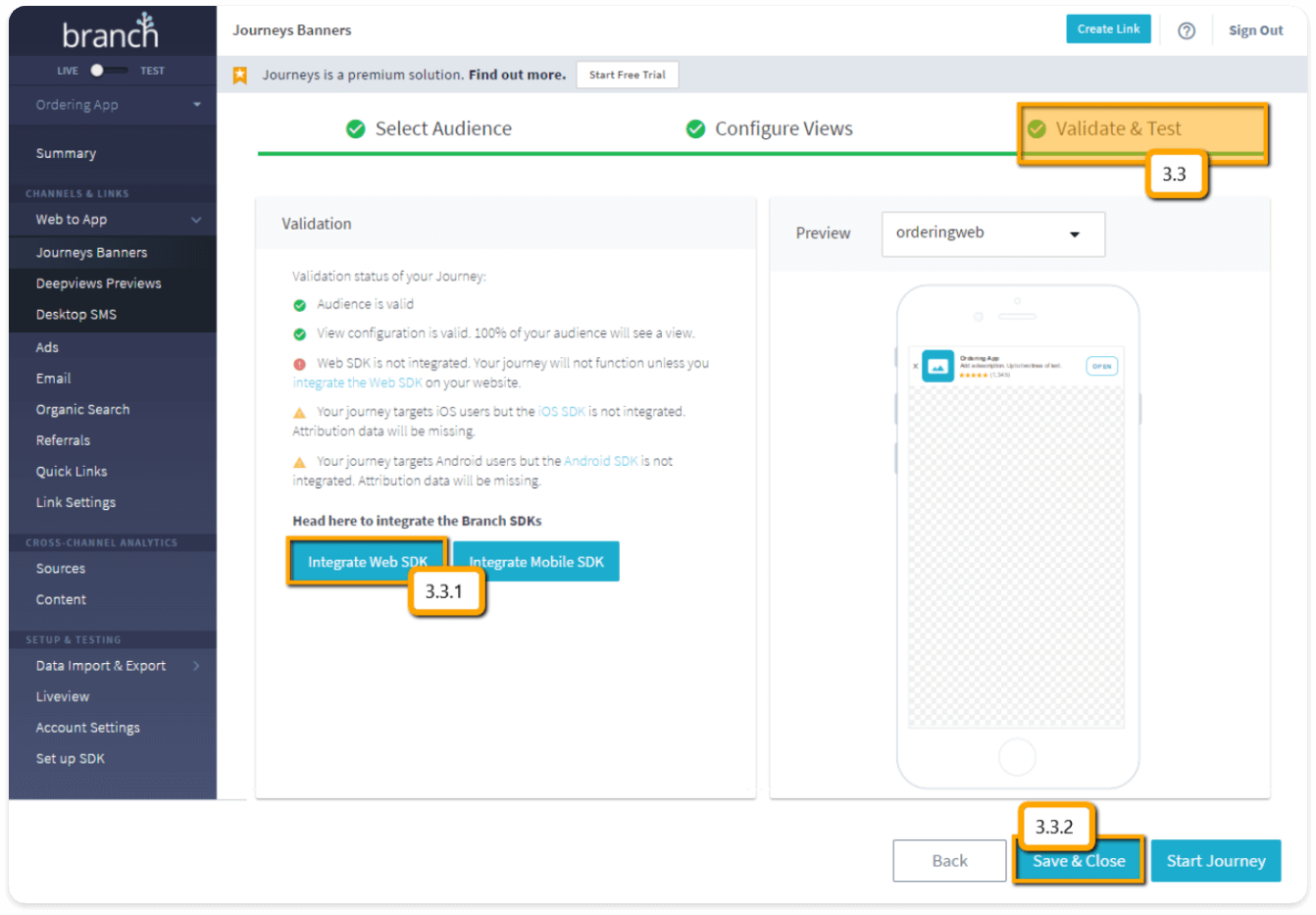
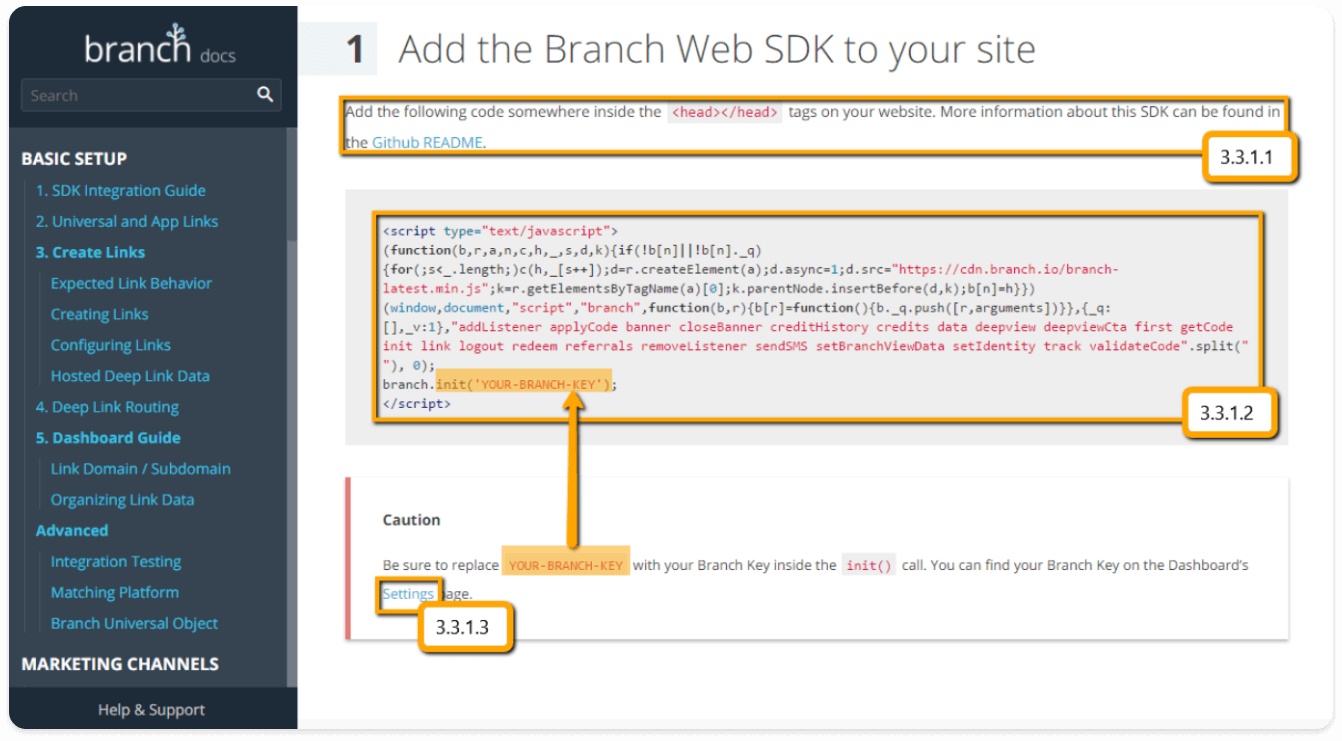
The documented integration screen places the Branch web script in the website header and uses the current Branch key from the account configuration. Obtain the current values only from the authorized account. Do not expose keys, secrets, or complete integration code in public documentation, screenshots, support requests, or chat.
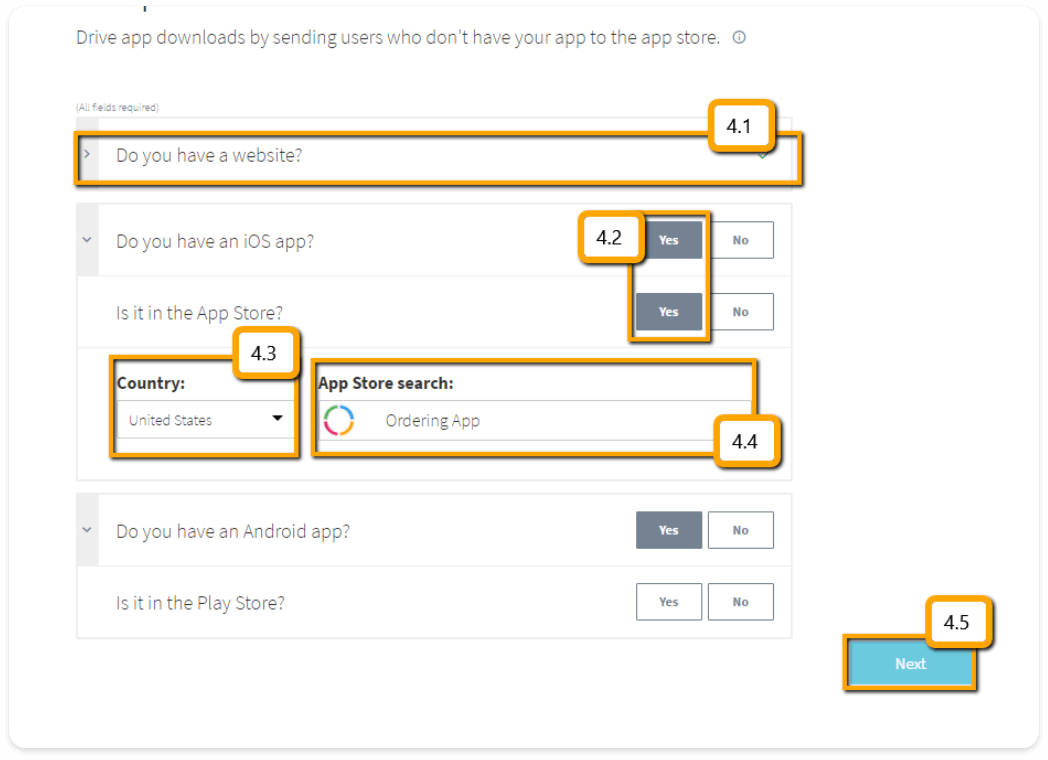
5. Complete app and website details
In the Branch onboarding flow, enter the website address, identify the iOS and Android app-store availability that applies, select the country, and choose the correct app listing. Complete or defer only the provider steps that apply to your launch.

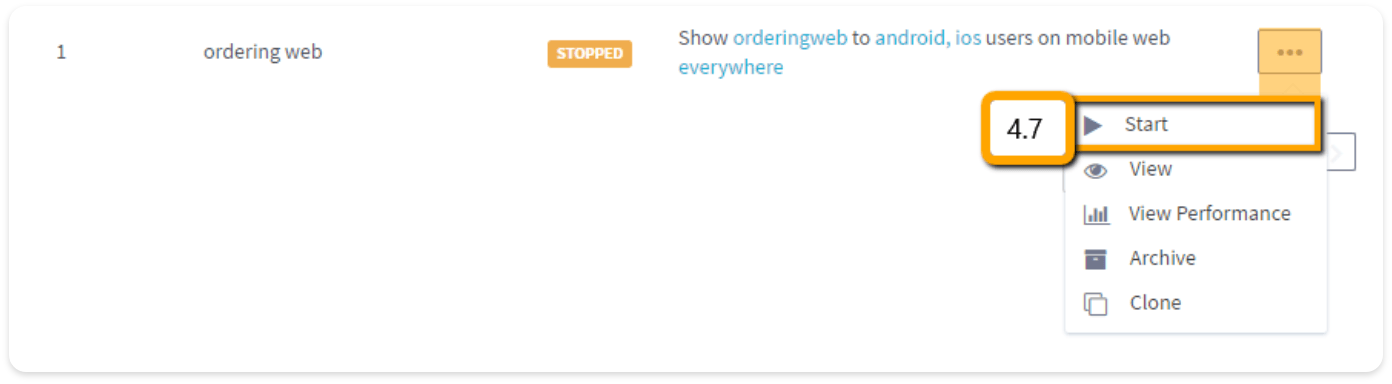
Return to the journey list and start the journey only after the audience, view, and current integration requirements are confirmed.
6. Add approved website code and rebuild
The documented website configuration uses a Third-party code area and its Header field. Add only the approved current script through the configuration path supported by the website owner, save it through that product's normal workflow, and rebuild or redeploy the website through the approved release process.
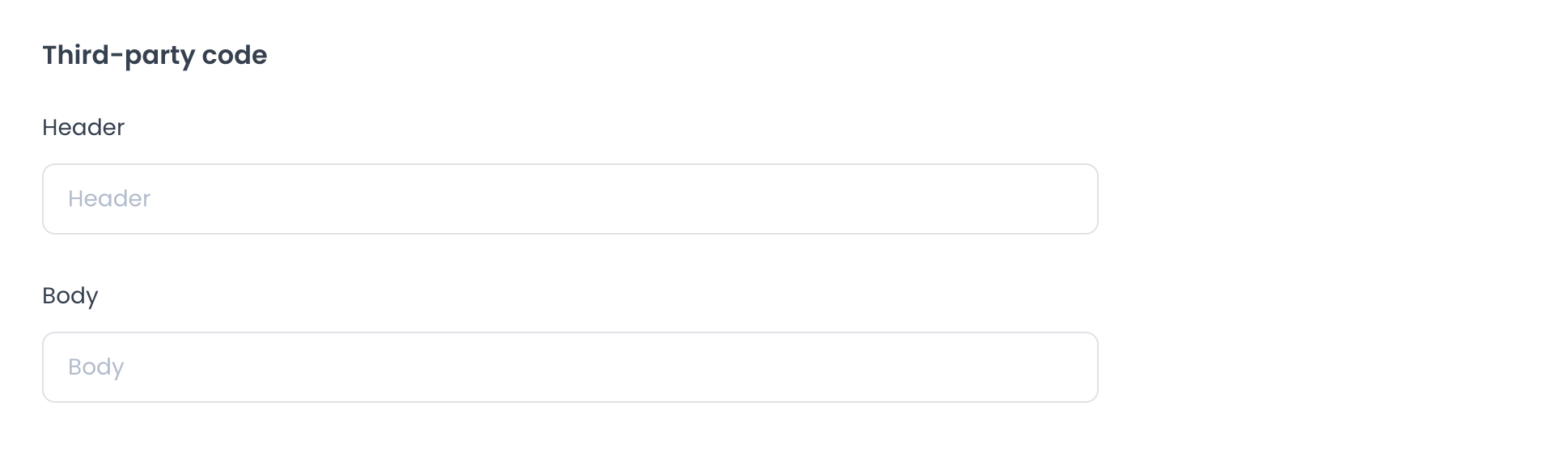
A saved field or rebuilt website does not prove that a visitor sees the banner, opens the intended app, reaches the correct store, or completes any in-app action.
Test the customer-visible path
Use a controlled mobile-web test on each intended platform:
- Open the intended website on an eligible iOS or Android device.
- Confirm that the target audience and current journey present the expected banner or view.
- Verify the destination that the current configuration opens for a device with and without the app installed.
- Confirm that the destination is the intended app or store listing before taking an in-app action.
- Record only non-sensitive test results. Do not copy personal customer data, provider values, link payloads, or credentials into support notes.
A browser navigation, store page, app launch, or banner dismissal is evidence of that immediate presentation only. It is not confirmation of installation, authentication, order ownership, checkout readiness, payment, or order completion.
Keep Customer App links and notifications safe
A notification or app-link request can ask Customer App to open a customer screen. The request is not authorization and does not guarantee a destination.
| Destination family | Intended customer context | Important boundary |
|---|---|---|
| Current customer entry | The available Home or signed-in customer journey | Startup, login, verification, profile, project, connection, or other gates can still appear first. |
| Business or product | One available business or product-detail context | Opening a product must not add or update a cart merely because a request arrived. |
| Checkout | An already authorized current cart review | A cart reference does not prove checkout readiness, payment state, or ownership. |
| Order detail | An already authorized current order | An order reference does not prove that the current account can read the order. |
The documented notification path establishes an order-oriented request only. Do not promise cart-notification routing without current, authorized evidence.
Apply a routing firewall
Before Customer App mounts a destination, the implementation must complete each of these gates:
- Accept only the approved delivery channel and app context.
- Parse one known destination family with bounded, expected values; reject unknown or ambiguous input.
- Expire and consume sensitive intents once; reject duplicate, delayed, or replayed delivery.
- Bind the intent to the same current project, account, session, and lifecycle that issued it.
- Authorize the exact business, cart, order, or other resource without revealing whether a foreign resource exists.
- Wait for current startup and navigation readiness without retaining stale intent after logout or project or account change.
- Mount a pre-action destination first. Do not add a product, confirm a cart, open a provider, mark a message read, or trigger another consequential action automatically.
Handle app lifecycle and unknown outcomes
| App lifecycle | Safe behavior | What it does not establish |
|---|---|---|
| Cold start | Hold one sanitized intent until the app, project, session, and navigation are ready; then authorize and consume it once. | Guaranteed delivery, destination, fallback, or cleanup. |
| Warm app | Preserve the current safe journey until the new intent passes every gate. | That the new request cannot replace or mix with current work. |
| Foreground callback | Bind the callback to the current lifecycle and discard late or duplicate results. | That provider or notification handlers are removed and registered exactly once. |
| Logout, account change, or project change | Remove pending intent and re-authorize a later request from the beginning. | Cross-session or cross-project cleanup. |
Opening a screen can start reads, listeners, timers, external media, or provider preparation. If an intent opens a screen but its resource, provider, or earlier action has no authoritative result, keep the outcome unknown. Do not infer success from navigation or repeat an effect to force a visible result.
Troubleshoot routing safely
Nothing happens
Return to the current app journey. Do not repeatedly open or share the request. Cold-start readiness, unsupported input, a blocked destination, and provider state can produce different results.
The app opens an unexpected screen
Stop before acting. Use the current visible navigation to return safely; do not enter a private value or follow an external destination to correct the route.
Login, verification, profile, or project state appears
Treat it as a separate gate. Completing a gate must not automatically replay an old intent without fresh authorization.
A business, cart, or order is unavailable
Do not test other references or infer whether a resource exists. Continue only through the customer journey already available to the current account.
Accessibility and recertification
An unavailable or rejected request needs a local, inert state with a readable heading, concise explanation, and one named safe-return action. Focus should move to that state and return predictably without reopening the request. The fallback must not echo private values, load remote media, or depend on color, animation, or vibration alone.
For related boundaries, see Invalid and unavailable app links, Use the app offline and reconnect, App-link boundaries, Push-notification boundaries, and Customer App experience variants.