Reset a Customer App password
Use password recovery when a customer cannot sign in with the email address associated with their Customer App account. The app submits a recovery request; the recovery message, its link, and the password-change page are handled by the configured email and reset experience.
A submitted request does not prove that the account exists, a message was queued or delivered, the link is valid, the password changed, or earlier sessions were revoked.
Use the intended Customer App and an email inbox that the customer is authorized to access. Screens and labels can vary by project, sign-in method, platform, and release. Select an image to enlarge it.
Request password recovery
Step 1: Open the sign-in screen
Open Customer App and select Login now when that option is available.
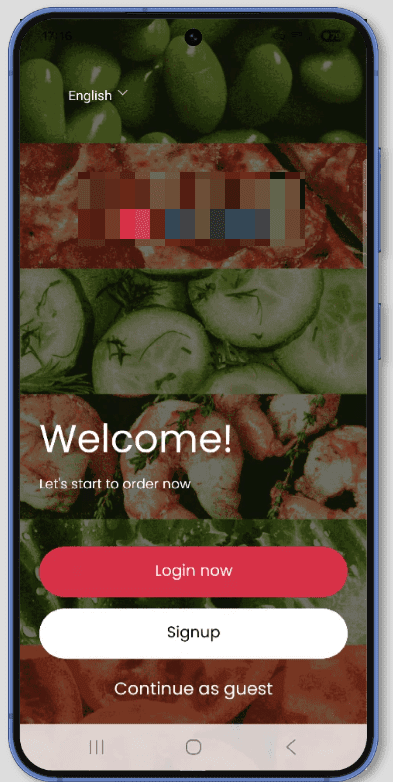
2. Select Forgot your password?
On the email or password sign-in form, select Forgot your password?. The link can be absent when another sign-in method is selected or when the project does not expose password recovery on that screen.
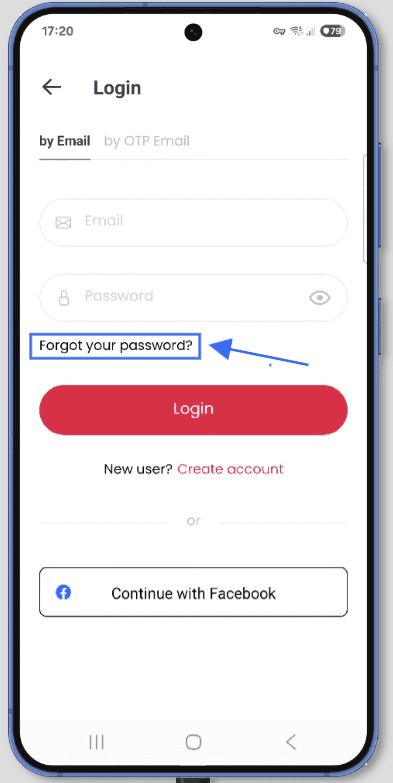
3. Submit the account email once
Enter the account email in Email, check it carefully, and select Recover Password once. Wait for the loading, acknowledgement, or error state to settle before doing anything else.
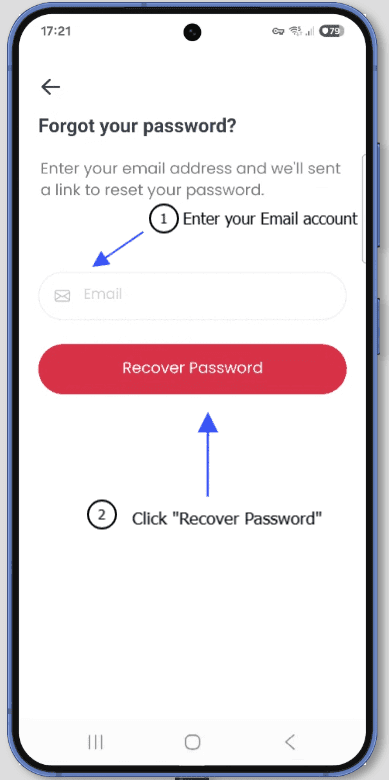
The acknowledgement can be generic. It must not be used to determine whether an account exists, whether email delivery has begun, or whether the password has changed.
4. Check the recovery message
Check the intended inbox and its spam or junk folder after a reasonable wait. The example shows a message with the subject Forgot password and a recovery link. Treat the complete link as sensitive: verify the expected sender and project before opening it, and do not copy, forward, inspect, or assemble it.
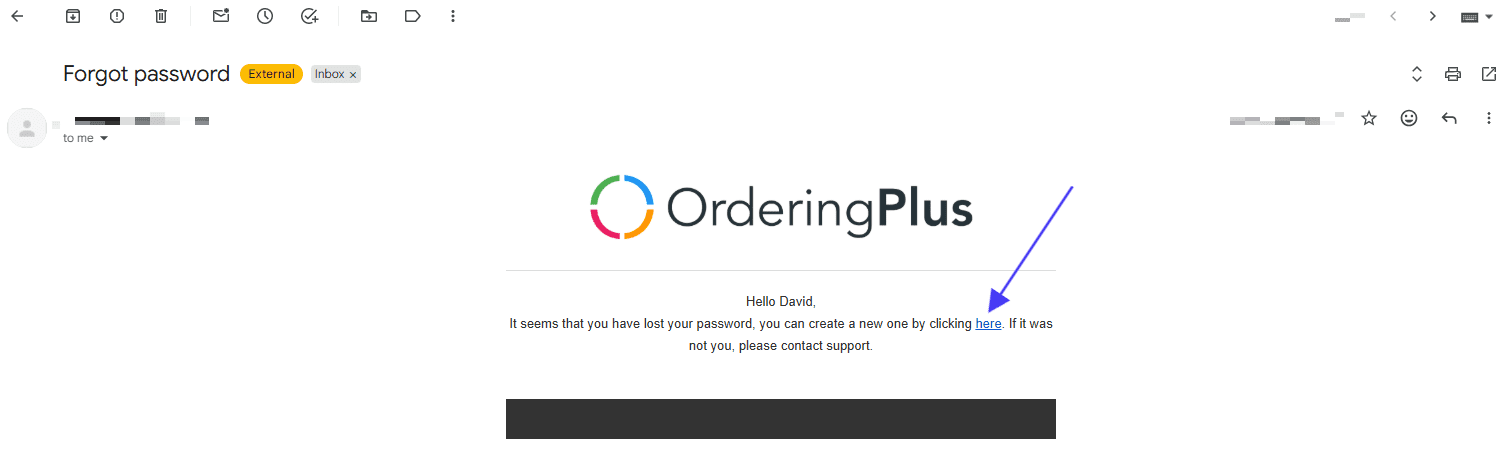
Message subject, sender, delivery timing, link lifetime, and destination can vary. If the message is unexpected or the link opens an unfamiliar domain, close it and use the approved support or security channel.
5. Set the new password in the reset experience
Open the complete link from the expected message. The version shown in the example exposes a Password field and an Update action in a profile screen. Your reset page can use different fields or labels. Enter a new password only after confirming that the page is the expected reset destination, then complete the action it presents.
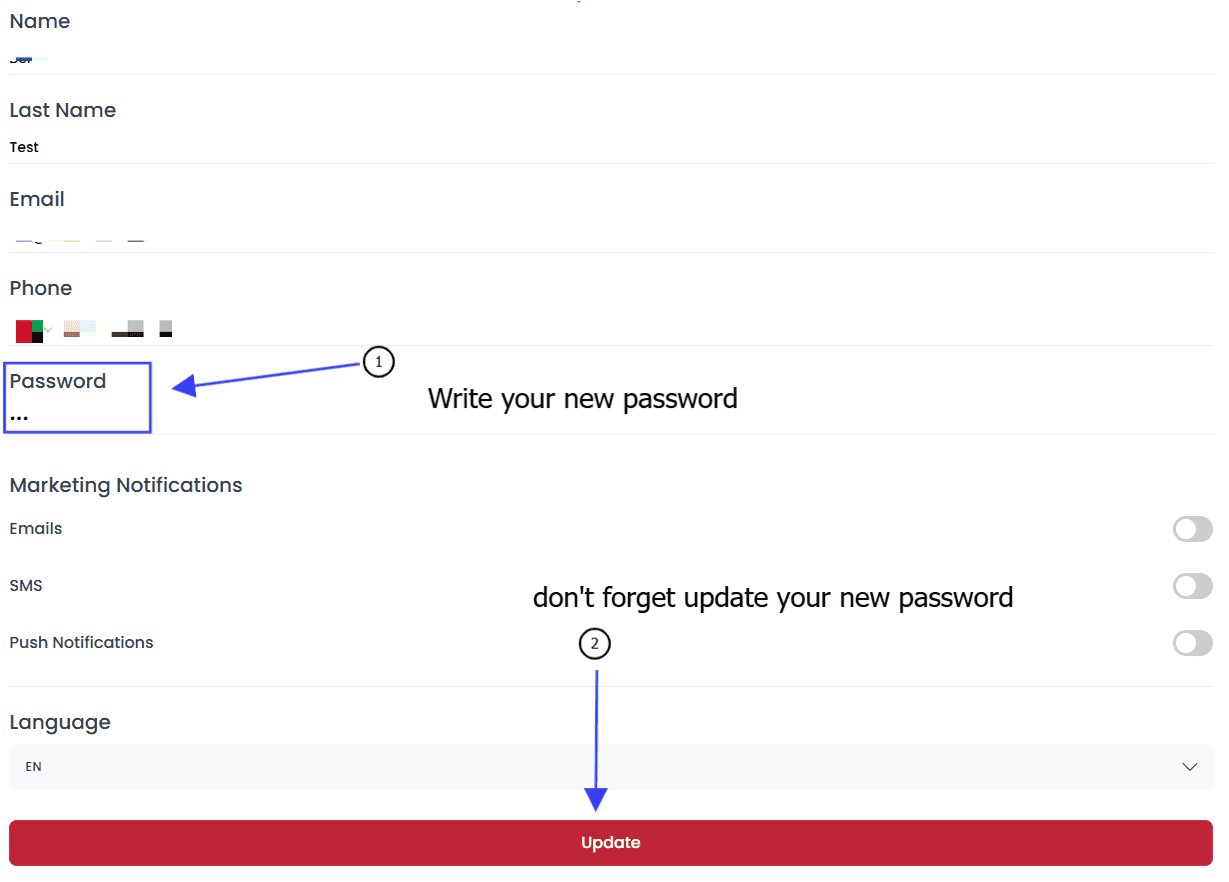
Do not treat a button, navigation change, or success-looking page as proof that all active sessions were revoked. Password change and session revocation can settle separately.
6. Return to Login
Return to Login now and sign in with the new password when the current screen offers password sign-in.
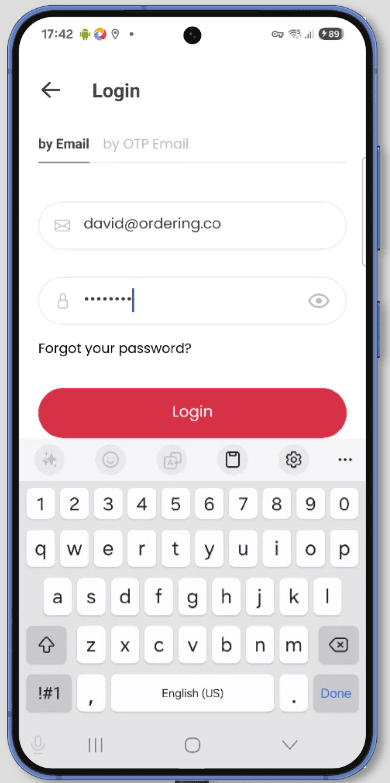
A successful later sign-in shows that those credentials were accepted for that attempt. It does not by itself prove that every other device or provider session was cleared.
Read each recovery state correctly
| What appears | What it can confirm | What it does not confirm | Safe next step |
|---|---|---|---|
| Empty or invalid email message | Local form validation rejected the input | Account existence or mail delivery | Correct the address before submitting once. |
| Challenge required or unavailable | An anti-abuse step is unresolved | Account lookup or request acceptance | Complete only the visible approved step, or stop if it remains unavailable. |
| Loading or Recover Password changes state | A request may be in flight | Service acceptance, queueing, delivery, or reset | Wait; do not submit again. |
| Generic acknowledgement | The app presented its accepted state | Whether an account matches, a message was sent, or a password changed | Check the intended inbox after a reasonable wait. |
| Error or unavailable message | The app did not present a confirmed accepted state | Account existence, account status, or a recoverable cause | Keep the state private and avoid rapid retries. |
| Recovery message arrives | A provider delivered a message to that inbox | Link validity, intended recipient, password change, or session revocation | Open only the complete expected link. |
| Reset page opens | A destination accepted the link format | Link freshness, one-time use, password change, or all-device logout | Confirm the expected origin and complete the current form once. |
| New password signs in | A later authentication attempt accepted the credentials | Revocation of other sessions or provider cleanup | Continue from the current account state. |
Protect account privacy
Password recovery must remain enumeration-neutral. Existing, missing, disabled, or rate-limited account inputs must not receive distinguishable public content, timing, retry guidance, or challenge behavior that reveals account existence. Throttling belongs before costly mail or plugin work and should preserve the same generic public acknowledgement.
Do not use another person's email address, guessed addresses, repeated submissions, or a recovery link to diagnose an account. Do not share passwords, links, codes, screenshots, inbox content, provider errors, or account values in support requests.
Keep the recovery stages separate
| Stage | Owner or boundary | What the prior stage does not prove |
|---|---|---|
| Local form validation | Customer App | That the request is authorized or accepted |
| Optional anti-abuse challenge | Challenge provider and server policy | That an account exists or the server accepted the request |
| Request acceptance and throttling | Recovery service | That account lookup matched or mail was queued |
| Account lookup | Identity service | That the result may be disclosed or that mail was sent |
| Message queue | Recovery or mail service | Delivery to an inbox |
| Delivery | Mail provider and recipient system | That the recipient opened it or the link is valid |
| Recovery link | Recovery service and approved origin | That it is current, unused, intended for this session, or safe to open |
| Password reset | Reset experience and identity service | That every active session or older recovery capability was revoked |
| Session revocation | Identity or session service | Logout on every device or provider cleanup unless explicitly confirmed |
A recovery link should be short-lived, single-use, bound to the intended operation, stored safely, and consumed atomically with the password change and the defined session-revocation policy. If its origin, expiry, prior use, concurrency, account generation, or revocation cannot be established, treat the link as invalid or the outcome as unknown.
Troubleshoot safely
No recovery message arrives
Check the address, inbox, spam, and junk folders. Allow time for delivery before one deliberate retry. Do not rapidly submit more requests. If recovery remains unavailable, use the organization's approved support path without sharing the link or password.
The link is invalid, expired, or opens an unexpected destination
Do not enter a password. Close the page, return to the ordinary sign-in entry, and request a new message only when the current recovery process instructs you to do so. Never edit a link, construct a replacement, or reuse a previously opened link.
The request or reset result is unclear
A request that remains busy, an app closure, multiple messages, a changed account or project, a success-looking reset screen, or an older session that remains active can each leave the outcome unresolved. Do not replay a request, link, reset, or logout action to force a result. Use a status or support policy defined by the identity owner.
Accessibility and privacy requirements
Email input, local validation, challenge, Submit, busy, generic accepted, generic unavailable, Back, and unknown states need distinct semantic names, roles, values, disabled or busy state, announcements, and predictable focus. Generic acceptance must not be weakened by screen-reader-only text or focus behavior that reveals account existence.
Large text, keyboard navigation, safe areas, and iOS or Android Back behavior must not hide errors or cause duplicate submission. Recovery values and provider errors must not enter accessibility labels, logs, screenshots, clipboard, or diagnostics. These are verification requirements, not certification of current accessibility, privacy, delivery, or identity behavior.
Related guides: Log in · Verify your account · Account settings · Understand privacy and consent · Understand invalid-link behavior