Customer App overview
Customer App is the mobile ordering experience that Ordering.co clients provide to their customers. It can take a customer from entry and location selection through business discovery, shopping, checkout, and order follow-up. Use this overview to understand what customers may see and to find the guide that owns each part of the journey.
Customer App controls the in-app navigation and visible state. Project and business configuration control which options and content are available. The mobile operating system controls permissions and app lifecycle behavior, while external providers control any experience after Customer App hands it off.
The exact journey depends on authentication state, saved session data, project configuration, selected location and order type, business availability, vertical-specific features, network state, device permissions, platform, and enabled providers. A visible control is an entry point; it does not by itself prove that the customer can complete a later action.
What operators can verify
The examples show a branded mobile ordering experience. A project can expose iOS or Android app availability, push notifications, and messaging pathways, but each capability depends on the current release, configuration, device, and enabled provider. Verify those capabilities in the intended project before promising them to customers. Hosting and infrastructure are outside this customer journey and are not established by the screens in this guide.
See the standard ordering journey
The examples below show one possible customer journey. Screen labels, businesses, prices, payment methods, and available fulfillment types can vary by project, business, device, and current customer context. Select an image to enlarge it.
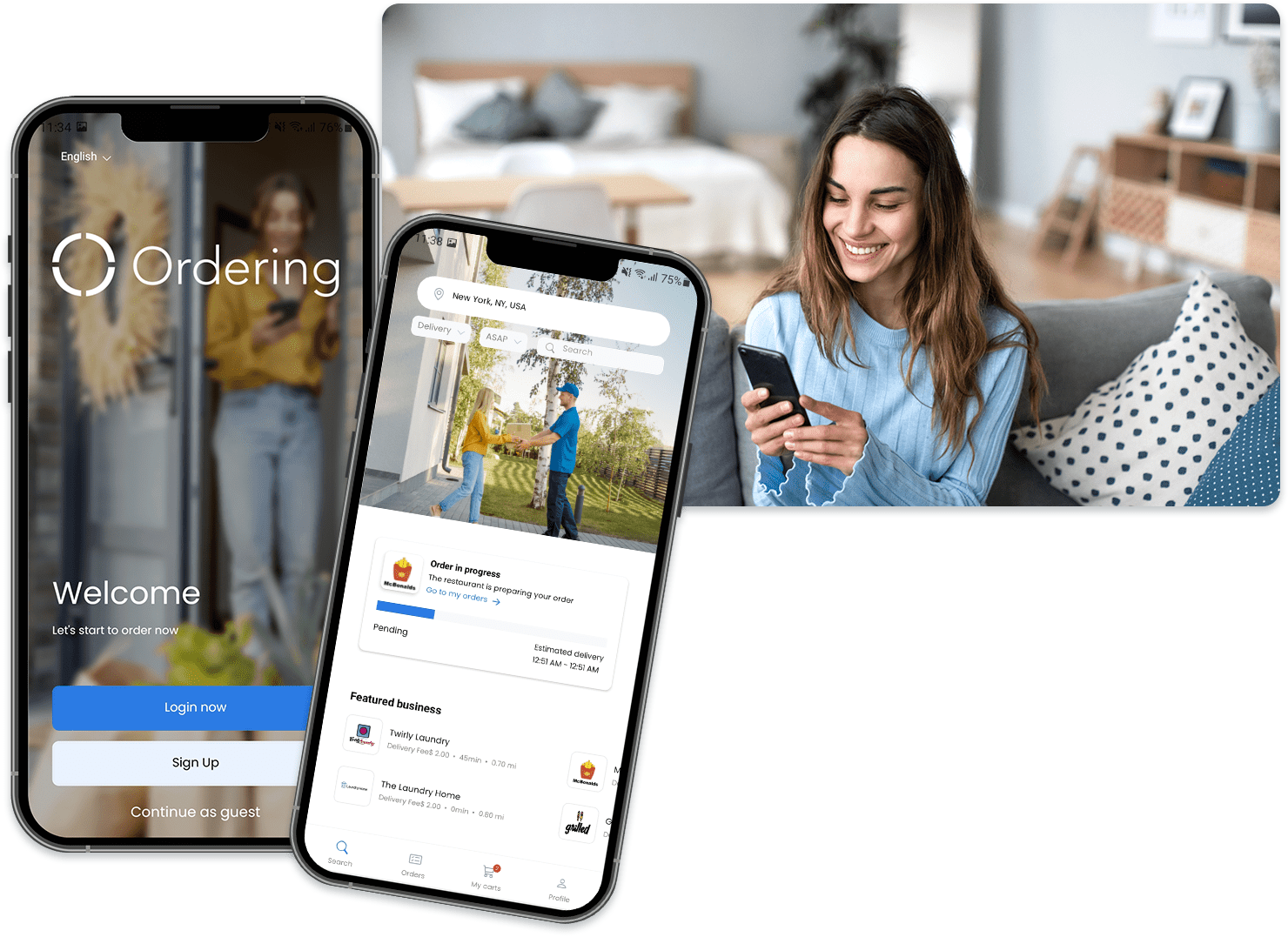
Step 1: Enter the app
Customers can begin from the available account choices. The example shows Login now, Sign Up, and Continue as guest. Guest availability is conditional, and a customer may be required to sign in or complete another visible requirement before checkout.
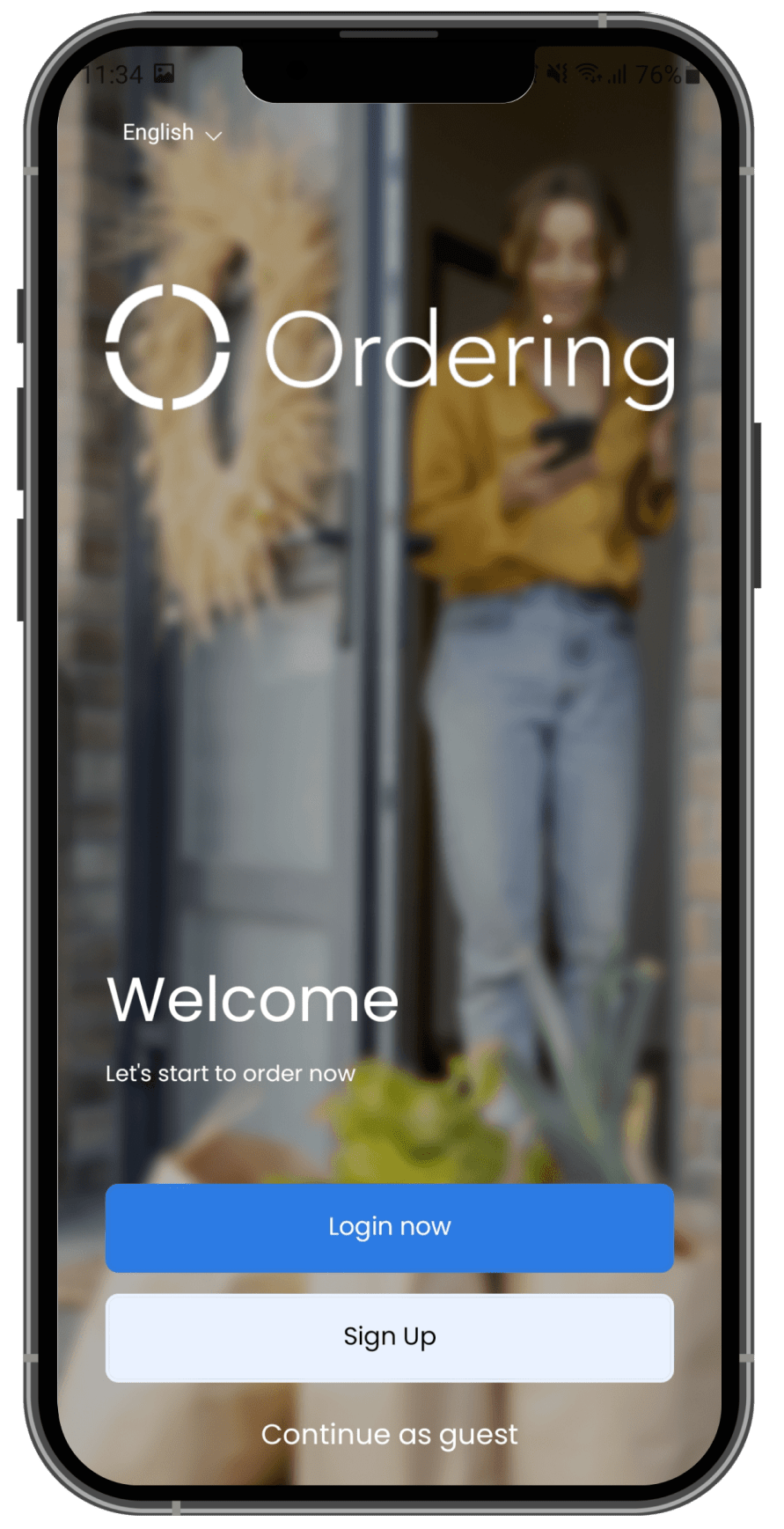
Continue with Start in the Customer App for the account, Guest, and startup boundaries.
2. Choose where to order
Customer App can ask for an address and, where available, present a map or address fields. The selected location helps determine which businesses and fulfillment options can be shown. A selected address is not by itself proof of delivery coverage or checkout readiness.
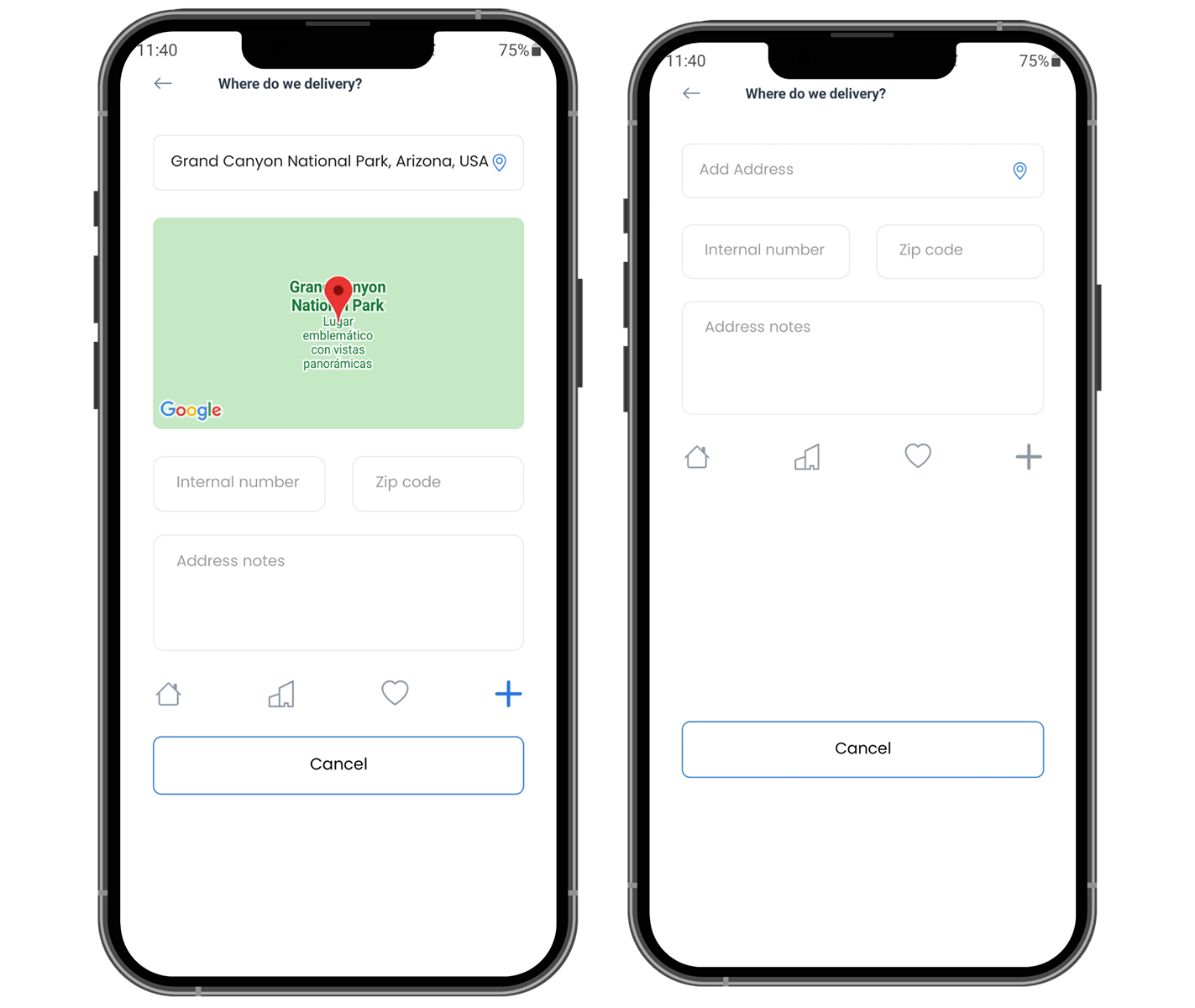
Use Choose a delivery location for saved addresses, manual entry, device location, and permission boundaries.
3. Choose a fulfillment type
The example includes Delivery, Pickup, Eat in, Curbside, and Drive thru. A customer sees only the order types that the current project and business support. Selecting one can change the businesses, address requirements, timing, and checkout fields that follow.
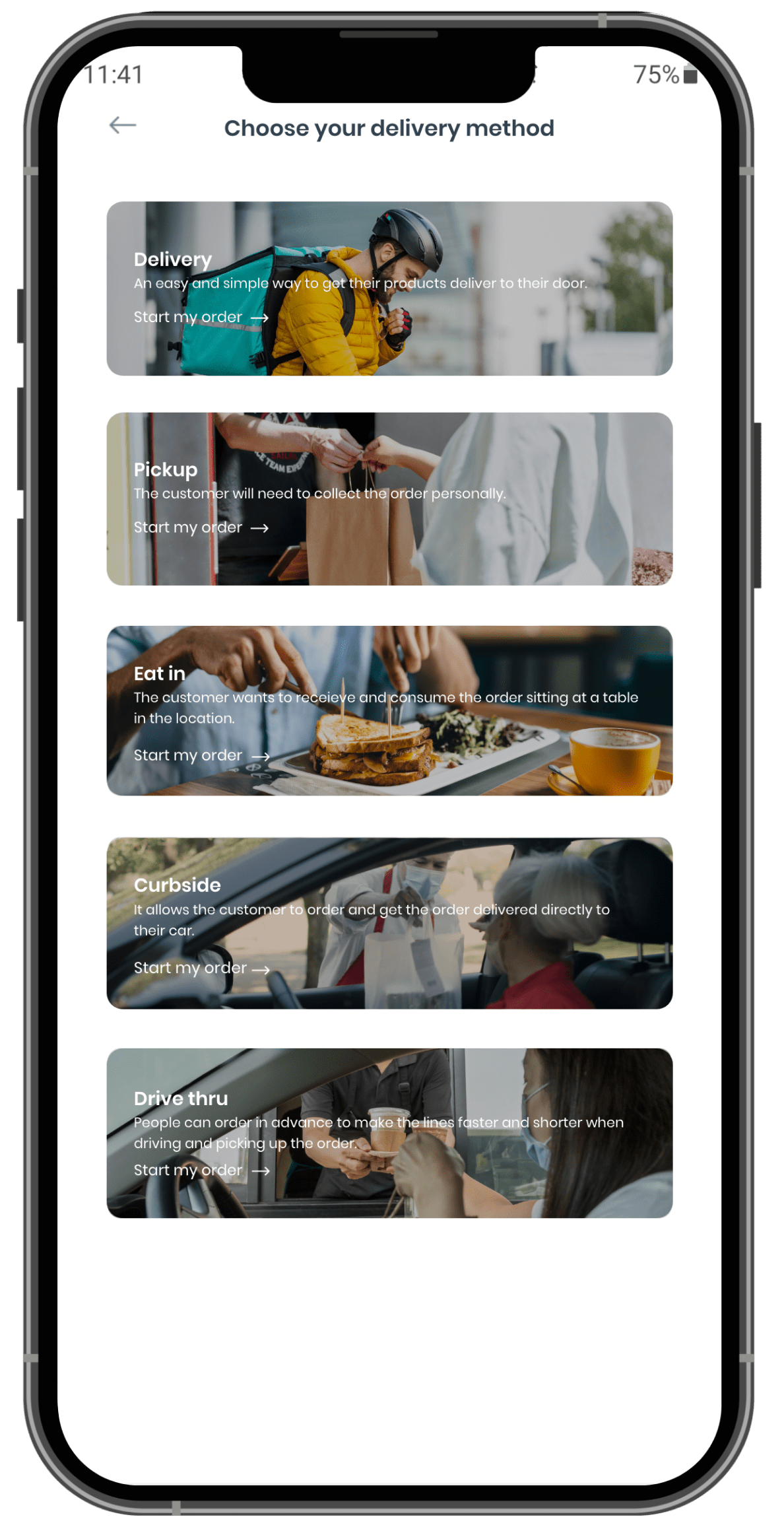
Use Choose order type and time before treating a missing option as an error.
4. Find a business
After an eligible location and order context are available, Customer App can show featured businesses, categories, an active-order card, and business cards. The list is filtered by the current context; it is not a complete catalog of every business in a project.
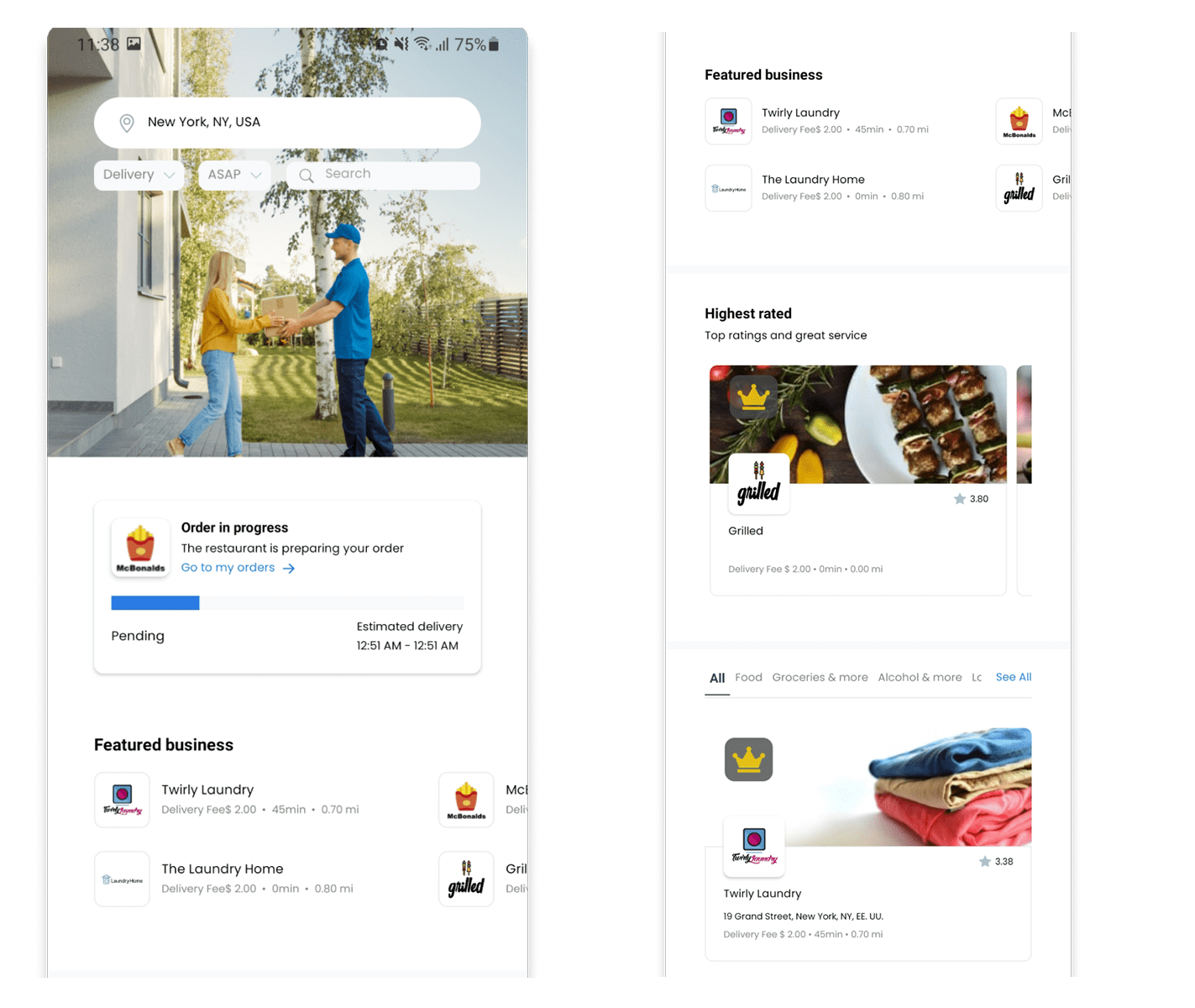
Continue with Browse businesses and Business page overview.
5. Browse the menu and customize items
Customers can open an available business, review its menu, open an item, and choose the product options presented for that item. Product information, options, pricing, availability, and required choices come from the current business and ordering context.
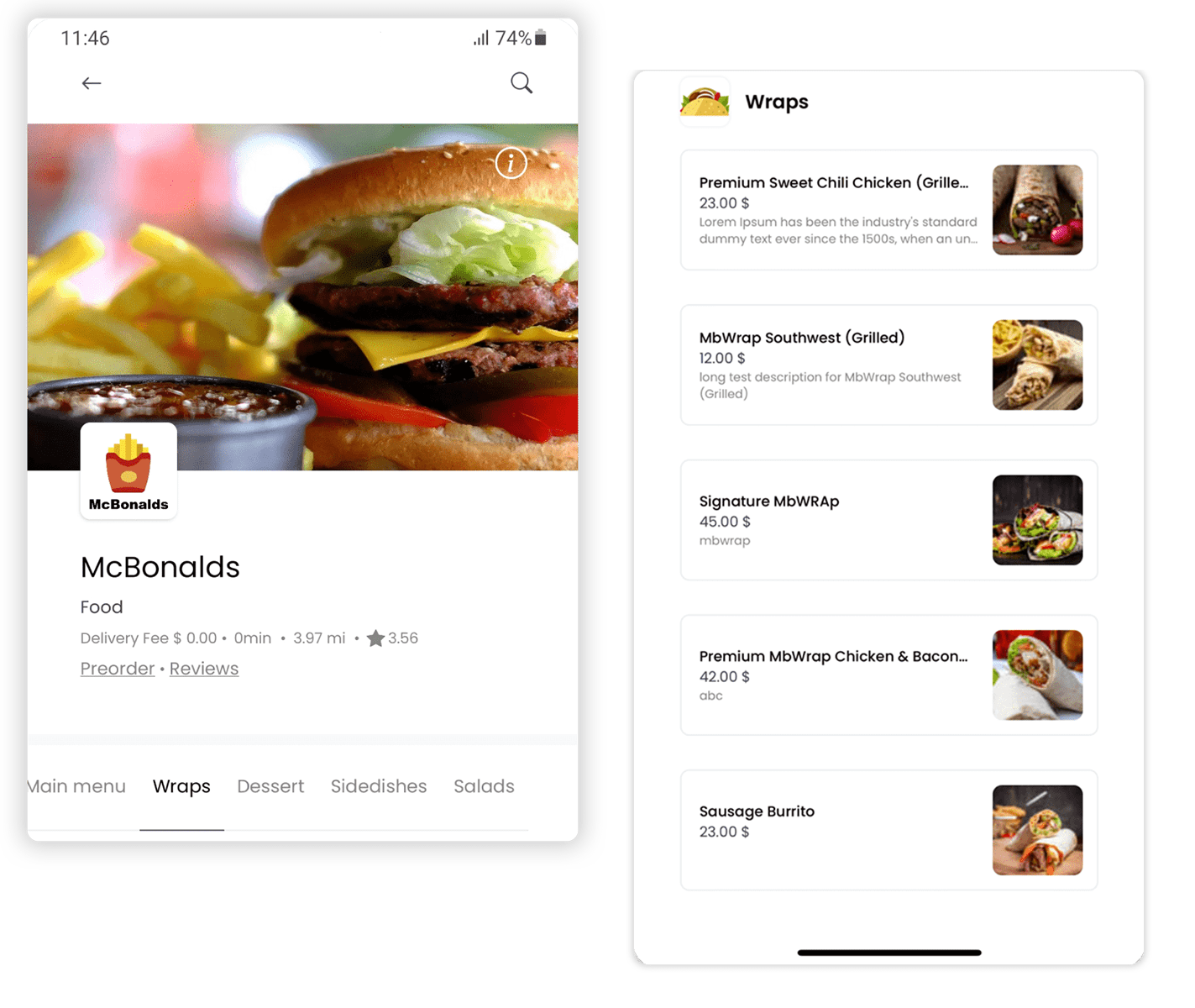
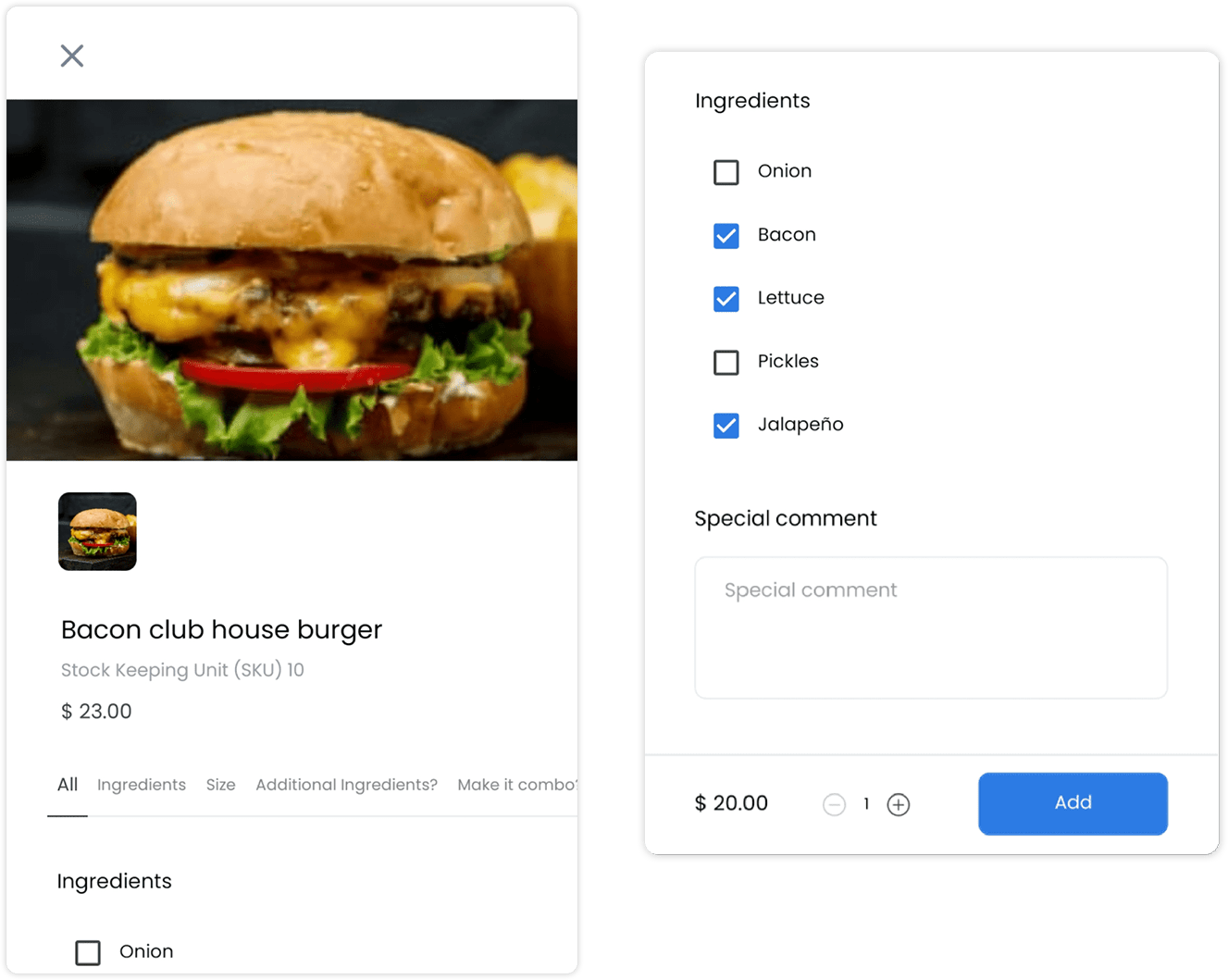
For the current item and option boundaries, see Customize a product.
6. Review the cart and checkout
Customers can review items in Your cart, open Checkout, review the information currently shown, choose from payment methods that are available, add a driver tip when it is offered, and select Place Order. A visible total or button does not prove that payment, provider, or order placement has settled.
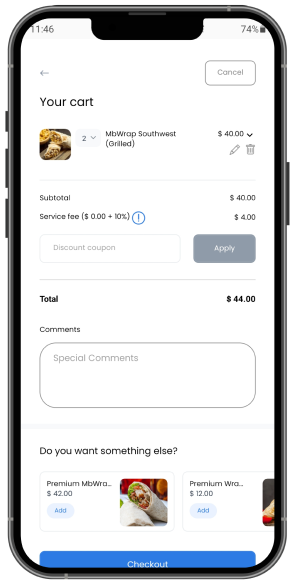
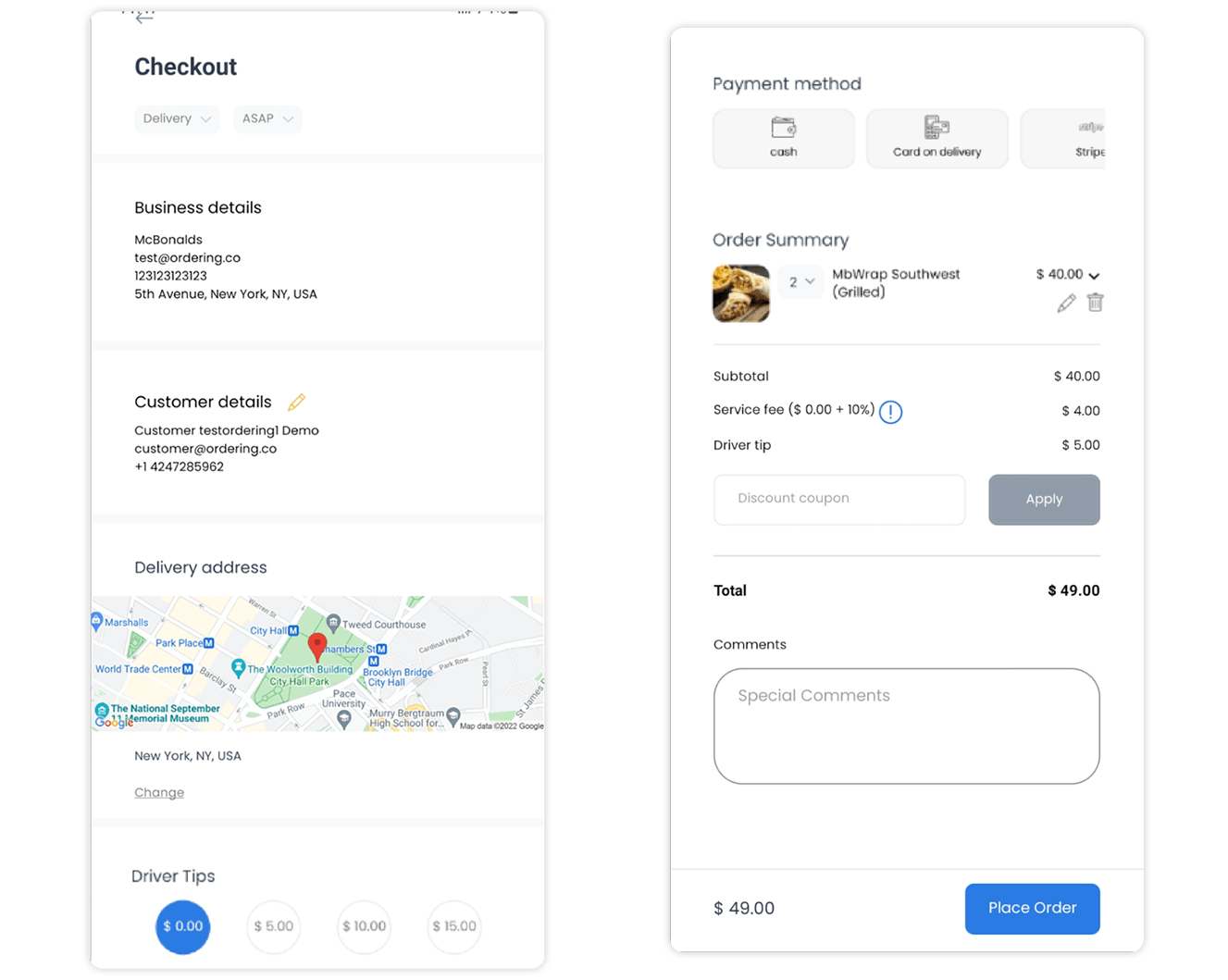
Use Review carts before checkout and Payment methods for the separate checkout and payment availability boundaries.
7. Review the confirmation and follow-up
After a customer submits an order, Customer App can show an order-confirmation or order-detail screen. Customers can use the available orders entry to review the current order state. Notifications can be sent when configured and available, but a notification request or confirmation screen is not a delivery, payment, or fulfillment receipt.
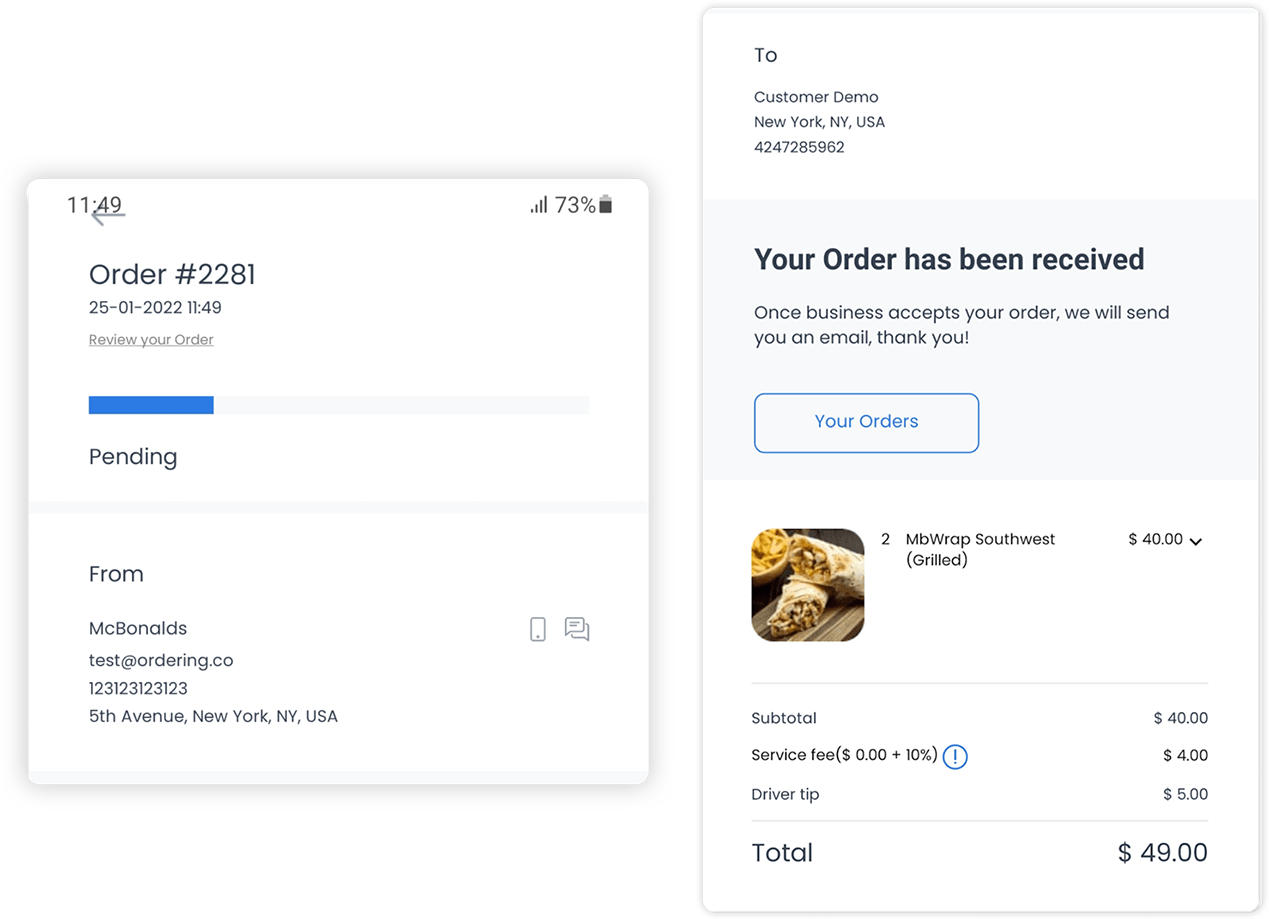
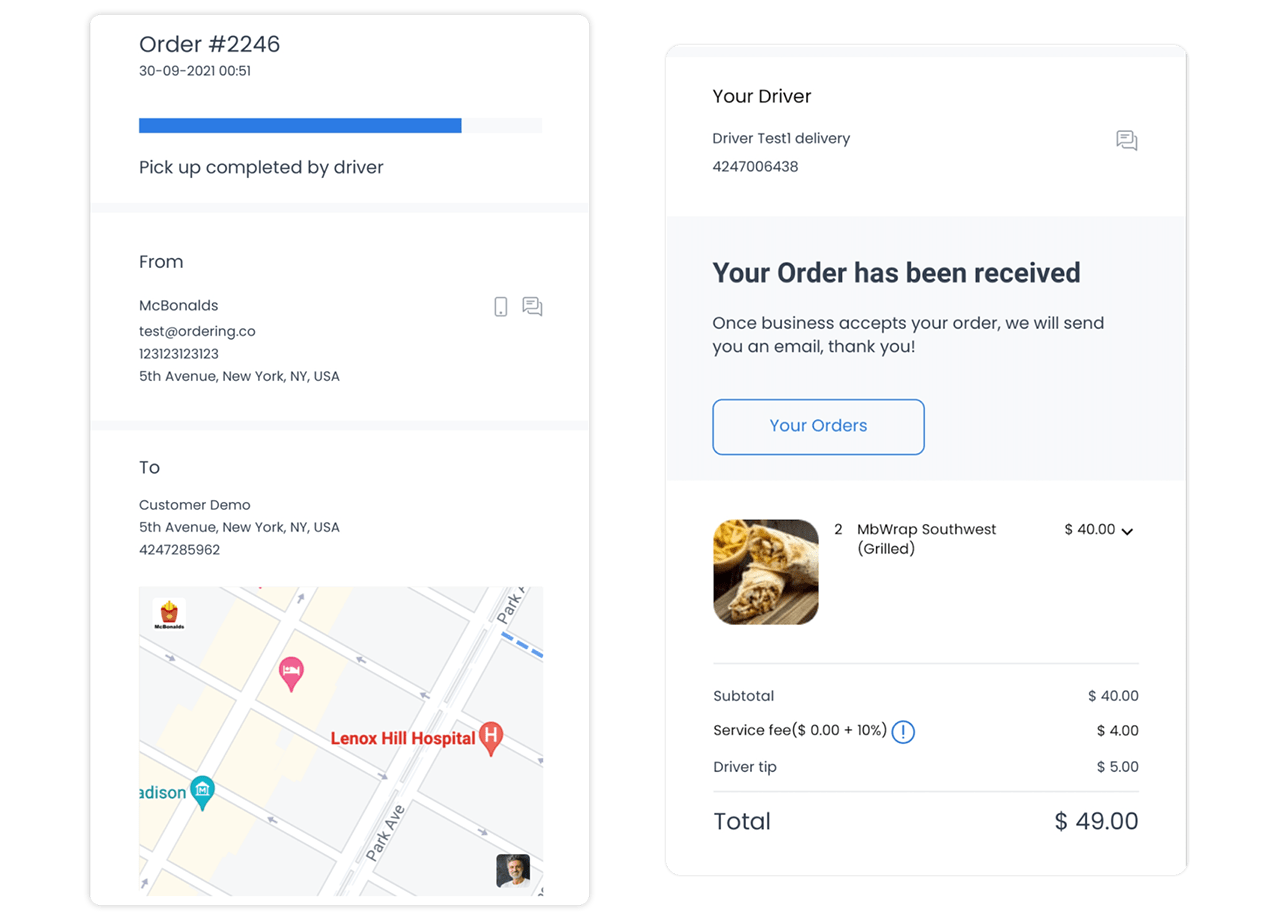
Continue with View active and past orders and Track an order.
Understand the customer journey
| Journey stage | Customer goal | Entry and customer-visible boundary | Availability boundary | Start with |
|---|---|---|---|---|
| Enter | Begin a session | An unauthenticated customer can open the public Home screen and choose an available account path. Required verification, profile completion, or an offline state can appear first; configured builds can add project selection or a tutorial. | Startup configuration, authentication, stored state, connectivity, and build variant determine the first screen. | Start here |
| Discover | Establish where and how to order | After a customer session is available, the Home destination shows address selection when no address is selected and business discovery when one is selected. | Location, order type, schedule, permissions, and project or business configuration affect the result. | Discover businesses |
| Browse | Choose a business and items | Customers can open available businesses, review menus or supported service experiences, and prepare items for a cart. | Business availability, catalog content, vertical, schedule, and enabled capabilities control what can be selected. | Browse and choose |
| Review and checkout | Prepare an order for submission | The cart and checkout guides explain the details, validations, totals, and payment choices shown before an order is submitted. | The current cart, fulfillment context, customer state, and payment/provider configuration determine the required fields and handoffs. | Cart and checkout |
| Manage the customer account | Maintain reusable customer information | Signed-in customers can reach the Profile tab and the account experiences available to their project. | Guest and unauthenticated sessions do not have the same profile capabilities as a registered account. | Account |
| Follow an order | Review order state and available support | The Orders tab leads authenticated sessions to active and past order experiences; individual order guides own tracking, messages, reviews, reorder, and help boundaries. | The order state and enabled business, messaging, mapping, and notification services control the available actions. | Orders and support |
| Recover or understand a variation | Continue when startup, connectivity, routing, consent, or platform behavior changes | App-behavior guides explain the visible boundary and safe next step without treating an operating-system or provider handoff as completion. | Network, app version, permission, consent, platform, lifecycle, and supported-route state can change the path. | App behavior |
Choose the right guide
Start with standard Customer App journeys
- Start in the Customer App — Identify the first public screen and distinguish account handoffs from a conditional Guest pre-action state.
- Choose a delivery location — Establish the location used to decide which businesses can be shown.
- Browse businesses — Review businesses available for the selected order context.
- Business page overview — Understand the business information and shopping paths available after entry.
- Review carts before checkout — Check the current cart and decide which checkout guide owns the next requirement.
- Profile and account overview — Find the account information and settings available to a signed-in customer.
- View active and past orders — Find an order before opening its details or an available support path.
Review conditional experiences
- Use the introductory tutorial — Use the conditional startup walkthrough only when it is available in the current build; installed or deployed availability can vary.
- Services, professionals, and reservations — Follow the service or reservation branch only when the selected business and project expose it.
- Manage students for school ordering — Use the school branch only when that vertical and its student context are available.
- Gift cards — Review the gift-card experience only when the project exposes that capability.
- Project, franchise, and single-business variants — Understand how the configured project entry changes the route into ordering.
Continue to operating-system or provider journeys
- Location permissions — Customer App can request access, but the operating system controls the permission decision and recovery settings.
- Track an order — Customer App can show an available tracking surface, while the mapping and location providers control provider data and external behavior.
- Use the app offline and reconnect — Follow the in-app offline state and return only after connectivity is restored.
- Consent and privacy prompts — Distinguish the in-app consent state from operating-system and provider controls.
Understand unsupported or blocked capabilities
- Customer cancellation — This Customer App version does not expose a customer cancellation action. Use Get help with an order for the documented support path; do not promise in-app cancellation.
- Custom orders — This Customer App version does not provide a customer entry path for a custom-order journey, so this overview does not direct customers into one.
- Checkout wallets — Wallet navigation is not a supported customer journey in this version. Use only payment choices that checkout visibly presents and review Payment methods for their separate availability boundaries.
- Unknown or invalid destinations — An unsupported app link does not have a verified fallback journey in this version. Stop and treat the destination as unknown. Use only an already-present, verified in-app return control when one is available; otherwise do not continue from the link.
Global states and variations
| State or variation | Exact condition | Product-area effect | Customer or operator next step |
|---|---|---|---|
| Authentication | The session is unauthenticated, guest, or registered. | Public Home exposes entry choices; authenticated sessions can use the main tabs; guest sessions remain a distinct customer state. | Use Log in or Sign up only as handoffs. Guest visibility is pre-action; any existing Guest intent remains pending or unknown until authoritative current session state is available. |
| Location and order context | No address is selected, or location/order type/schedule does not match an available business. | Home can lead to address selection instead of a business list, and later options can change. | Confirm the location and fulfillment context before interpreting a missing business or control as an error. |
| Startup priority | Verification, profile completion, or offline handling is active, or the build enables project selection or a tutorial. | The expected Home or tab screen is not the first visible screen. | Complete the visible prerequisite and use the startup guide if it does not clear. |
| iOS and Android | Safe-area, keyboard, permission, update, and system-setting behavior differs by platform. | Control placement and the operating-system handoff can differ while the product journey remains the same. | Follow the labels shown by the current device and use the platform-specific recovery in the linked guide. |
| Provider unavailable | A map, payment, messaging, notification, or other provider does not complete its handoff. | Customer App can stop at a pre-action, error, or return state; the provider result is not an in-app guarantee. | Stop and keep the outcome unknown. Use only an already-present, verified in-app return control; do not repeat the effect. |
| Unsupported or blocked | The app has no reachable action or destination in this product version. | The capability is not documented as a working customer journey. | Use the named public alternative above and revisit only after the product route is verified. |
Configuration and developer contracts
- Customer App configuration — For implementers who need the stable project and native configuration boundary.
- Customer App deep links — For implementers who need supported destinations and route-parameter behavior.
- Native integration boundaries — For maintainers who need to distinguish Customer App behavior from mobile operating-system and provider responsibility.
- Payment boundaries — For implementers who need the public boundary between checkout and payment providers.
Troubleshooting
Why can customers not enter the expected product area?
First identify the visible screen. An unauthenticated session normally enters through public Home, but required account verification or profile completion, or an offline state can take priority. A configured build can also begin with project selection or a tutorial. Complete the visible prerequisite, restore connectivity when needed, and confirm that the expected Home or main-tab destination appears.
Why is a journey or task group missing?
Confirm the customer's authentication state, location, order type, schedule, selected business, and project configuration. Conditional verticals and provider experiences appear only when their exact prerequisites are available. If the capability is listed as unsupported or blocked above, use its documented alternative instead of looking for a hidden control.
Why does a journey stop outside Customer App?
Permissions, app-store updates, maps, payments, messaging, and other provider actions can leave the app. Customer App proves only the last visible in-app state and the result it receives on return. If settlement is not authoritative, stop and keep the outcome unknown. Use only an already-present, verified in-app return control and do not repeat a payment or order effect.
Decide where to go next
Begin with Start in the Customer App when you are validating session entry. Continue to location and business discovery for a standard ordering journey, or choose the named conditional, platform, or provider guide when that boundary is already visible. For a current order, start with Orders and support rather than beginning another checkout attempt.
Related guides: Start in the Customer App · Choose a delivery location · Use the app offline and reconnect · Customer App configuration