Set up a Sunmi printer
Use this guide to prepare a Sunmi device for printing with the Ordering.co Business App. Device setup, the printer plugin, a ticket request, provider or spooler handling, and a physical ticket are distinct results. Do not treat an installed app or visible printer control as proof that an order printed.
For the local saved-printer configuration, start with Configure a saved printer.
Some captures show example ticket information. Treat them as interface orientation only. Do not copy, share, or use values shown in a capture as live customer, order, business, or printer data.
What this setup can support
When the device, printer plugin, Business App, and physical printer are all ready, a Sunmi device can support ticket handling in a restaurant, retail store, or cafe. The practical outcome still depends on the device image, operating-system permissions, plugin/provider behavior, paper, power, connectivity, and the actual order flow.
Before you start
- Use the intended Sunmi device and confirm that it has Google services, including the Play Store.
- Obtain the approved device-management and Business App installation process from the person responsible for the device.
- Confirm that the device has paper, power, and an available printer before attempting a real ticket.
- Do not use a live order or customer record to test the device. Accepting an order can change its operational status and can trigger configured printing.
Install the Sunmi printer plugin
- On the Sunmi device, open the Sunmi store.
- Find and install the Sunmi printer plugin.
- Complete only the permissions and device steps required by the Sunmi operating system and the approved device-management process.
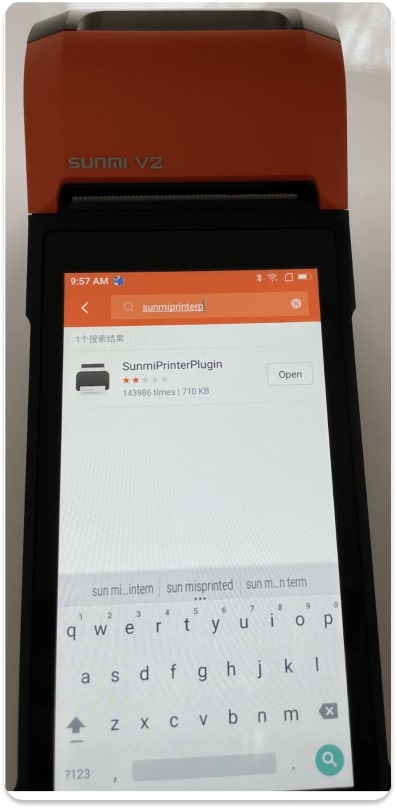
The plugin being installed or visible in a device store confirms only that device-side preparation reached that point. It does not prove that the Business App can submit a job or that the printer can produce a ticket.
Install and sign in to the Business App
- Install the approved Business App build on the same Sunmi device.
- Sign in to the intended workspace.
- Open Profile > Printer Settings and save the intended printer configuration if it is not already present.
- Review the printer, queue, and paper before using an order's print action.
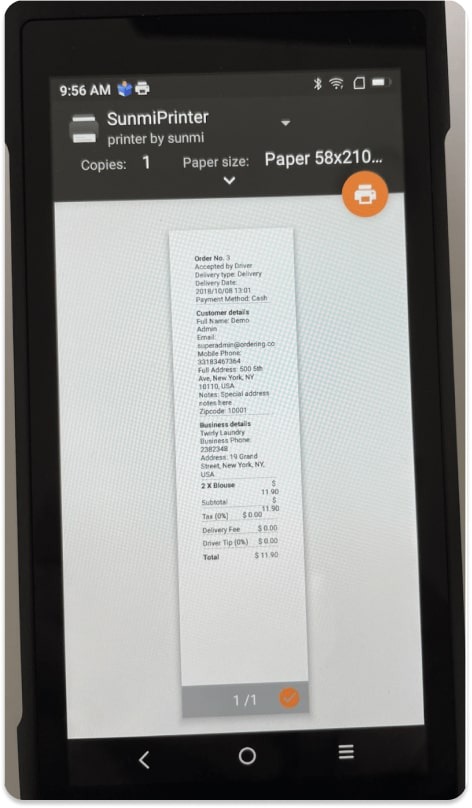
The device may show a provider print preview after the app makes a request. That preview is not a completed physical-print result.
Request and verify a ticket
- In the Business App, open the intended order and verify its number, status, and fulfillment context before using any printer action.
- Submit a ticket request only when output is authorized and the printer queue and paper have a known before-state.
- Watch the relevant provider or spooler state. A provider acceptance or visible preview is a handoff signal, not paper-output proof.
- Check the physical printer and reconcile the produced ticket with the intended order before performing another print action.
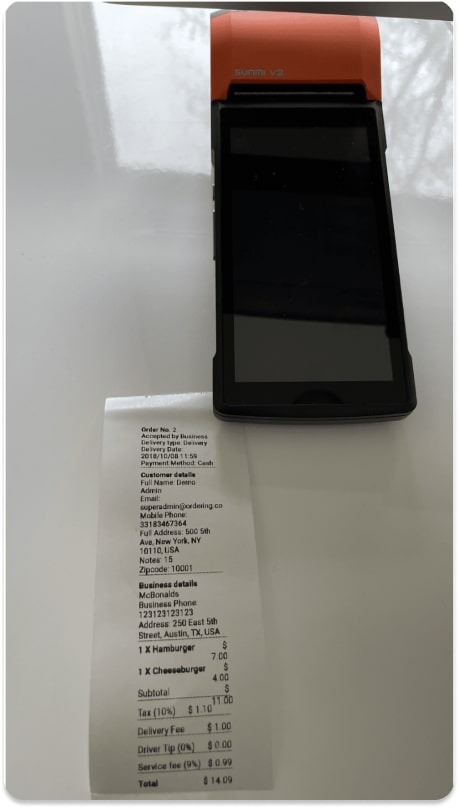
The physical ticket is the last stage of the chain. It confirms one observed copy only; it does not prove that another saved printer, a repeated request, or the order action had the same outcome.
Troubleshoot by stage
| What you observe | Boundary | Safe next action |
|---|---|---|
| Google services or the Play Store is unavailable. | Device image or device-management setup | Stop before installing the plugin. Ask the device owner to confirm the supported setup. |
| The Sunmi printer plugin is installed but no printer is available. | Plugin, hardware, permission, or configuration | Check the approved device and local saved-printer setup. Do not use a live order as a discovery test. |
| A system permission prompt appears. | Operating-system permission | Review it under the approved hardware procedure; do not grant it solely to make a printer row appear. |
| A ticket preview opens. | Business App request and provider handoff | Check the queue and physical printer. Do not call the preview a completed print. |
| A ticket did not emerge, is incomplete, or is duplicated. | Provider, spooler, paper, or repeated request | Stop repeat actions, preserve the queue and paper observations, and reconcile the intended order before any recovery. |
| An order changed after an attempt. | Order and fulfillment effect | Verify the order independently. Do not retry a print action as a way to change or test the order state. |