Configure automatic order acceptance
Automatic order acceptance can reduce the need to review every incoming order manually when that matches your business's operating policy. Configure it only for the intended business and project, then verify individual orders from a current Orders view. Enabling a plugin is a configuration change; it is not proof that a particular order transitioned, a customer was notified, a driver was assigned, payment settled, or physical fulfillment occurred.
Why a business might use it
When the configuration and operating policy fit the business, automatic acceptance can remove a repetitive first review from the incoming-order workflow. That can be especially useful during busy periods, when staff need to focus on preparation and the customer experience instead of repeating the same acceptance step for every order.
The configuration can streamline that first step and reduce opportunities for manual inconsistency. It does not by itself prove faster processing, fewer errors, customer satisfaction, repeat business, or a completed order. Confirm the current order and its next operational owner whenever those outcomes matter.
Before you configure
- Confirm that you are working in the intended business and project scope.
- Make sure the Dashboard displays the Plugins and API Keys controls described below. Their visibility depends on the dashboard configuration and your access.
- Use an approved secret-management process for any API key. Do not put an API key in documentation, messages, screenshots, support tickets, or any other unapproved channel.
- Decide how the business will monitor new orders and investigate exceptions. Automatic acceptance is not a replacement for checking an uncertain order.
Keep configuration, requests, and outcomes separate
| Area | What this guide covers | What it does not establish |
|---|---|---|
| Automatic acceptance configuration | Installing, enabling, and configuring the Auto-accept Order plugin in the dashboard. | That the plugin is enabled for every business, current deployment, or future order. |
| Business or restaurant action | A business can use its own order workflow to accept or reject a pending order. Automatic acceptance is a business-side configuration, not a Driver App action. | That a driver is eligible, offered a delivery, or assigned to an order. |
| Status transition or request | An acceptance attempt can move an order out of Pending, and preparation time can be handled separately. | That every related request, preparation-time value, or grouped member completed successfully. |
| Delivery offer, acceptance, and rejection | Drivers use the Driver App's distinct delivery-request controls. | That a business acceptance automatically creates, assigns, accepts, or rejects a delivery request. |
| Assignment | A driver assignment is a separate operational decision and request. | That an accepted order has an assigned, available, or eligible driver. |
| Customer notification | An order change can start configured follow-up channels. | That a notification was sent, delivered, read, or understood by the customer. |
| Payment | The order can show payment information in its details. | Payment authorization, capture, cash collection, refund, payout, or settlement. |
| Map and location | An order can expose location or map information when applicable. | Location freshness, route availability, driver tracking, or physical presence. |
| Pickup and delivery | Business acceptance can begin an operational workflow. | That items were prepared, picked up, handed off, or delivered. |
For the driver-side decision boundary, see Accept or reject a delivery request.
Install and enable the plugin
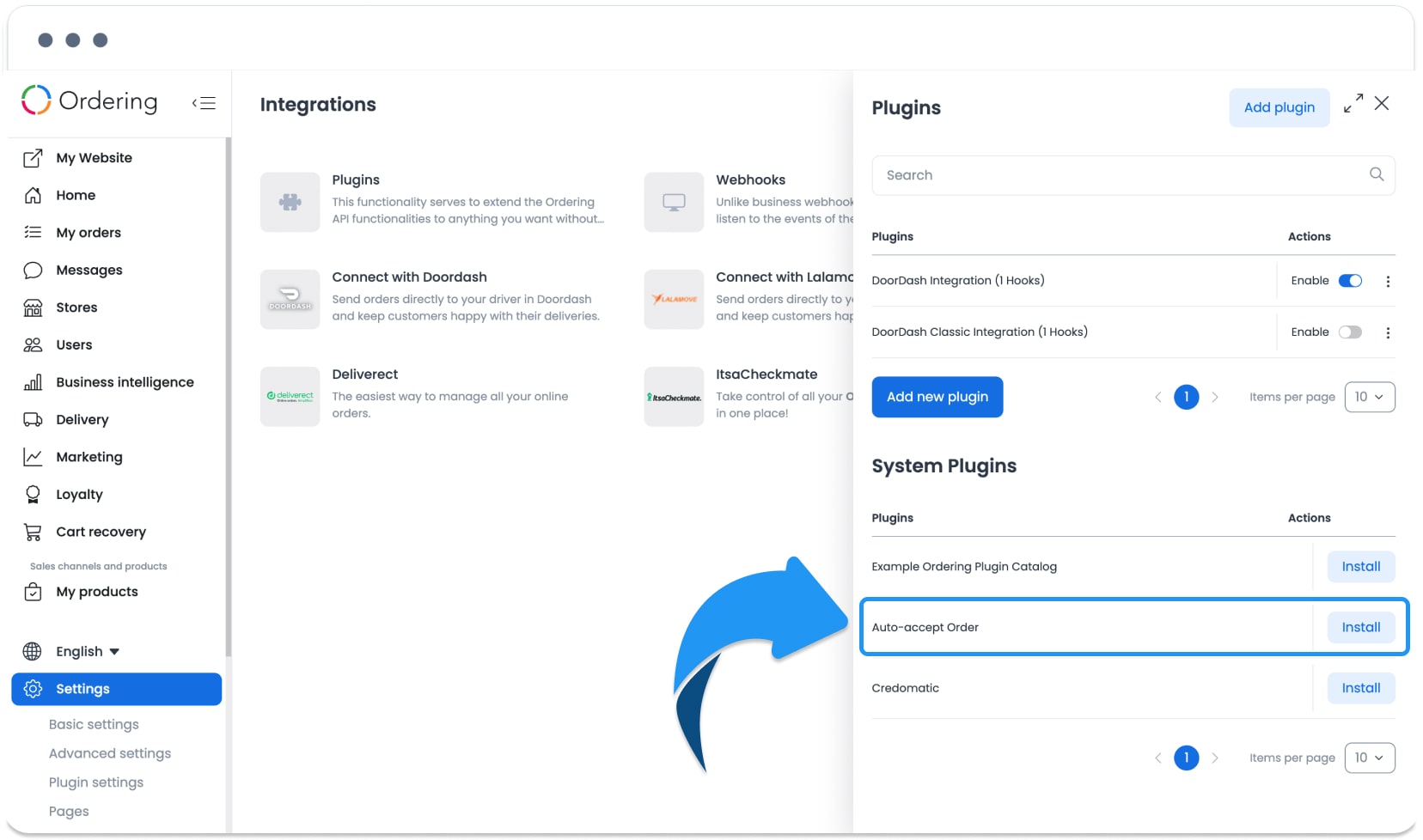
- In the Dashboard, open the Integrations area and select Plugins.
- Find Auto-accept Order in the plugin list, then select Install.
Select an image to enlarge it.
- After installation, find the plugin in the list and turn on Enable.
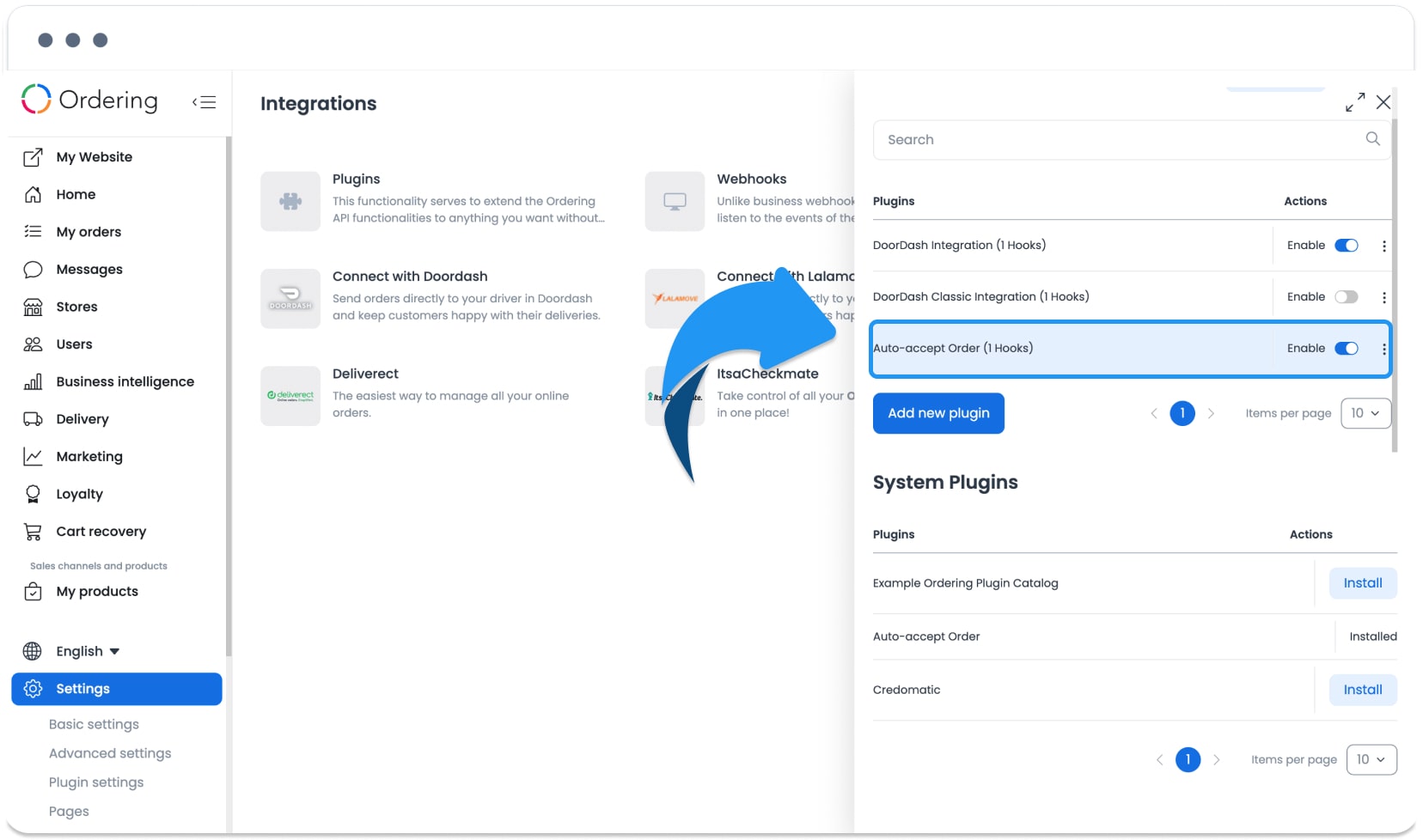
The switch confirms the configuration shown in the dashboard. It does not confirm an order status, delivery assignment, notification, payment event, or physical fulfillment result.
Configure the API key securely
The plugin configuration shown in this workflow uses an API key. Treat the key as a credential, not as ordinary order information.
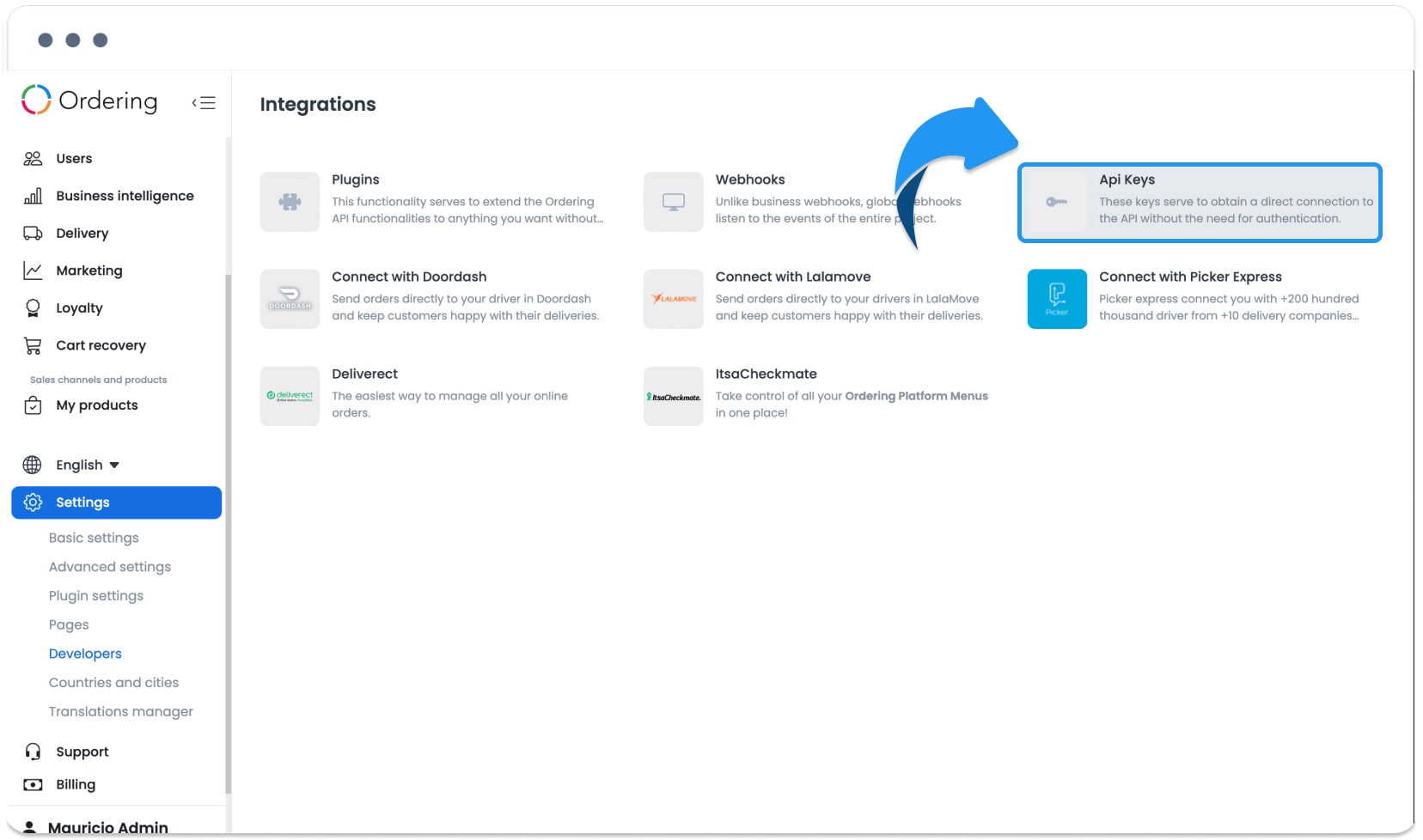
- From the Dashboard's Integrations area, open Developers and select API Keys.
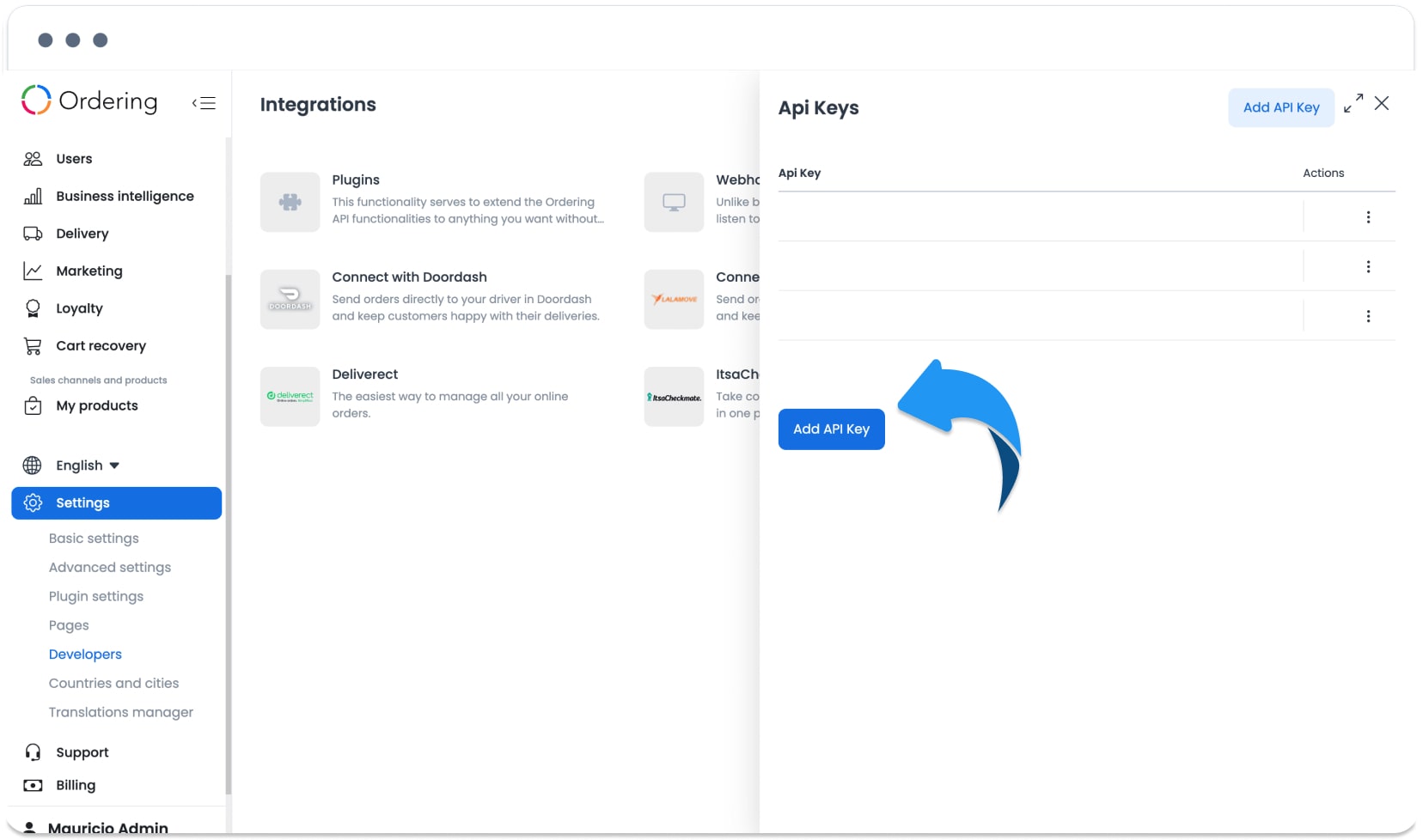
- Select Add API Key and follow your project's approved key-management process.
- Make the credential available to the plugin only through the approved configuration process. Do not expose, reproduce, or share its value.
- Return to Plugin settings, select Plugin Auto-accept Order setting, and open its settings panel.
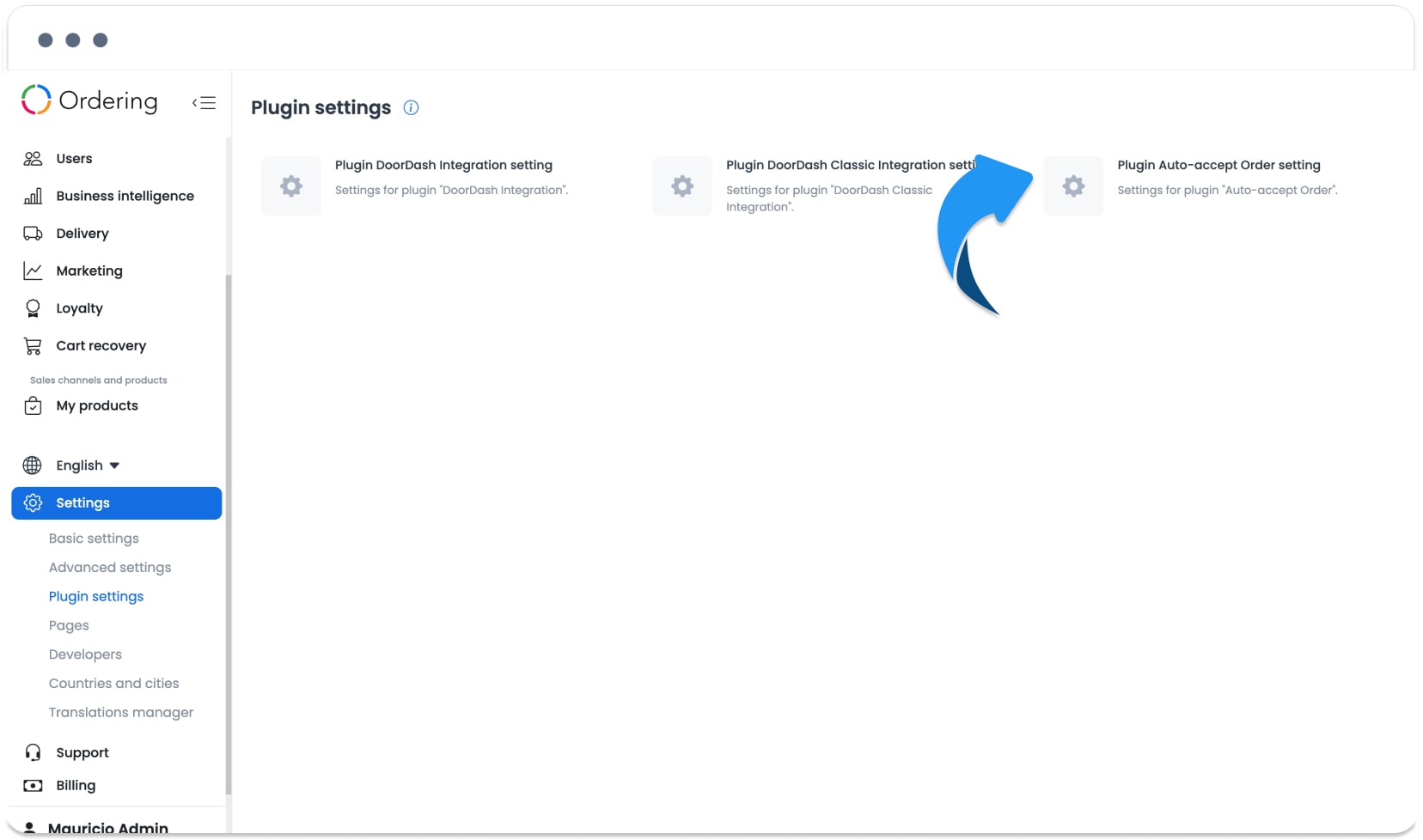
- Enter the credential through that approved configuration process and save the settings. A saved form is evidence only of the local configuration action; verify order behavior separately.
Check the order workflow without assuming the result
When the business needs to know what happened to an order:
- Open Orders, refresh the relevant queue, and find the intended order.
- Confirm its order number, business, current status, fulfillment type, and the information needed for the decision.
- Treat a plugin switch, a closed screen, a realtime update, a customer-facing message, or printer activity as a separate signal—not as the final order outcome.
- If the order is delivery-related, verify driver eligibility and assignment through the appropriate delivery workflow. Do not infer either from the business-side status.
- Keep payment handling separate. A displayed total, payment method, or payment event is not a payment receipt or instruction to collect, refund, or settle money.
Use Review an order before taking action to inspect the current order, Understand order queues and statuses to interpret the visible status, and Recognize a new order and open it safely to distinguish alerts from a current order record.
Keep manual and grouped flows separate
This configuration guide does not authorize a manual Accept or Accept all procedure. The current Business App evidence keeps those actions and their preparation-time behavior separate:
- A single-order Accept can change an order from Pending before the Preparation time screen opens. The later time request can fail or remain unverified even when the acceptance request changes the order.
- In a displayed order group, Accept all can open Preparation time and attempt the time for each supplied order. That attempt does not prove that every member changed from Pending to accepted.
- A grouped flow can return to the prior screen after one result slot per order, even when individual results failed.
- The time field can initially show 00:00. At the exact one-hour boundary, the display can normalize minutes to 59 while the submitted value still represents one hour.
- When automatic printing is configured, a returned single-order result can continue toward printer output. Neither a queued acceptance nor physical output proves that the order was fulfilled.
If any of those outcomes is unclear, do not repeat acceptance, a preparation-time update, or a print action. Refresh the order, preserve only the necessary visible status and time for the approved escalation process, and ask the project administrator or Ordering.co support to reconcile the result.
Troubleshooting
| What you observe | Safe next action |
|---|---|
| Auto-accept Order is not visible | Confirm the intended dashboard scope and access with the project administrator. Do not assume the feature is enabled elsewhere. |
| The plugin is enabled, but an order result is uncertain | Refresh Orders, reopen the intended order, and verify its current status before making another change. |
| A manual or grouped screen closes unexpectedly | Treat screen closure as navigation only. Check each intended order separately and do not repeat the action while its status is unknown. |
| Preparation time is missing or differs from what you entered | Do not correct it from the same uncertain flow. Refresh the order and escalate the visible status and time. |
| A notification, message, or printer signal is missing | Verify the saved order status first. Follow-up channels and physical output can settle separately. |
| A map, address, or location looks unexpected | Do not use it as a delivery or tracking receipt. Verify the order's current fulfillment context through the authorized workflow. |
| Payment information looks unexpected | Do not infer collection or settlement from the order view. Use the business's approved payment reconciliation process. |
Related articles
- Review an order before taking action
- Understand order queues and statuses
- Recognize a new order and open it safely
- Loading, connection, empty, and error states
- Accept or reject a delivery request
For the product overview, see Auto-accept orders on Ordering.co.