General settings
Configure regional, measurement, fee, time, and order settings.
Use General Settings to configure regional, measurement, fee, time, and order behavior for the account.
This guide explains each feature shown in the General Settings menu.
Step-by-step configuration
1. Currency & localization
Setting your currency is the foundation of your financial reporting and customer pricing.
- How it works: Locate the Currency section. Here, you can specify the symbol used across the platform (e.g., $, £, €, or ₹).
- Action: Click the edit icon, enter your desired currency code (like "USD"), and click the checkmark to save.
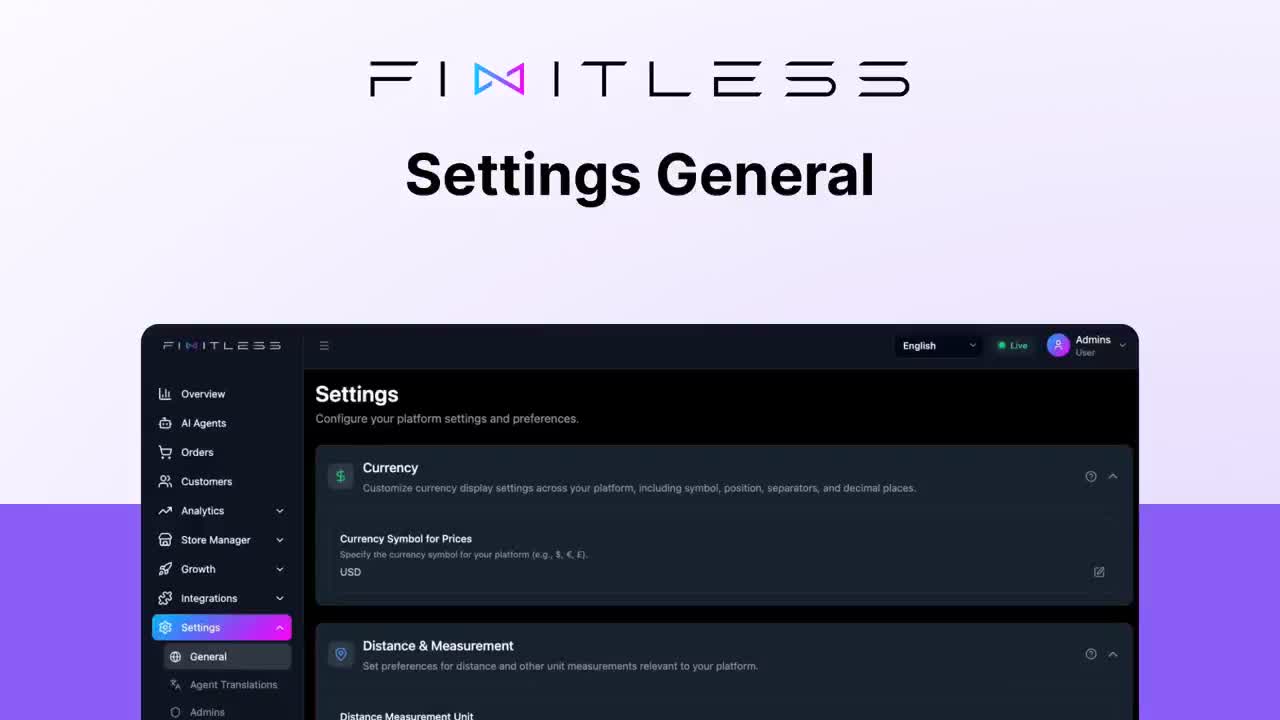
2. Distance & measurement
Depending on your region, you may need to switch between Metric and Imperial systems.
- How it works: Under Distance & Measurement, you can toggle between Kilometers (KM) and Miles (MI).
- Action: Use the dropdown menu to select the unit that aligns with your local infrastructure and driver expectations.
3. Fee & tip management
Financial transparency is key for both drivers and customers. Ordering.co allows you to define how tips are structured.
- Driver Tip Configuration: Set predefined tip options for customers (e.g., [5, 10, 15] units).
- Driver Tip Format: Choose between a Percentage Fee or a Fixed Fee.
- Custom Tip Amount: Toggle the "YES/NO" option to allow customers to manually enter a tip amount not included in your presets.
4. Date & time format
Precision in scheduling prevents logistical errors.
- How it works: You can adjust both the General Date Format and the General Time Format (switching between 12-hour and 24-hour clocks).
- Action: Select the format used by your team for pickup and delivery schedules.
5. Order types & pre-ordering
Control how and when customers can interact with your services.
- Default Order Type: Set your primary service (e.g., Pickup or Delivery).
- Advanced Order Schedule: This section allows you to enable Pre-ordering. You can set the "Maximum Preorder Days"—for instance, allowing customers to schedule a service up to 8 days in advance.
Best practices, tips, and tricks
To get the most out of your Ordering.co dashboard, consider these strategic approaches:
- Consistency is Key: Ensure your Time Format matches the format used in your physical storefront or warehouse to avoid confusion during shift handovers.
- Configure Tip Options: If tipping applies to your operation, use Custom Driver Tip Amount to let customers enter an amount outside the presets.
- Review Pre-orders: Use Advanced Order Schedule to set how far in advance customers can place an order, then account for those orders in staffing and inventory planning.
- Set the Pickup Radius: Use Maximum Pickup Distance to define the distance your operation accepts for pickup orders.
Conclusion
Review the currency, measurement, fee, time, order-type, and scheduling values together before applying them to live operations.