Create a WhatsApp AI agent
Connect, configure, and test a WhatsApp AI agent.
Deploy AI agents across communication channels
The AI Agents feature is the core of this ecosystem, allowing brands to deploy specialized virtual assistants across multiple communication channels.
By integrating these agents, restaurants can automate order taking, answer menu inquiries, and maintain a consistent brand voice without manual intervention.
Step-by-step feature guide to create a WhatsApp AI agent
The Ordering.co dashboard is designed for high-level monitoring and granular control. Here is how to navigate and utilize the primary functions of the AI Agent module:
1. Performance Monitoring Upon entering the AI Agents tab, you are presented with a grid of all active and inactive agents. Each card displays real-time Performance Metrics, specifically the Conversion Rate (percentage of chats resulting in an order) and the Average First Response Time. This allows managers to identify which brand agents are performing efficiently at a glance.
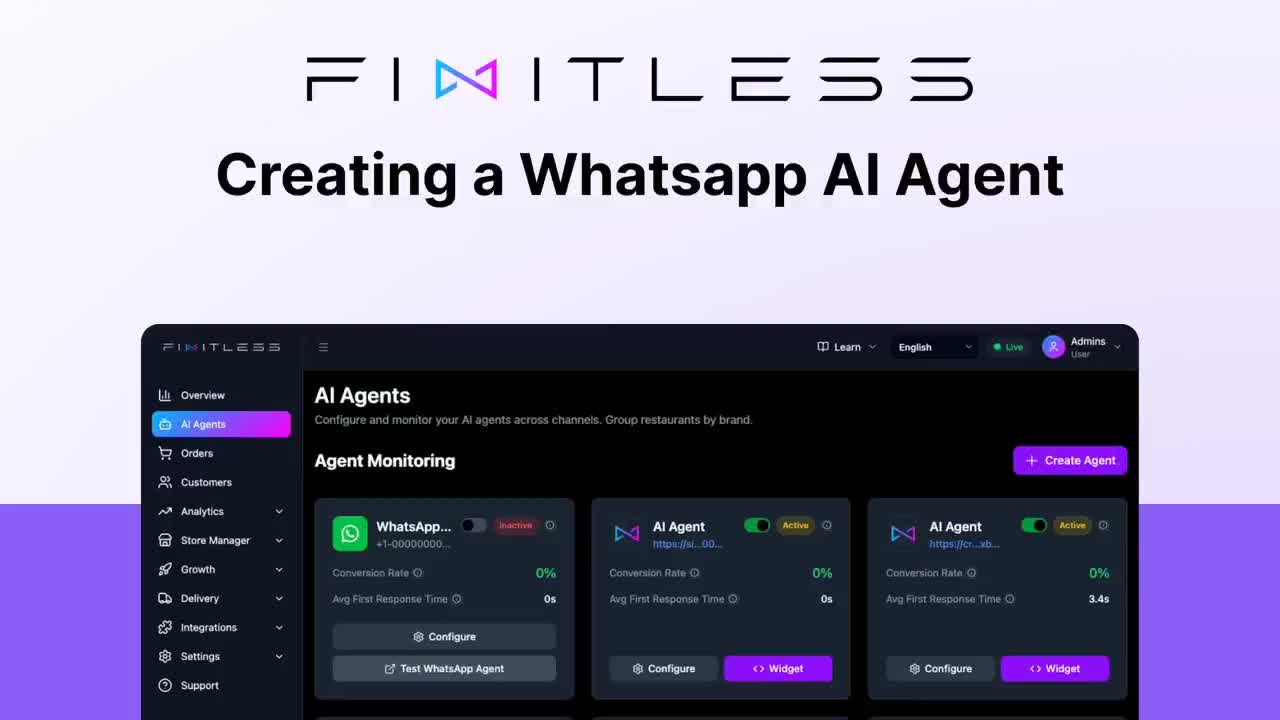
2. Creating a New Agent By selecting the "Create Agent" button, you initiate a guided setup. You first define the Channel (such as WhatsApp) and then assign the agent to a specific Brand within your portfolio (e.g., Pizza Hut or Domino’s). A simple toggle allows you to enable or disable the agent instantly.
3. Choosing Authentication Methods Ordering.co offers two ways to connect your brand to the messaging platform:
- WhatsApp Business Login (Recommended): A streamlined OAuth flow that connects directly via Meta for a more stable connection.
- Manual Credentials: For advanced users, this option allows the manual entry of a Channel External ID, Phone Number, and Access Token.
4. Language and Localization Set the Agent Default Language in the configuration settings, then test the responses for the intended audience.
5. Real-Time Testing Before going live, the Test WhatsApp Agent feature generates a unique QR code. Scanning this code allows you to interact with the AI in a sandbox environment, ensuring the menu logic and response flow meet your standards before customers ever see them.
Tips and tricks for success
- Review Zero Values: If the dashboard shows a
0sresponse time and0%conversion rate, confirm whether the agent has received traffic and whether the published WhatsApp number is correct. - Use Manual Credentials for Staging: Use the Manual Credentials option if you are testing a secondary line before committing your main business number to the Meta OAuth login.
- Language Consistency: Confirm that the default language is appropriate for the selected restaurant and its intended audience.
Best practices
- Keep Tokens Updated: If using manual authentication, set a calendar reminder to refresh your Access Tokens, as expired tokens will cause the AI agent to go offline (status: Inactive).
- Monitor Response Time: Review the displayed response time during peak hours and investigate material changes in API throughput or connectivity.
- Disable During Maintenance: If a specific restaurant location is undergoing maintenance or is out of stock, use the "Enable Agent" toggle to gracefully take the bot offline rather than letting it provide inaccurate information.
Conclusion
Use the AI Agents dashboard to review agent status, connection method, language, and test results before enabling a WhatsApp agent for customer use.