Create a support ticket
Send a support request with the details needed for review.
Choose a support path
Use the Help Center for documented procedures, or send a support request when the issue needs account-specific review. This guide explains the options shown on the Support page.
Navigating the support suite
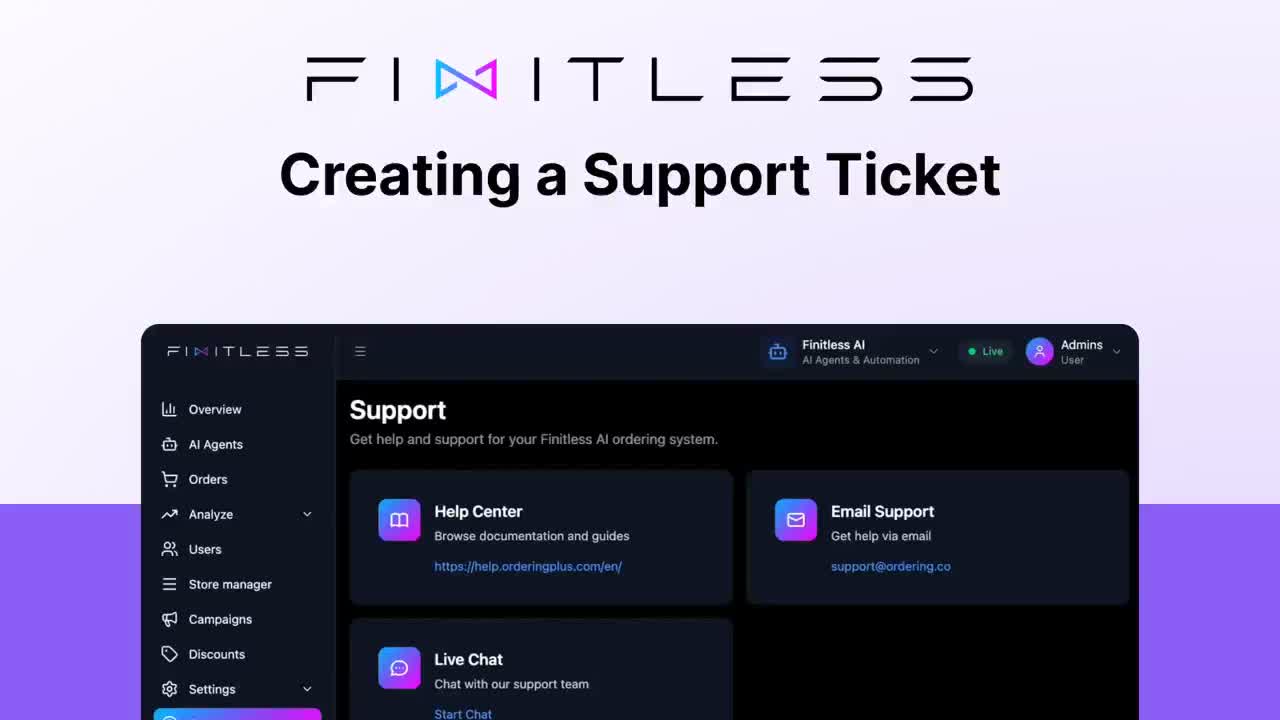
Our support page is designed as a "one-stop shop," offering three distinct levels of assistance depending on the urgency and complexity of your needs.
1. The help center (self-service)
Located at the very top of the support page, the Help Center is your first line of defense. It serves as a comprehensive digital library filled with:
- Detailed technical documentation.
- Step-by-step masterclasses and guides.
- Answers to frequently asked questions.
2. Direct communication channels
If your query requires a human touch, we offer two primary ways to connect:
- Email Support: Ideal for non-urgent inquiries or detailed documentation.
- Live Chat: Use the chat option for questions that benefit from a direct conversation.
3. The support request (ticket system)
For specific technical issues or platform-related tasks, the Support Request feature allows you to open a formal ticket with reproducible details.
Step-by-step: creating a support ticket
Follow these steps to give the support team the context needed to review your request:
- Initiate: Open the chat interface and select Support Request.
- Contact Info: Provide your contact email so we can send you updates.
- Identify Your Project: Include your project email and platform domain. This allows our team to dive straight into your specific environment without asking for credentials later.
- Define the Issue: Enter a clear, descriptive title and a detailed description of what you need.
- Attach Visuals: Use the Add File button to upload screenshots or screen recordings. A picture is often worth a thousand words in technical support.
- Contextualize: Indicate if your platform has custom work and select the specific product you are using.
- Submit: Click Create Ticket. Our team will be notified immediately and begin the investigation.
Best practices & tips for success
Use these fields to make the request easier to route and reproduce:
| Feature | Best Practice | Why it helps |
|---|---|---|
| Title | Use a "What & Where" format (e.g., "Menu Sync Error in Dashboard"). | Helps route the ticket to the relevant specialist. |
| Attachments | Record a short video of the path to the error. | Shows the steps and visible result. |
| Custom Work | Always mention if you have custom code or integrations. | Prevents us from suggesting standard fixes that might break your custom setup. |
| Help Center | Search the Help Center before opening a ticket. | A documented procedure may already cover the issue. |
Conclusion
Choose the Help Center, chat, or a support request based on the context your issue requires. Include reproducible details without sharing credentials.