Track orders by driver group and delivery type, and export them to Excel
Your team needs to see which driver group handled each order, separate delivery from pickup, and share the numbers in Excel. The orders list does all three.
1. Show the columns you need
Open Orders → Orders list. The Driver group column shows which group handled each delivery.
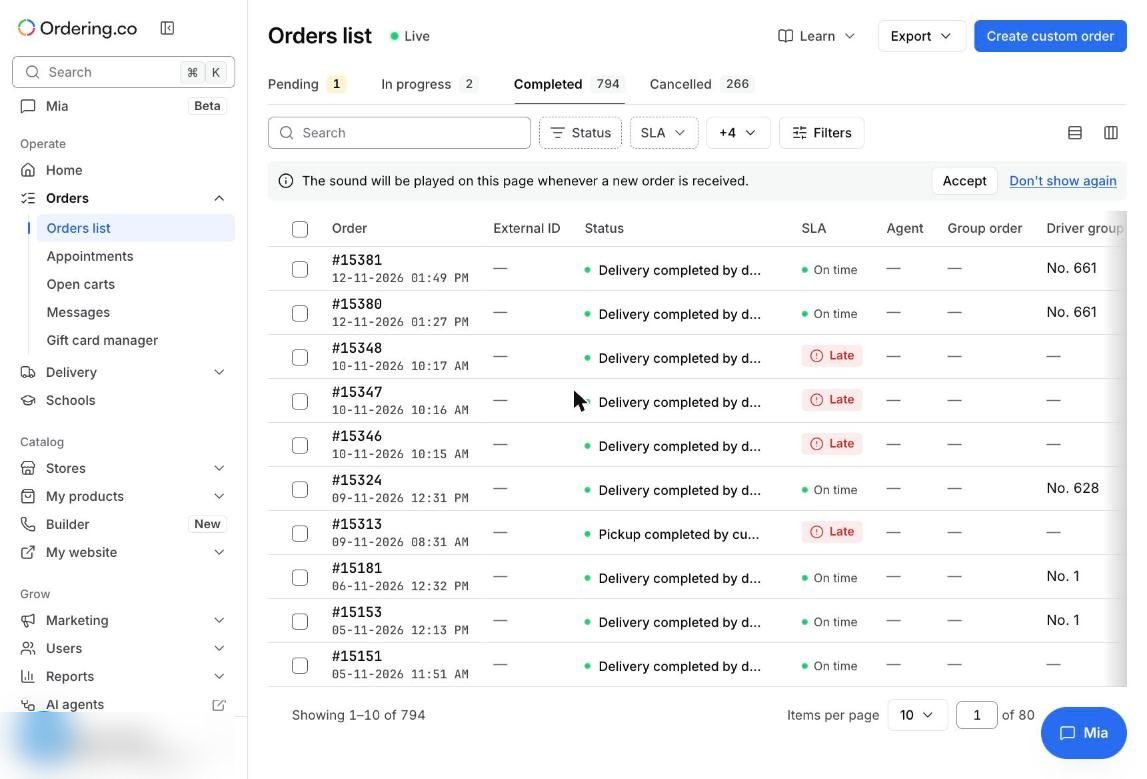
Click the columns icon to show, hide, and reorder columns, such as driver group, business, customer, driver, channel, and total.
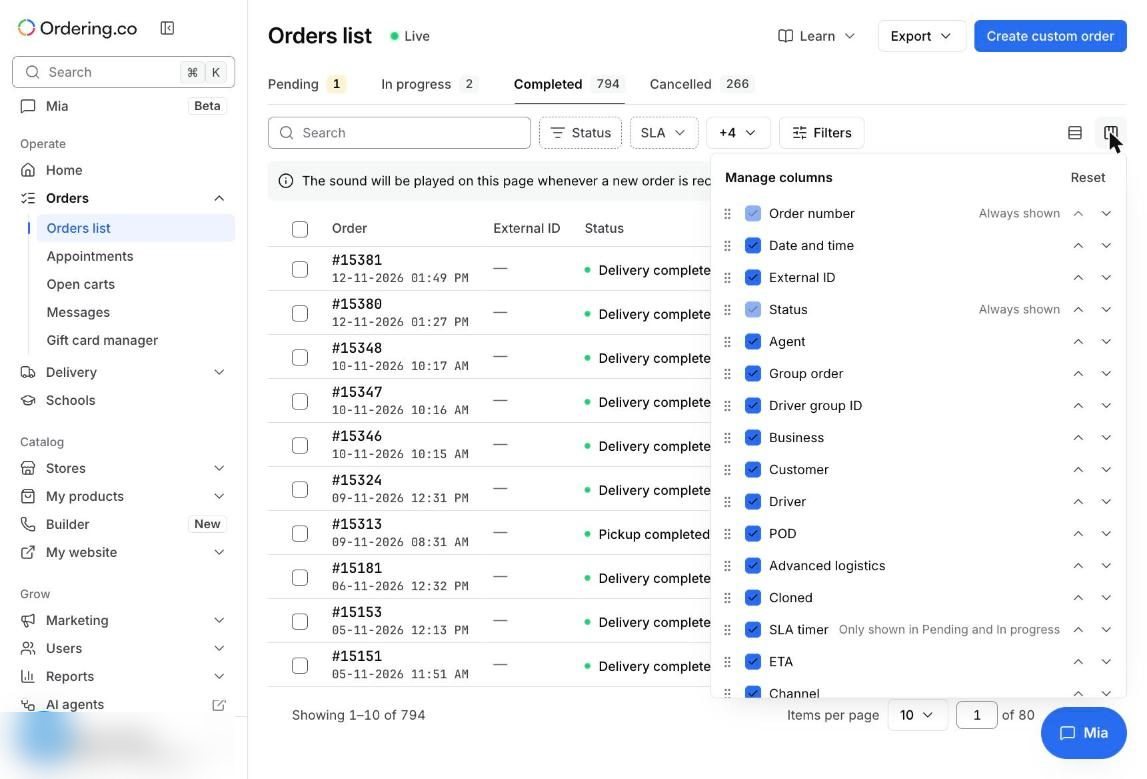
2. Filter by delivery type or driver group
Click Filters. Delivery type separates delivery from pickup, and Driver group (assigned) under Logistics shows one group's orders. Click Apply.
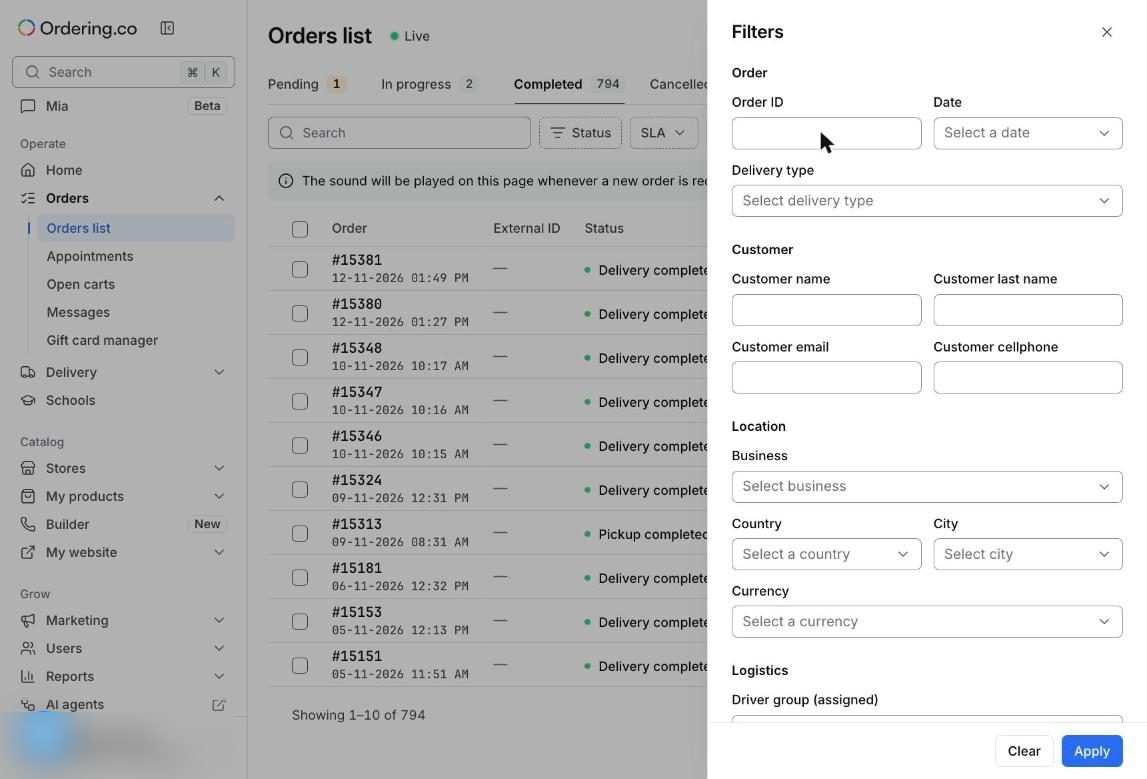
3. Export to Excel
Click Export, then Export all or Export filtered, with or without metafields. The CSV file opens in Excel.
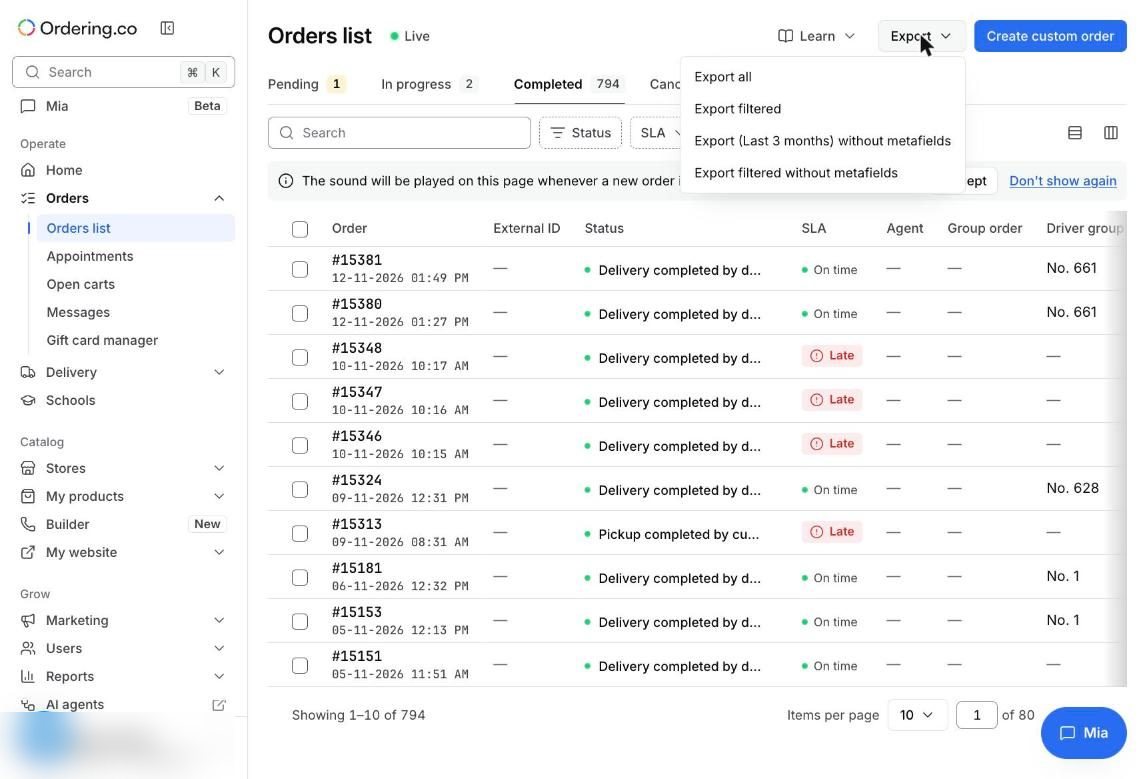
See Export orders.
4. Check one order in detail
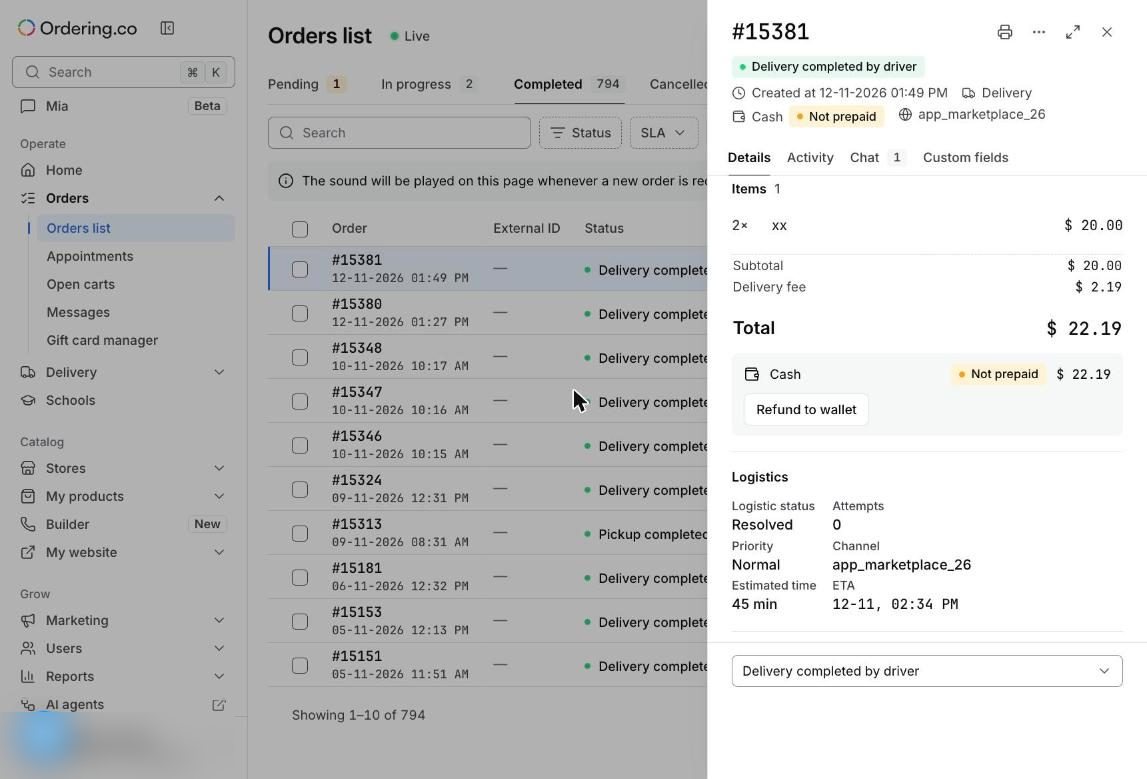
Click an order to see its type (delivery or pickup), payment method, items, fees, and status.
Illustrative example
At the end of the week, a dispatcher filters Delivery type: Delivery and one driver group, exports the filtered orders, and shares the file with that group's lead to review late deliveries.
Check that it works
- Apply a filter and confirm the count matches what you expect.
- Export filtered orders and open the file to check the columns you need are there.
Limits to keep in mind
- Export filtered uses the filters applied at the moment you export.
- To share data outside your team, remove the customer columns you don't need from the file first.