Delivery zones and fees
Zones decide who can order delivery from each store and what they pay. Customers outside every zone of a store simply do not see it for delivery.
Where: Stores › store › Delivery, pickup & more › Zone
Zone types
| Type | How it works | Best for |
|---|---|---|
| Circle | Click the store and drag the radius. | A fast first launch |
| Polygon | Click points on the map to draw the exact area. | Following roads, skipping a river or highway |
| Distance-based | Fee and minimum change with distance from the store. | Fair pricing over a wide area |
| Everywhere | Delivers to any address. | National shipping, rarely for food |
Create layered zones
Each zone has its own delivery fee and minimum order. Layer several zones so nearby customers pay less and distant orders are worth the trip.
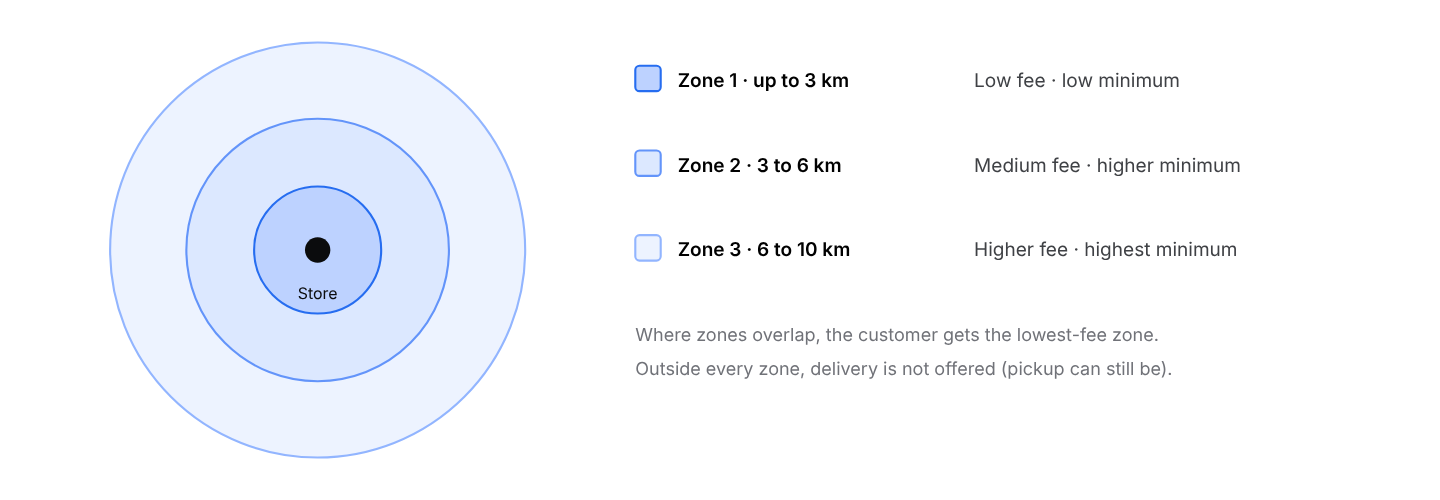
Layered zones. Example structure only; set fees and minimums that fit your market.
- Open the store's zones and click to add a zone.
- Choose the type and draw it.
- Set the delivery fee and minimum order.
- Add the next zone with a larger area, higher fee, and higher minimum.
- Set the store's estimated delivery time. It is the total time the customer sees, from order to door.
Share zones between stores
Many merchants in the same neighborhood can use the same zones. Open a zone, use its Share with tab, and choose the stores. The zone's name, type, fee, minimum, and area are copied to them. This is also the fastest way to add zones to a duplicated store.
Test the edges
- An address just inside a zone shows the right fee
- An address just outside gets no delivery (pickup can still show)
- No gaps or overlaps you did not intend
- Zones match real drive times, not just straight-line distance
It is far better to launch with a slightly smaller, reliable area and expand once merchants and drivers find their rhythm than to promise too much, deliver late, and collect bad reviews in week one.