Help stores see and accept new orders faster
Some orders wait too long because the store didn't notice them. Make the Business App repeat the new-order alert until someone reacts, and know which setting does what.
Who this is for
Marketplaces where stores accept orders from the Business App, and some orders stay pending for too long.
1. Repeat the new-order alert
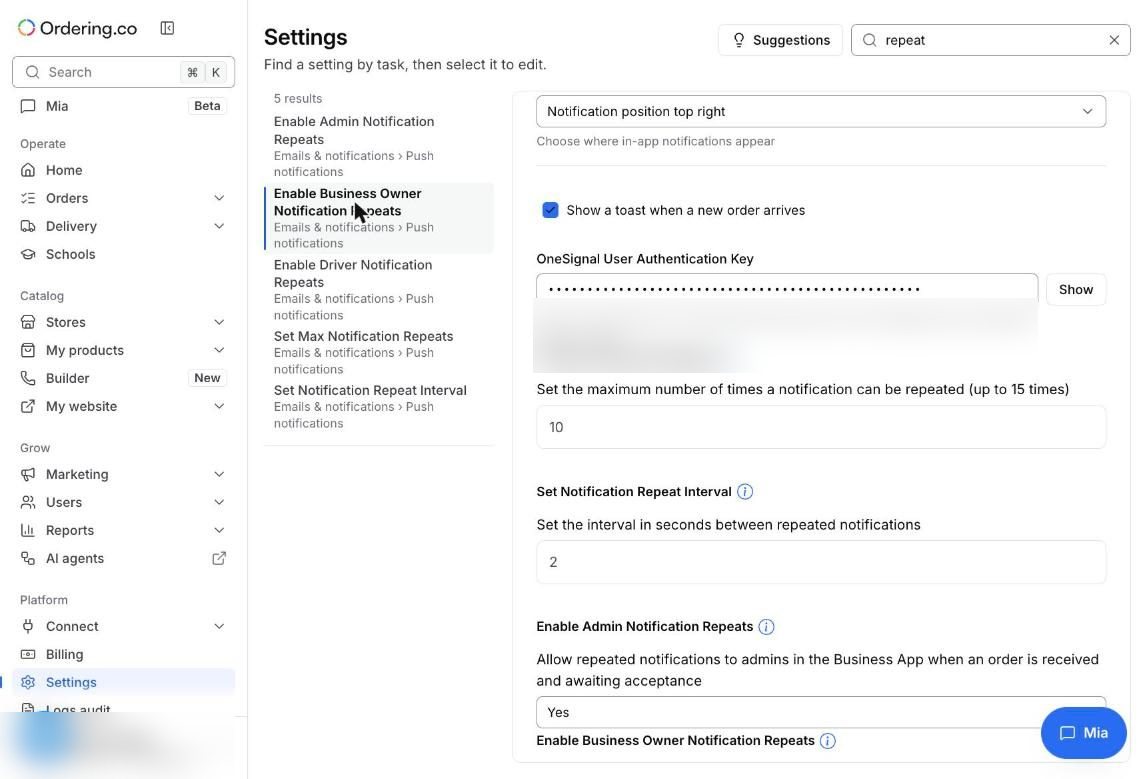
Open Settings → Emails & notifications → Push notifications, or search for repeat in Settings.
- Set Max Notification Repeats: how many times the alert repeats, up to 15.
- Set Notification Repeat Interval: the seconds between repeats.
- Enable Business Owner Notification Repeats and Enable Admin Notification Repeats: who receives the repeated alerts in the Business App while an order awaits acceptance.
See Push notifications for the full setup.
2. Know what "Expire order after minutes" does
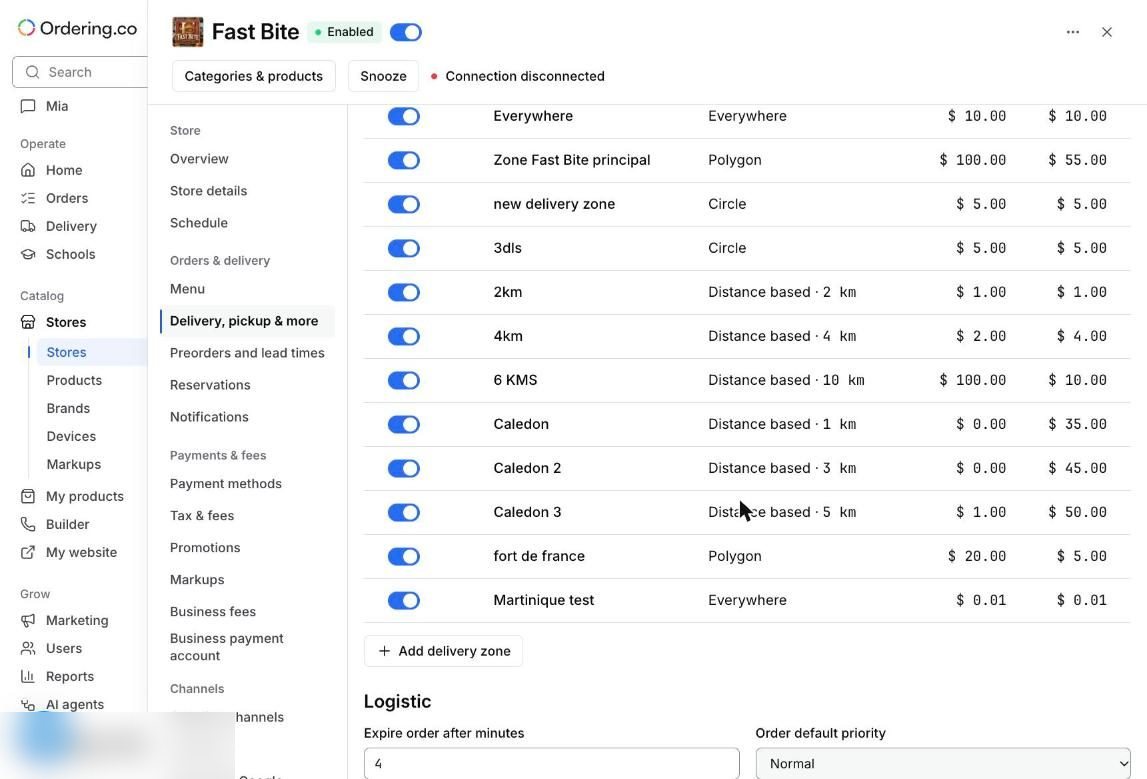
In each store, Delivery, pickup & more → Logistic has Expire order after minutes. It controls automatic driver assignment: when the time runs out, the platform stops trying to assign a driver automatically, and you assign one by hand.
It doesn't cancel, reject, or refund the order.
Illustrative example
A marketplace sets 10 repeats every 30 seconds for business owners. A store's tablet now rings for five minutes after a new order arrives, instead of once.
Check that it works
- Place a test order and leave it pending on a Business App device.
- Count the alerts and the time between them.
- Accept the order and confirm the alerts stop.
Limits to keep in mind
- Alerts reach devices where the Business App is installed, signed in, and allowed to send notifications.
- Pair repeated alerts with email alerts and ticket printing where stores use them.