Close stores for a holiday or a rush, and reopen them automatically
A store is overwhelmed, a holiday is coming, or an area can't be served for a few days. Pause the store with Snooze, adjust its Schedule, or switch off a delivery zone, and let it reopen on its own.
When customers can't order
Customers can't order from a store when:
- it is closed by its schedule, or snoozed;
- it is disabled;
- the customer's address is outside every active delivery zone, or the cart is below the zone's minimum.
A disabled store disappears from the app. A store closed by its schedule stays visible as closed, and customers can pre-order when pre-orders are on.
1. Snooze a store for a few hours or until a date
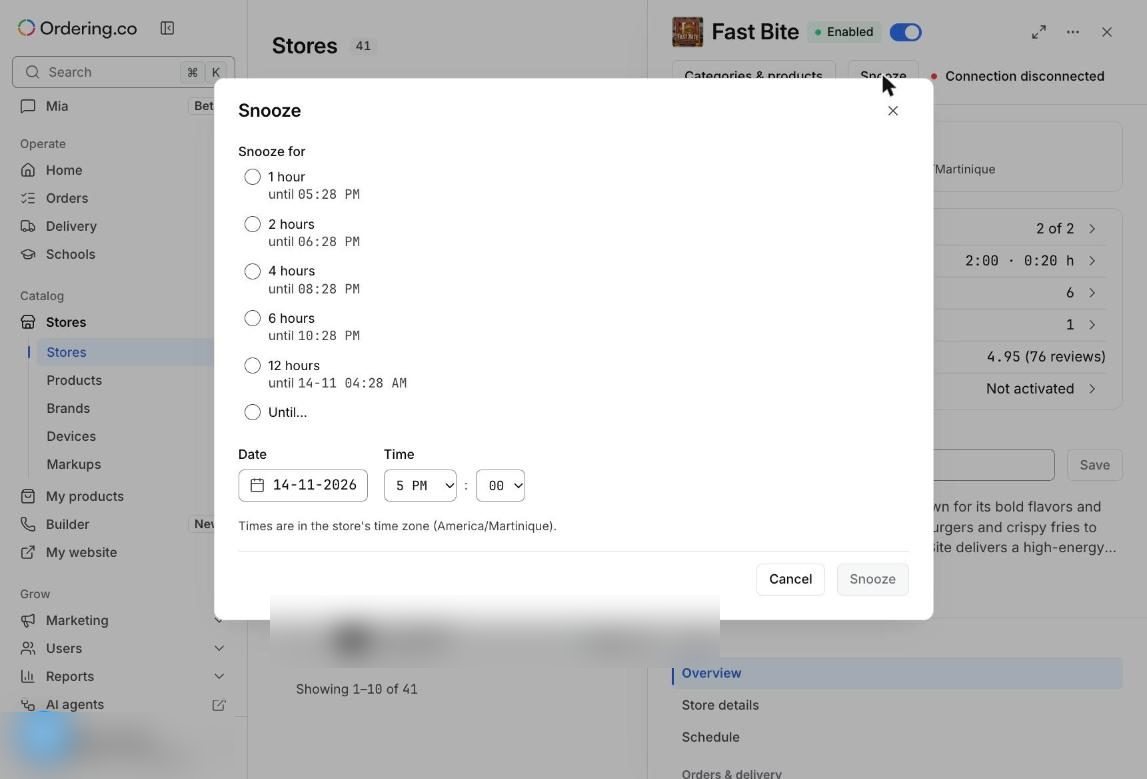
Open Stores → Stores, choose the store, and click Snooze. Pick 1, 2, 4, 6 or 12 hours for a rush, or Until… with a date and time for a holiday, such as the end of a festival. The store reopens on its own at that time. Times use the store's time zone.
2. Adjust the regular schedule
In the store, open Schedule. Switch a day off to close all day, use Add hours for split shifts, and Copy hours to… to reuse a day.
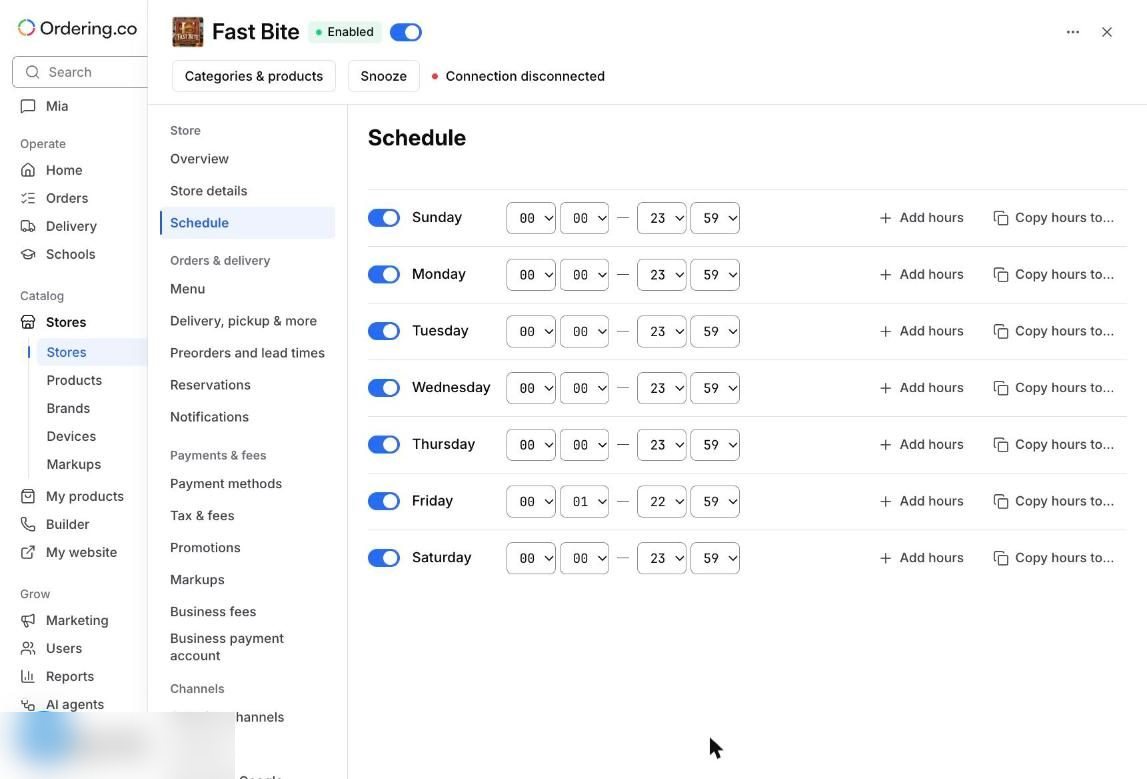
See Schedule for more options.
3. Stop delivery to one area
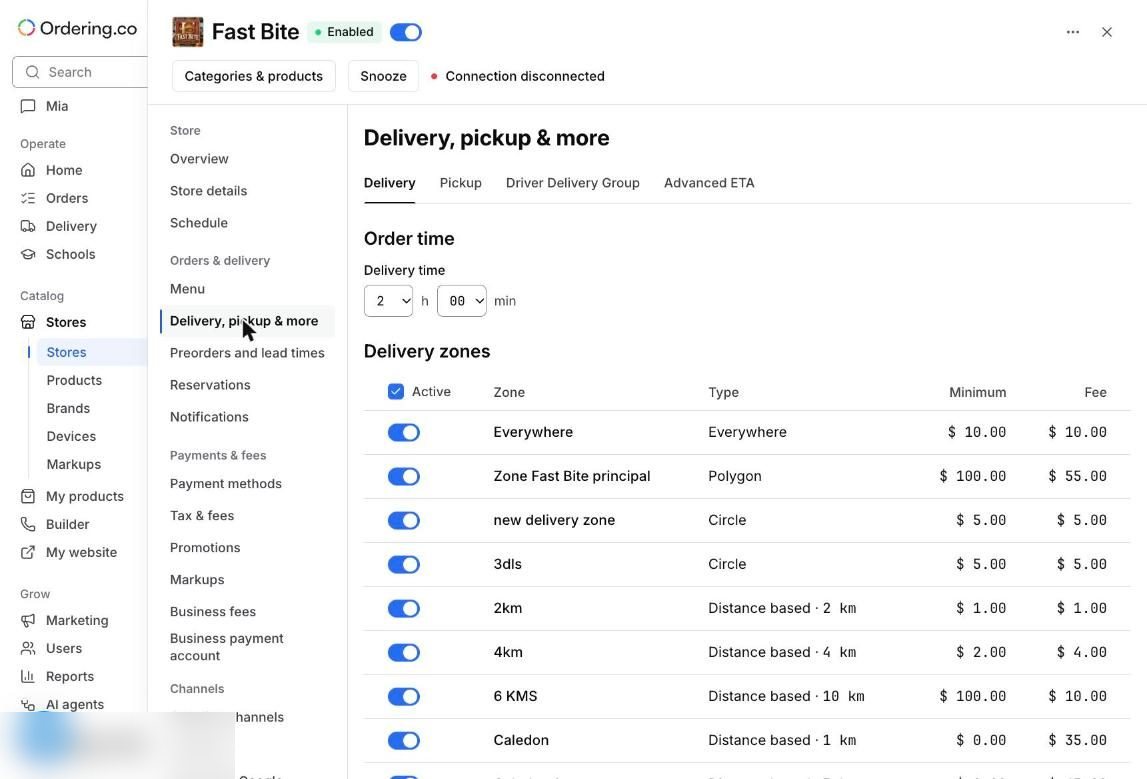
In the store, open Delivery, pickup & more → Delivery zones. Each zone has its own switch: turn it off and customers in that area can't order delivery from this store. Turn it back on when you can serve the area again.
Illustrative example
For a two-day holiday, a marketplace snoozes each participating store Until the morning after, at opening time. For a road closure, it switches off the affected zone in each store that delivers there, and switches it back on when the road reopens.
Check that it works
- From a customer account, check that the snoozed store shows as closed.
- Enter an address inside the switched-off zone and confirm delivery isn't offered.
- After the snooze time, check that the store takes orders again.
Limits to keep in mind
- Snooze and zone switches are set per store. Repeat them in each store involved.
- Times follow the store's time zone, not yours.