Run a buy-one-get-one offer and keep the store badge accurate
A store wants to run "buy one, get one free" on selected products, and show it on its card in the app. Create the offer from a template, check what customers will read, and manage the store's badge separately.
1. Create the offer from a template
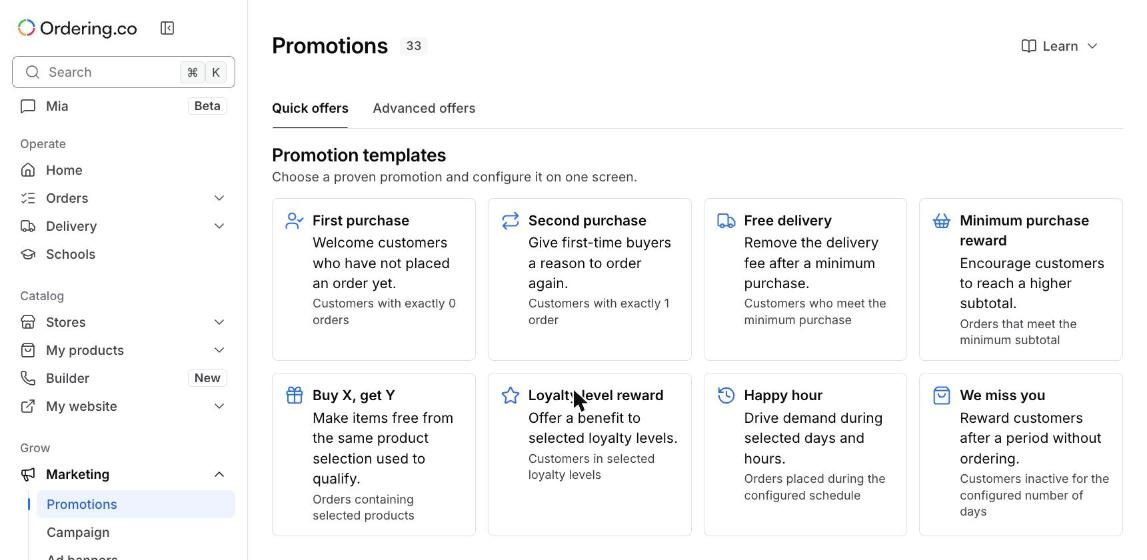
Open Marketing → Promotions → Quick offers and choose Buy X, get Y.
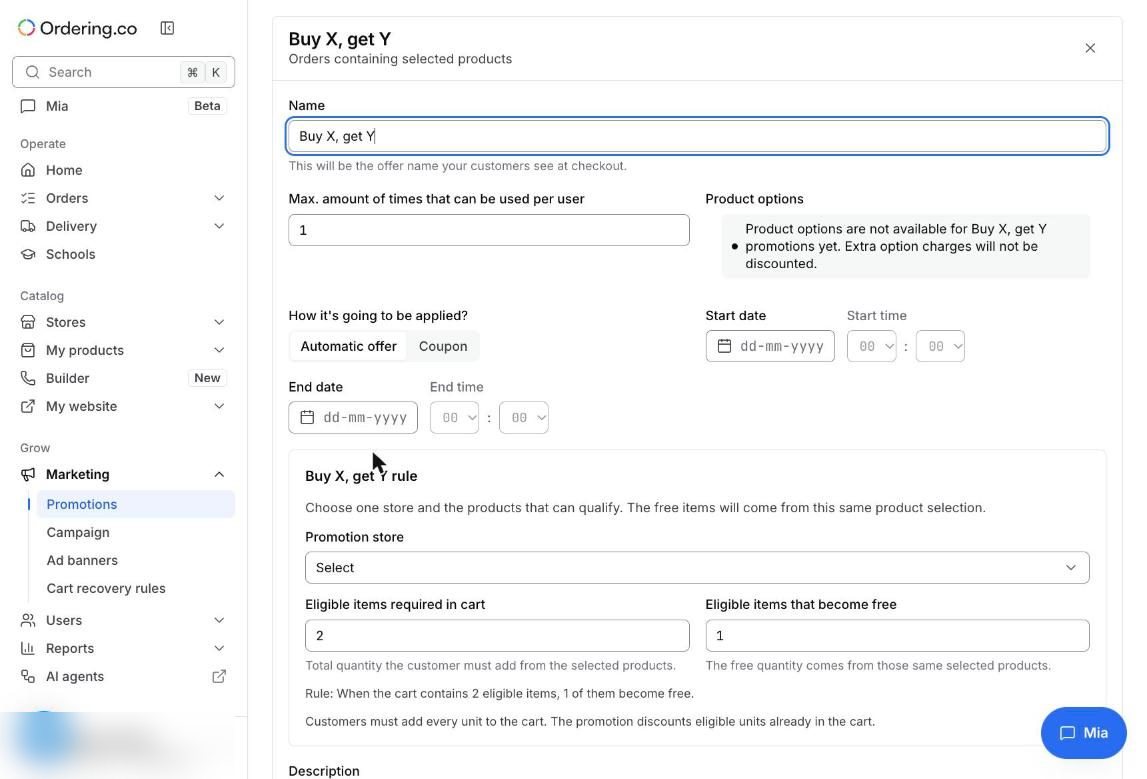
Name the offer, choose Automatic offer or Coupon, set the dates, and pick the Promotion store and its products. For buy one, get one free, set Eligible items required in cart to 2 and Eligible items that become free to 1.
2. Check the customer description
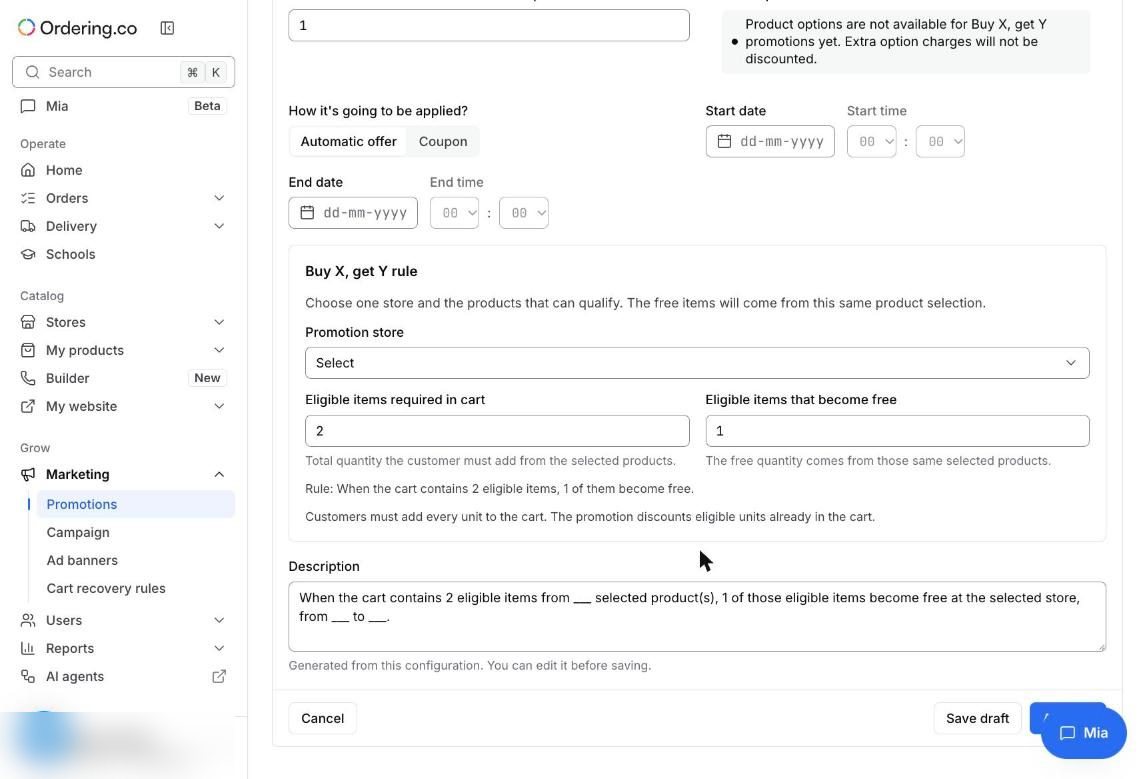
The description is written for you from the rule, and you can edit it. Keep it to one clear sentence: what to buy and what's free.
See Quick offers for saving drafts and activating.
3. For more control, use Advanced offers
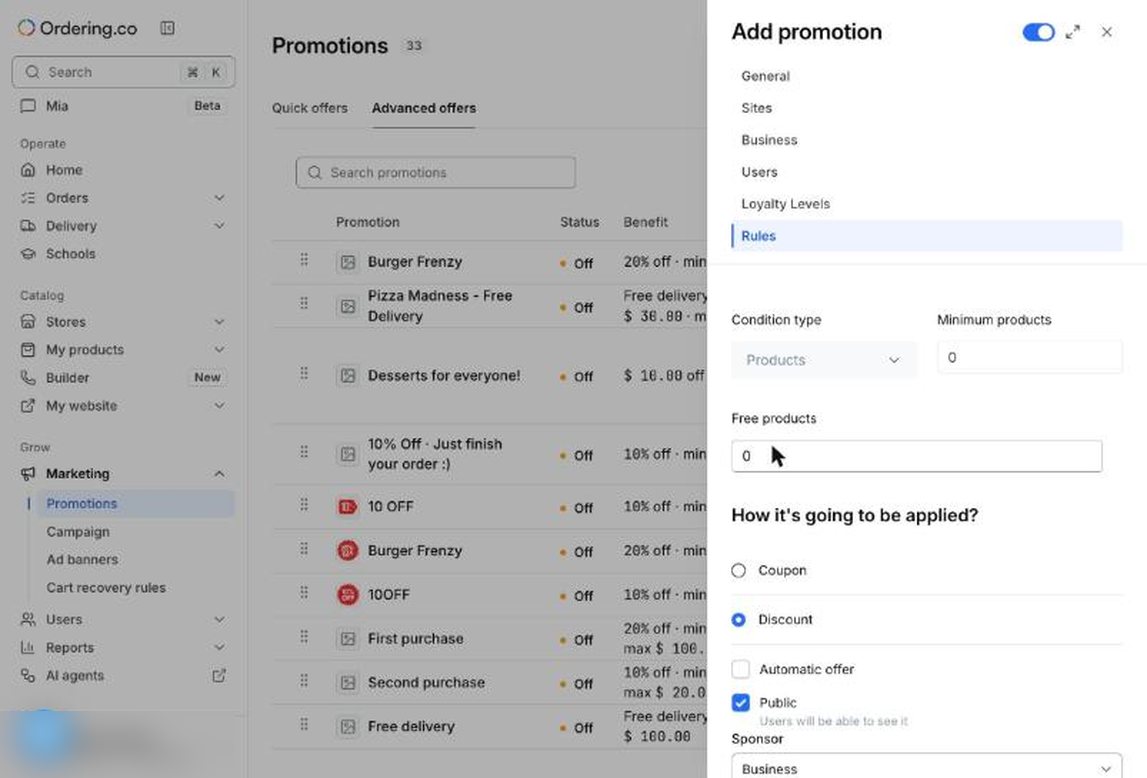
To also limit the offer by site, user, or loyalty level, open Advanced offers → Add promotion → Rules, set Condition type to Products, then set Minimum products and Free products.
See Create or edit an advanced offer.
4. Set which offer comes first
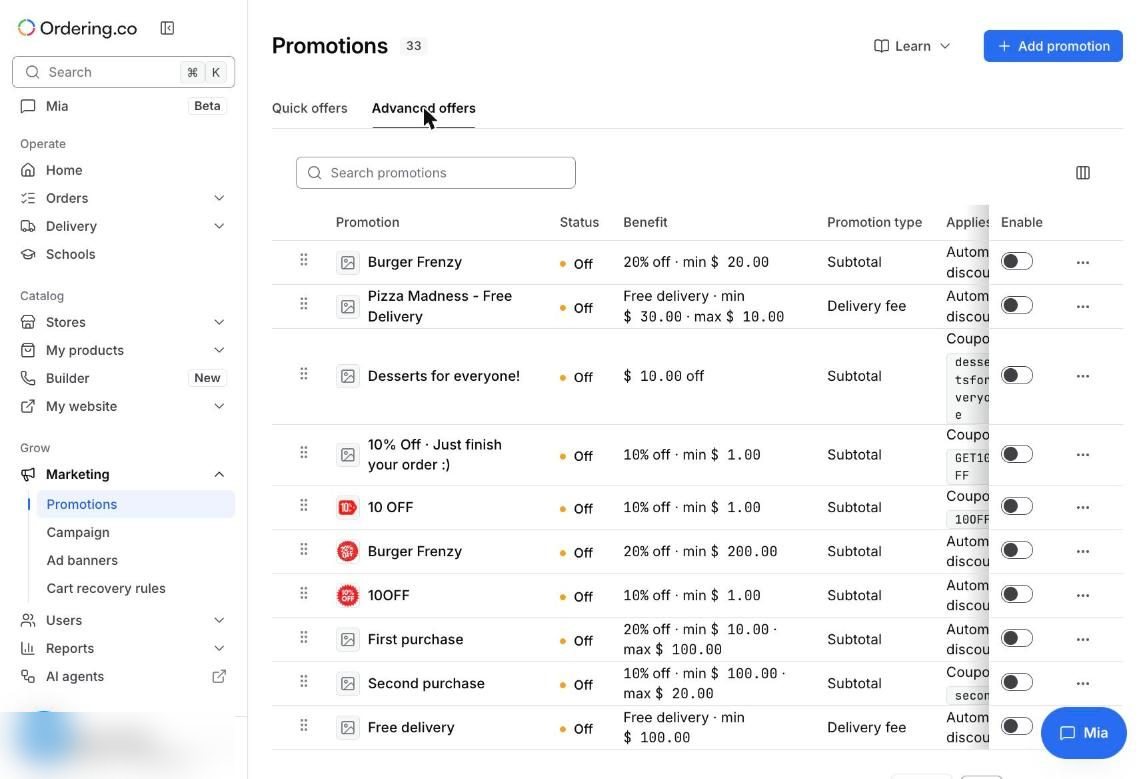
Advanced offers lists every promotion with its benefit. Drag the handles to reorder them: the order sets the priority.
5. Update the store badge
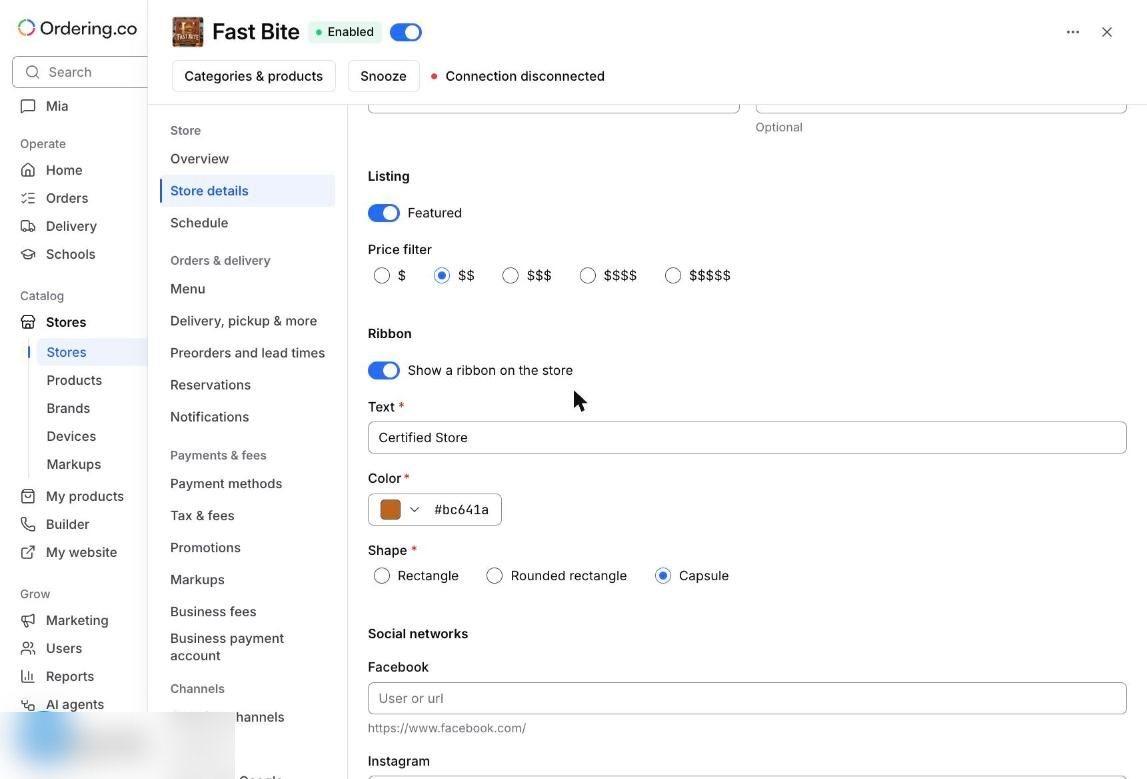
The badge on a store card is the store's Ribbon, in Stores → store → Store details → Ribbon: text, color, and shape. It is set by hand and isn't linked to any promotion, so change it or switch it off when the offer ends.
Check that it works
- Add two eligible products to a test cart and check that one becomes free.
- Add one eligible product and check that nothing is discounted.
- After the end date, check the offer no longer applies, and update the ribbon.
Limits to keep in mind
- A buy-one-get-one offer can't also require a minimum order subtotal in the same promotion.
- Product options aren't discounted in Buy X, get Y offers.
- The ribbon stays until you change it, even after the offer ends.